Here are the first lines of all 14 songs. Recognize any?
Cassius Clay was hated more than Sonny Liston.
Sometimes I walk around town looking at faces.
He had a haircut like Martin Van Buren.
Come gather ’round me, people, here’s a story you never heard.
Dear Elaine, what have I done.
We drag our arrows up to the edge of town.
You know you sell yourself too short.
Wasted Words about an old love affair.
Sun through the curtains I gave you a sign.
I want to hold the hand inside you.
You gave your best shot.
Mamma’s in the kitchen rattlin’ pans and the baby cries.
They met one night at a party.
Come on in buddy.
As I mentioned the other day, I am enjoying my Apple Watch.
But it’s not perfect. Here are the two biggest buzz kills.
That screenshot was taken today, June 4, 2015. If these apps and the corresponding Glances don’t automatically and seamlessly update, they are useless. This is not an isolated problem. It also happens with weather apps, among others.
The only thing worse than old data is no data. This is the rule and not the exception with some Apple apps (see above) and most third-party apps. They rarely update before the screen goes blank. I rarely have the perseverance to stick with it, and usually just give up.
And all of this happens within a foot or two from my iPhone.
Notifications are wonderful on the Apple Watch. Phone calls are remarkably functional. Apps, and most Glances, not so much.
I didn’t know Yahoo had a maps application, so I won’t miss it. I have no idea what GeoPlanet and PlaceSpotter are, so I can’t miss them. But I have always been a big fan of Yahoo Pipes, which TechCrunch describes as:
[A]n online (and somewhat geeky) visual interface that let you aggregate and filter web data without requiring the end user to have programming skills.
Yes, it was that, but it was a super-charged, very handy that. It allowed you to easily and graphically create bundles of RSS feeds that you could then syndicate for use in other places and projects. My original Headline News Page used Yahoo Pipes, as did numerous other content aggregations I developed over the years. Sure, I didn’t use it as much in the last few years (and, undoubtedly, therein lies the problem), but it was a cool service, and I liked knowing it was a tool at my disposal when needed.
I’m not sure what Yahoo’s long-term plan is, or what it’s trying to become. But I’m seeing fewer reasons to visit a Yahoo site, not more. Yahoo could have owned the personal portal space (which I am convinced is not as meager as mobile-first developers would have you believe). Yahoo ignored Flickr into near oblivion (though they are trying, at least for the moment, to revive it). Yahoo bought and starved Delicious to death. I’m not sure what’s left. But I know what’s gone.
Adios, Yahoo Pipes. You were cool. You will be missed.
If, like me, you have a ton of old audio files in Lucent Voice Player (.lvp) format, here’s how to access and play them on your Mac.
1. The Lucent Voice Player application (setup_lvpphone.exe) has been deprecated. So you need to find the player, if you don’t already have a copy. Search the file name in the parenthetical and you can find and download a copy. Proceed with caution, and consider scanning the download for viruses, etc. before you use it.
2. Buy a copy of the Mac app CrossOver. It’s $60, and there may be cheaper ways to run the Lucent Voice Player on a Mac, but Crossover supports lots of other Windows applications, so for me it was worth it.
3. Open the Crossover App, and select “Install a Windows Application” at the bottom of the window.
4. In the expanded list of applications, choose “Other Application,” near the bottom, under “Unsupported Applications.”
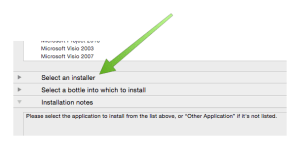
5. Choose “Select an installer,” and then Choose Installer File.
6. Navigate to and select the setup_lvpphone.exe file you downloaded in step 1.
7. Choose “Select a bottle into which to install.” For old stuff, I use XP and for newer stuff, I use Windows 7. Really old applications may need an older version of Windows. Be sure to name your “bottle” at the right hand side.
8. Click “Proceed” at the bottom.
9. Follow the prompts. These are the installation prompts you would see if you were a sad Windows user. Click “Done” when the installation is complete.
Then you should see a Lucent Voice Player icon in your Crossover Programs window (see the top image above). Click it, and magic happens.
From there, you can select File>Open and browse to the file you want to open. Even better, you can right-click on an .lvp file from the Finder and choose to open the file with the Lucent Voice Player.
Because I am the only tech-interested person amongst my real life friends, I often get asked tech questions, and am occasionally asked for recommendations with respect to hardware, software and ways ways to use the same.
I thought it might be time to do a series of posts describing the primary hardware and software I use in my day-to-day life to get things done, to make life easier, and to have fun. Let’s start with computers and backup. Then we’ll move to mobile devices, software and apps.
Primary Computer
My primary computer is an early 2015 MacBook Pro, with a beautiful retina display. For many years, I was a dedicated desktop computer user. I’ve always had an ancillary laptop- for the last several years a 2011 MacBook Air. But until recently, my laptop was used as a secondary device, mainly for use on the road or for light use on the couch. I couldn’t help but notice, however, that much of the rest of the world, including the rest of my family, was rapidly gravitating toward laptops as primary, full-time computers. Since I travel reasonably often, for business and to give speeches, and since I am spending more and more of my non-work time at the farm, I began to wonder if I could be happy with a laptop as my full-time device. Several months ago, I went to the Apple Store and looked at the retina MacBook Pros, and quickly concluded that I could. I am deliriously happy with my MacBook Pro. The solid state hard drive is fast, the screen is a work of art, and it’s great having all my apps and data with me all the time. I’ve also enjoyed the move from a desk chair to full-time couch computing.
Grand Central iMac
My 2014 retina iMac, which was previously my primary computer, has now become command central for administering and distributing my data, movies, music and home network. For example, my Fujitsu ScanSnap iX500 scanner (the best scanner on earth) remains connected to the iMac and I scan most of my documents (I have long been almost completely paperless) to that iMac. I have Hazel (the first application for people looking to take control of their Macs) rules set up to OCR and manage the scanned documents (including incoming files scanned on other devices, which I move to the iMac via Dropbox).
This may sound complex and hard t0 set up, but it’s not. Here are all the steps needed to set up the scanned documents management I just described.
1. Create a primary folder on the computer where you want to store your documents (in my case my iMac) to receive your scanned documents. I have one called Document Inbox. Scan your locally scanned documents to this folder. Create a Hazel rule to monitor this folder, OCR any new documents that are added, and add a specific color tag (so you can visually see the documents that have been OCR’ed via Finder).
2. Create a synced Dropbox folder on all your computers to receive and manage documents scanned from other computers. I call mine Remote Scans. Create a Hazel rule on the computer where you want to store your documents to monitor this folder, and move (not copy) any added documents to the folder you created in step 1. Scan or move your remotely scanned documents to that folder.
3. From time to time (I do this once every couple of months), go through the folder you created in step 1, and rename (optionally) and move (again, not copy) the documents to their final storage location, in my case subfolders in my Scanned Documents folder, which resides inside my Documents folder. Those lucky many less anal than me could simply leave all the scanned documents in a single folder and rely on search to find them as needed. I’ve got so many years invested in organizing my documents by type, I am not emotionally ready to combine them into a single folder, but it would be much easier, and logic tells me that might be the way to go.***
4. Set up file sharing on the computer where your scanned documents will reside so you can access the scanned documents from your other computers on the network. I have the folder on my iMac mounted in Finder on my MacBook Pro, so I can view, move and manage the documents from my laptop, when I’m on the same network (e.g., at home). In fact, I do almost all the renaming and filing work described in step 3 from my MacBook Pro. Set up permissions to require your computer password (e.g., “connect as” your user account on the computer where the documents are stored) to keep your scanned documents safe from network creepers.
*** You can create all sorts of Hazel rules to rename and move documents automatically, but it takes some geekery, and in my experience only works sporadically. If you want to explore this magic, Brooks Duncan is the place to start. His Hazel webinar is highly recommended. As is David Sparks’ paperless field guide.
I use Carbon Copy Cloner (the best clone and sync application) to keep the Documents folder on my iMac synced with a folder on my MacBook Pro. Carbon Copy Cloner allows me to create a clone job that occurs whenever my MacBook Pro and iMac are on the same network (e.g., when I’m at home).
click to enlarge
I also keep my primary Photos app (formerly iPhoto) library on the iMac and sync it to my laptop and other devices via Apple’s photos in the cloud service.
I keep my active text files (via Pages) and spreadsheets (via Numbers) synced via iCloud, and I keep my historical documents, song demos, songs-in-progress, Garage Band files and archived data in subfolders in the aforementioned Documents folder. To allow for moving things around (including to and from my dreaded and mandatory Windows work computer) I have a designated Google Drive folder (which I call Transfer) that resides in my Finder sidebar, and in whatever they call the Windows equivalent (the Windows Explorer sidebar?).
I use Spotify for most of my music needs (here’s Rancho Radio, my actively managed and hand-crafted station; try it, you’ll like it), but because I’m a musician and, mostly, because I’m old, I have many tens of thousands of MP3s. I keep those archived on my iMac and accessible in the cloud, thanks to Google’s most-excellent Google Music service. If you have a lot of MP3s to manage, it is clearly the best choice. I keep selected parts of that collection on dedicated flash drives that I plug in to the applicable computer to play via my beloved Sonos system (I’m getting ahead of myself, but the highest and best use for old iPads and iPods is as a dedicated front end for Sonos). Here’s what I’m listening to now, courtesy of an old iPad I’ve repurposed.
Backups and Content Serving
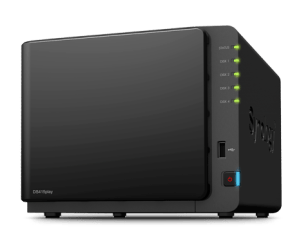
Additionally, I use Carbon Copy Cloner to back up both my Documents folder and my Photos library from my iMac to an old Apple Time Capsule (previously my primary backup device) and to the third device in my computer array- a Synology DiskStation DS415play, which I use to back up my data and to serve videos and music to my house (and afar) via Synology’s excellent iOS and web apps. All of this is automated, and happens on a designated schedule.
I also back up my MacBook Pro, via Time Machine, to two separate encrypted external hard drives attached to my Apple Airport Extremes (which also serve as my routers), one at home at one at the farm. This allows duplication in separate locations. My iMac is backed up to that same external hard drive at home, and to the Synology DiskStation (again, for duplication). I am not as backup paranoid as some, and have never restored a complete drive from a backup (I would simply copy back the documents and files I need), but it’s so easy to backup with my system, I can achieve redundancy with very little effort.
Online Backup
Historically, I have backed up the data I care about (e.g., files, photos, videos, song demos, music, etc.) on my iMac to Amazon Glacier using Arq, as outlined here. While that process is cheap and easy, I will probably move my cloud backup either to Amazon’s Cloud Drive (unlimited for $60 a year) or Google’s new photos service (at least for videos, which are, by far, the largest component of my backup jobs, and maybe for photos if Apple continues to overcharge for cloud space).
I know this sounds like a lot, but it was surprisingly easy to set up. At the end of the day, it gives me redundant local backup, as well as offsite backup for the data I care about.
Behind the Lines: Mac Mini
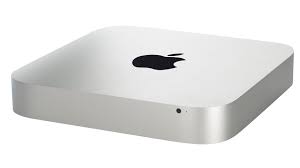
Oh, and last and definitely least at least in terms of size, I have a 2014 Mac Mini in my downtown office, which I use to do as much office work as possible on a Mac. I’ve spent a lot of time trying to insert my Mac workflow into a locked-down Windows environment. There’s no perfect way to do this, but as Macs continue their glacier-like move to enterprise, I’m hoping it will get easier. Maybe I’ll do a post in this series about all the work-arounds I’ve hacked together to use my Mac in an enterprise environment. Just finding a way to play old Lucent voice player files (the format many of my archived voice mail messages are in) was a months long crusade. But, hey, I won (my battle was fought with the persistence required to find a copy of the long ago deprecated Lucent Voice Player, and the very handy Mac app CrossOver). So there.
As expected, Google has announced Google Photos, a free-standing photo storage and management service, free from entanglement with Google+.
Google Photos gives you a single, private place to keep a lifetime of memories, and access them from any device. They’re automatically backed up and synced, so you can have peace of mind that your photos are safe, available across all your devices.
Best of all, storage is unlimited, with resolutions up to 16MP for photos, and 1080p high-definition for videos. The service promises easy, intelligent organization, powerful search, and robust sharing features.
Even as an Apple devotee, I am open to other ways to organize, store and manage photos. I’m interested to see how Google incorporates its search expertise into its photos experience. When the service becomes available later today, I’ll surely take a look.
As many of you know, it happened again. After trying to convince myself not to buy an Apple Watch, I capitulated to the inevitable and ordered one. I’ve learned the hard way that the least inefficient way to order a new Apple product on pre-order day is via the Apple Store app. So, I set my clock for 2:00 a.m., and used my iPad to order a 42mm space gray aluminum model, with a matching black sports band.
Here are a few thoughts, after a month:
1. Getting used to wearing a watch again is the hardest part. Until my Apple Watch arrived, I hadn’t worn a watch for many years. Now I wear one from the minute I get up until the minute I go back to bed. Because I use the watch as a fitness monitor, I don’t want to miss any steps. I’m getting used to wearing a watch again, but it takes an Apple Watch to get me there.
2. The fitness tracking is good and accurate. I’ve worn a Fitbit for years, and I’ve always known that it over-reports steps and, to a lesser extent, mileage. The Apple Watch is very accurate on both. Happily, it even measures my treadmill steps when I cheat and hold on. This is important.
3. The battery is not an issue. Period. I’m usually at 50% charged or better when I take it off.
4. It’s all about the notifications. Getting a quick look at incoming email, texts and other events is both the most useful thing about the watch and the thing the watch does best. The app screen is a jumble of too small icons. Glances work reasonably well, as long as you keep the number low enough. Apps are slow to load. I rarely use them. Hopefully native Apple Watch apps, promised for later this year, will speed thing up. I love the way you can delete all notifications at once. I hope we get this on other Apple devices.
5. At least at this stage, the Apple Watch has not crossed over into the non-geek universe the way iPhones and iPads have. I’ve never seen another Apple Watch in the wild. In fact, even at the Apple Store (when I went to get yet another broken iPhone screen replaced for a family member), it was an ohh and ahh moment for onlookers when I paid my replacement fee with my watch. The people who have noticed my watch so far have treated it as a curiosity, as opposed to something they can’t wait to get.
6. The sports band is a fine watch band. The smaller of the two that come in the box fits my wrist perfectly. Using the last notch, the end of the band tucks slightly into the slot, making for a very comfortable experience.
7. It’s not so big that it seems clunky and burdensome. I’m sure future models will get thinner (seen a first generation iPhone or iPad lately?), but it sits on my wrist pretty unobtrusively. I’m starting to forget that I’m wearing it, which as a non-watch wearer is a very good thing.
8. Apple Pay will be the defining feature. I love the ability to pay for things in a second or two with my watch. I can’t wait to use it at a third location (the Apple Store and Walgreens being the two current locations I frequent that accept Apple Pay).
In sum, I’m sold. I wonder, however, just how far the Apple Watch will penetrate into the non-geek, non-athlete crowd.











 Newsome.Org