Kent’s Workflows: Computers and Backup

Because I am the only tech-interested person amongst my real life friends, I often get asked tech questions, and am occasionally asked for recommendations with respect to hardware, software and ways ways to use the same.

I thought it might be time to do a series of posts describing the primary hardware and software I use in my day-to-day life to get things done, to make life easier, and to have fun.  Let’s start with computers and backup.  Then we’ll move to mobile devices, software and apps.

Primary Computer

2015macbookpro

My primary computer is an early 2015 MacBook Pro, with a beautiful retina display.  For many years, I was a dedicated desktop computer user.  I’ve always had an ancillary laptop- for the last several years a 2011 MacBook Air.  But until recently, my laptop was used as a secondary device, mainly for use on the road or for light use on the couch.  I couldn’t help but notice, however, that much of the rest of the world, including the rest of my family, was rapidly gravitating toward laptops as primary, full-time computers.  Since I travel reasonably often, for business and to give speeches, and since I am spending more and more of my non-work time at the farm, I began to wonder if I could be happy with a laptop as my full-time device.  Several months ago, I went to the Apple Store and looked at the retina MacBook Pros, and quickly concluded that I could.  I am deliriously happy with my MacBook Pro.  The solid state hard drive is fast, the screen is a work of art, and it’s great having all my apps and data with me all the time.  I’ve also enjoyed the move from a desk chair to full-time couch computing.

Grand Central iMac

2014imac

My 2014 retina iMac, which was previously my primary computer, has now become command central for administering and distributing my data, movies, music and home network.  For example, my Fujitsu ScanSnap iX500 scanner (the best scanner on earth) remains connected to the iMac and I scan most of my documents (I have long been almost completely paperless) to that iMac. I have Hazel (the first application for people looking to take control of their Macs) rules set up to OCR and manage the scanned documents (including incoming files scanned on other devices, which I move to the iMac via Dropbox).

This may sound complex and hard t0 set up, but it’s not.  Here are all the steps needed to set up the scanned documents management I just described.

1. Create a primary folder on the computer where you want to store your documents (in my case my iMac) to receive your scanned documents.  I have one called Document Inbox.  Scan your locally scanned documents to this folder.  Create a Hazel rule to monitor this folder, OCR any new documents that are added, and add a specific color tag (so you can visually see the documents that have been OCR’ed via Finder).

2. Create a synced Dropbox folder on all your computers to receive and manage documents scanned from other computers.  I call mine Remote Scans.  Create a Hazel rule on the computer where you want to store your documents to monitor this folder, and move (not copy) any added documents to the folder you created in step 1.  Scan or move your remotely scanned documents to that folder.

3. From time to time (I do this once every couple of months), go through the folder you created in step 1, and rename (optionally) and move (again, not copy) the documents to their final storage location, in my case subfolders in my Scanned Documents folder, which resides inside my Documents folder.  Those lucky many less anal than me could simply leave all the scanned documents in a single folder and rely on search to find them as needed.  I’ve got so many years invested in organizing my documents by type, I am not emotionally ready to combine them into a single folder, but it would be much easier, and logic tells me that might be the way to go.***

4. Set up file sharing on the computer where your scanned documents will reside so you can access the scanned documents from your other computers on the network.  I have the folder on my iMac mounted in Finder on my MacBook Pro, so I can view, move and manage the documents from my laptop, when I’m on the same network (e.g., at home).  In fact, I do almost all the renaming and filing work described in step 3 from my MacBook Pro.  Set up permissions to require your computer password (e.g., “connect as” your user account on the computer where the documents are stored) to keep your scanned documents safe from network creepers.

*** You can create all sorts of Hazel rules to rename and move documents automatically, but it takes some geekery, and in my experience only works sporadically.  If you want to explore this magic, Brooks Duncan is the place to start.  His Hazel webinar is highly recommended.  As is David Sparks’ paperless field guide.

I use Carbon Copy Cloner (the best clone and sync application) to keep the Documents folder on my iMac synced with a folder on my MacBook Pro.  Carbon Copy Cloner allows me to create a clone job that occurs whenever my MacBook Pro and iMac are on the same network (e.g., when I’m at home).

click to enlarge
click to enlarge

I also keep my primary Photos app (formerly iPhoto) library on the iMac and sync it to my laptop and other devices via Apple’s photos in the cloud service.

I keep my active text files (via Pages) and spreadsheets (via Numbers) synced via iCloud, and I keep my historical documents, song demos, songs-in-progress, Garage Band files and archived data in subfolders in the aforementioned Documents folder.  To allow for moving things around (including to and from my dreaded and mandatory Windows work computer) I have a designated Google Drive folder (which I call Transfer) that resides in my Finder sidebar, and in whatever they call the Windows equivalent (the Windows Explorer sidebar?).

transferfinder

I use Spotify for most of my music needs (here’s Rancho Radio, my actively managed and hand-crafted station; try it, you’ll like it), but because I’m a musician and, mostly, because I’m old, I have many tens of thousands of MP3s.  I keep those archived on my iMac and accessible in the cloud, thanks to Google’s most-excellent Google Music service.  If you have a lot of MP3s to manage, it is clearly the best choice.  I keep selected parts of that collection on dedicated flash drives that I plug in to the applicable computer to play via my beloved Sonos system (I’m getting ahead of myself, but the highest and best use for old iPads and iPods is as a dedicated front end for Sonos).  Here’s what I’m listening to now, courtesy of an old iPad I’ve repurposed.

fred15

Backups and Content Serving

synologyds415

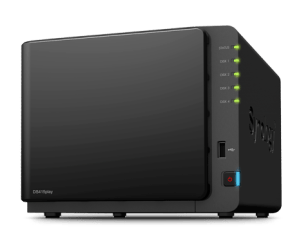
Additionally, I use Carbon Copy Cloner to back up both my Documents folder and my Photos library from my iMac to an old Apple Time Capsule (previously my primary backup device) and to the third device in my computer array- a Synology DiskStation DS415play, which I use to back up my data and to serve videos and music to my house (and afar) via Synology’s excellent iOS and web apps.  All of this is automated, and happens on a designated schedule.

I also back up my MacBook Pro, via Time Machine, to two separate encrypted external hard drives attached to my Apple Airport Extremes (which also serve as my routers), one at home at one at the farm.  This allows duplication in separate locations.  My iMac is backed up to that same external hard drive at home, and to the Synology DiskStation (again, for duplication).  I am not as backup paranoid as some, and have never restored a complete drive from a backup (I would simply copy back the documents and files I need), but it’s so easy to backup with my system, I can achieve redundancy with very little effort.

Online Backup

Historically, I have backed up the data I care about (e.g., files, photos, videos, song demos, music, etc.) on my iMac to Amazon Glacier using Arq, as outlined here.  While that process is cheap and easy, I will probably move my cloud backup either to Amazon’s Cloud Drive (unlimited for $60 a year) or Google’s new photos service (at least for videos, which are, by far, the largest component of my backup jobs, and maybe for photos if Apple continues to overcharge for cloud space).

I know this sounds like a lot, but it was surprisingly easy to set up.  At the end of the day, it gives me redundant local backup, as well as offsite backup for the data I care about.

Behind the Lines: Mac Mini
2014macmini

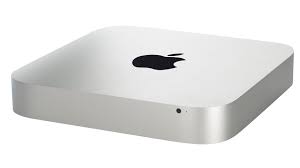
Oh, and last and definitely least at least in terms of size, I have a 2014 Mac Mini in my downtown office, which I use to do as much office work as possible on a Mac.  I’ve spent a lot of time trying to insert my Mac workflow into a locked-down Windows environment.  There’s no perfect way to do this, but as Macs continue their glacier-like move to enterprise, I’m hoping it will get easier.  Maybe I’ll do a post in this series about all the work-arounds I’ve hacked together to use my Mac in an enterprise environment.  Just finding a way to play old Lucent voice player files (the format many of my archived voice mail messages are in) was a months long crusade.  But, hey, I won (my battle was fought with the persistence required to find a copy of the long ago deprecated Lucent Voice Player, and the very handy Mac app CrossOver).  So there.

Next time: phones, tablets, and whatnot.

Google Photos: A New Contender in the Photo Management Race

googlephotos

As expected, Google has announced Google Photos, a free-standing photo storage and management service, free from entanglement with Google+.

Google Photos gives you a single, private place to keep a lifetime of memories, and access them from any device. They’re automatically backed up and synced, so you can have peace of mind that your photos are safe, available across all your devices.

Best of all, storage is unlimited, with resolutions up to 16MP for photos, and 1080p high-definition for videos.  The service promises easy, intelligent organization, powerful search, and robust sharing features.

Even as an Apple devotee, I am open to other ways to organize, store and manage photos.  I’m interested to see how Google incorporates its search expertise into its photos experience.  When the service becomes available later today, I’ll surely take a look.

Here’s a video in the meantime.

30 Days Out: Thoughts on the Apple Watch

applewatch

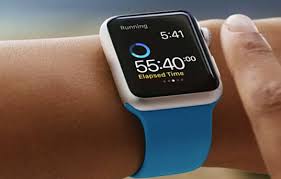
As many of you know, it happened again.  After trying to convince myself not to buy an Apple Watch, I capitulated to the inevitable and ordered one.  I’ve learned the hard way that the least inefficient way to order a new Apple product on pre-order day is via the Apple Store app.  So, I set my clock for 2:00 a.m., and used my iPad to order a 42mm space gray aluminum model, with a matching black sports band.

Here are a few thoughts, after a month:

1.  Getting used to wearing a watch again is the hardest part.  Until my Apple Watch arrived, I hadn’t worn a watch for many years.  Now I wear one from the minute I get up until the minute I go back to bed.  Because I use the watch as a fitness monitor, I don’t want to miss any steps.  I’m getting used to wearing a watch again, but it takes an Apple Watch to get me there.

2.  The fitness tracking is good and accurate.  I’ve worn a Fitbit for years, and I’ve always known that it over-reports steps and, to a lesser extent, mileage.  The Apple Watch is very accurate on both.  Happily, it even measures my treadmill steps when I cheat and hold on.  This is important.

3. The battery is not an issue.  Period.  I’m usually at 50% charged or better when I take it off.

4. It’s all about the notifications.  Getting a quick look at incoming email, texts and other events is both the most useful thing about the watch and the thing the watch does best.  The app screen is a jumble of too small icons.  Glances work reasonably well, as long as you keep the number low enough.  Apps are slow to load.  I rarely use them.  Hopefully native Apple Watch apps, promised for later this year, will speed thing up.  I love the way you can delete all notifications at once.  I hope we get this on other Apple devices.

5. At least at this stage, the Apple Watch has not crossed over into the non-geek universe the way iPhones and iPads have.  I’ve never seen another Apple Watch in the wild.  In fact, even at the Apple Store (when I went to get yet another broken iPhone screen replaced for a family member), it was an ohh and ahh moment for onlookers when I paid my replacement fee with my watch.  The people who have noticed my watch so far have treated it as a curiosity, as opposed to something they can’t wait to get.

6. The sports band is a fine watch band.  The smaller of the two that come in the box fits my wrist perfectly.  Using the last notch, the end of the band tucks slightly into the slot, making for a very comfortable experience.

7.  It’s not so big that it seems clunky and burdensome.  I’m sure future models will get thinner (seen a first generation iPhone or iPad lately?), but it sits on my wrist pretty unobtrusively.  I’m starting to forget that I’m wearing it, which as a non-watch wearer is a very good thing.

8.  Apple Pay will be the defining feature.  I love the ability to pay for things in a second or two with my watch.  I can’t wait to use it at a third location (the Apple Store and Walgreens being the two current locations I frequent that accept Apple Pay).

In sum, I’m sold.  I wonder, however, just how far the Apple Watch will penetrate into the non-geek, non-athlete crowd.

Time will tell.

The New Photos App is an Incomplete Work in Progress

applephotos

Apple released the OS X Yosemite 10.10.3 update today, which includes the new Photos app, which will replace my beloved iPhoto as well as Aperture, for photo management on the Mac.  There’s a lot of coverage on the new app, so I’m not going to do a full review- just the conclusion.  I’ve been using the developer preview (on a secondary machine) for a while, and I think it’s a good app and a suitable replacement for photo management on the Mac.

Except for one inexplicable, deal-killing omission.  There is no longer an easy way to edit photos in an external editor.

In iPhoto, it was so, so simple to open photos in an external editor- in my case, the wonderful Pixelmator– edit them, and immediately save them back to iPhoto.  Just a few keyboard clicks, and the edited photo was back in its proper place in your iPhoto album.

The process for doing this in the new Photos app, well, doesn’t exist.  You have to manually export the photo, open it in the external editor, edit it, save it and re-import it into the Photos app.  This is simply unworkable.

In prior instances, Apple has added missing features to new or redesigned apps via updates.  They will need to add back the ability to easily edit in an external editor before the Photos app will be a candidate to manage my photo workflow.

Amazon Cloud Drive: Just a Bit too Good to Be True

amazonclouddrive

I’m a committed and active Amazon customer.  I buy just about everything from Amazon, and I back up my Mac to Amazon Glacier via the powerful (and often overlooked by tech pundits) Arq.  So when I saw that Amazon has upped the ante in the cloud wars by offering unlimited cloud space for $60 a month, I was interested.  I back up many hundreds of gigabytes to Amazon Glacier, and it costs me around $8.00 a month.  $60.00 a year, even plus tax, would be a cost savings.  But the bigger advantage would (or should) be accessibility.  Glacier storage is dirt cheap, but the files are not easy accessible.

I’m not bothered by the lack of a true Mac app for Amazon Cloud.  Sure, there’s an app, but it’s mostly a front end for the web interface.  There’s no sync, selective or otherwise.  But that’s OK, because I don’t think Amazon is trying to fill the exact same need Dropbox does.  Rather, I think Amazon is positioning itself as off-site storage.  A place to put things to get them off your computer and in the cloud, not onto all your computers and the cloud.

There are four things people need to save and store.

Music: There are many good and some free options.  I use Google Play (which just greatly increased the amount of songs you can store from a too small number of 20,000 to a plenty big enough number of 50,000, which makes it feasible for long-time music buyers like me).  iTunes Match is a possibility, and there are others.  Amazon Cloud Drive does a pretty good job with music, but I tried it before, and it lost out to Google.  So there’s nothing new to make me change my plan (and the thought of re-uploading all those songs that I finally got in place and organized in Google Play gives Google a bit of a moat).

Photos: Again, there are a lot of options, but the battle for photos in the cloud is still being fought.  I’m hoping that the best thing about the new, cheap Amazon Cloud Drive will be free or cheaper iCloud space when Apple releases its forthcoming Photos app.  I’d love Apple to solve the photos in the cloud problem, because I manage my photos in iPhoto.  If it doesn’t, Amazon may be the answer.  But as a Prime member, Amazon will already store my photos for free, so I don’t need an Amazon Cloud Drive plan for that.

Miscellaneous files:  Unlike space hogging photo and video libraries, there is a benefit to syncing miscellaneous files, so you can access them and work with them everywhere.  I don’t have a lot of text files and miscellany that I need to offload to the cloud.  Some of it is of a nature that I want to store locally, via Time Machine and Carbon Copy Cloner.  The stuff I do want access to everywhere (Word files, Pages files, Hazel rules, etc.) is handled very well via iCloud (mostly) and Dropbox (for some stuff).  I don’t see Amazon Cloud Drive as a player in the document storage, sync and access game.

Videos:   OK, here we go.  I have hundreds of videos.  Films I made back in the day. Home movies.  Photo slide shows.  Currently, these make up the bulk of my massive Amazon Glacier repository.  It would be a little cheaper to store them in Amazon Cloud Drive, and they would be easier to access.  All I need to jump in with both feet is the ability to view them from their cloud based home.  But no.

acdk

Is this the end of the world?  No.  Do I understand why Amazon doesn’t want to bear the cost of being my private YouTube?  Sure.  Does this make me rethink my video storage and archival work-flow.  Yep.

It sounded just a little too good to be true.

Why I’m Not Sold on the Apple Watch as a Fitness Device

applewatchfitness

Try as I might- and my love of all things Apple mandates that I try- I just can’t get excited about the Apple Watch.  Granted, I haven’t worn a watch in decades, but I have worn a Fitbit for over two years and track my exercise and sleep patterns daily.  So while I’m not a watch guy, I’m a prime candidate for a better and more powerful fitness tracker, with communication and timekeeping features to come along for the run.  The thing is, based on everything I’ve read, the Apple Watch (at least in the absence of an associated iPhone) doesn’t do much from a fitness tracking perspective that my Fitbit One doesn’t already do.  Sure, it tracks steps and stairs, but it has no independent GPS functionality and, because it is not waterproof, it doesn’t significantly increase the universe of activities I can track.  Let’s take a look at some things the Apple Watch can do all by itself, without relying on a nearby iPhone.

1.  It can tell the time.  Well, that’s great, but I don’t want a traditional watch and if I need to know what time it is, my  Fitbit One can tell me.  As an aside, I can’t remember the last time I was working out, didn’t know what time it was (or close enough), and just had to find out the exact time.  There are clocks, other people, and the sun, everywhere.

2.  It can play some of your music and show you some of your photos.  OK, I’ll admit the music capability is intriguing, especially if it includes podcasts, which comprise 95% of my workout listening.  The thing is, none of this streams.  You have to create some sort of playlist and store it in the 2 GB of space available on your Apple Watch.  Maybe, in theory, that would be awesome.  In actuality (based on my history with iTunes playlists), I might do it once or twice, and then never again.  As far as photos, if I were to list the things I want to look at while working out, my iPhoto library would be at or near the bottom.  And if I were to list the manner in which I want to view photos, on a watch-like size and form factor wouldn’t even make the bottom of the list.  It simply wouldn’t occur to me.

3.  It can track your heartbeat, steps, stairs, and stand-sit ratio.  Granted, my Fitbit One does not (at least as far as I know) have the ability to track my heartbeat or stand-sit ratio, but it tracks steps and stairs just fine.  If the Apple Watch had the ability to record and display my route (e.g.,  independent GPS functionality), that would be an improvement over my current process (my Fitbit can’t do that either, so if I want to I have to use my iPhone).  I suppose it would be nice to monitor my heartbeat, but that single additional feature isn’t going to get me in line to buy one.  I can see data that roughly correlates to my stand-sit ratio via my Fitbit dashboard.  In other words, these are relatively small and incremental gains that don’t seem like enough to warrant a third workout device (along with my Fitbit and iPhone).  Again, if the Apple Watch either allowed me to leave my iPhone at home or completely replicated and improved on the data tracked by my Fitbit, it might be a candidate to replace one or the other during my workouts.  But it doesn’t seem like that’s the case.  Sure, if enough third parties play ball, the Apple Watch will one day allow a lot of health and medical tracking, but that’s not something that affects my actual workouts, and by the time all the players are in place, there will likely be newer Apple Watches and all sorts of other options.  In sum, I can see how the Apple Watch would appeal to people who are really into traditional wristwatches (except, you know, for the obsolescence problem), but I just don’t see how it is going to revolutionize fitness tracking.

4. It can use Apple Pay and Passbook.  This is neat, I guess, but I’m a huge Apple geek and I have used Apple Pay exactly four times: twice in an Apple Store and twice in a Walgreen’s (and Walgreen’s makes you sign something, even when using Apple Pay, which is a huge buzz kill on the entire process).  Nevertheless, I think Apple Pay is the future of mobile payments.  So, if I were willing to bet my right arm on the future, Apple Pay might be the Apple Watch’s quickest route to my wrist.

Rene Ritchie, at the always reliable iMore, has an article today about the Apple Watch as your new fitness trainer.  He makes as compelling a case as can be made that the Apple Watch will evolutionize, if not revolutionize, personal training.  Maybe, but I’m not seeing any giant leaps forward, though I will admit that the potential for the Apple Watch to learn how to track your workouts more accurately over time is intriguing.  Mostly, I see some incremental gains, some sideways leaps, and the allure of Apple.  If  I could swim with an Apple Watch, that would be one thing.  If it could seamlessly manage my music and podcasts, that would at least replicate what my iPhone does now, on a smaller device.  The fact that you can only shower with it seems like a missing feature, as opposed to a benefit.

Having said all this, I am realistic enough to know- and years of Apple experience has taught me- that feelings can change.  It may be that when I see an Apple Watch in person, and put it around my wrist, I’ll conclude I can’t live without one.  A year or two ago I would’ve told you that I will always be primarily a desktop computer user (long live the iMac).  My retina MacBook Pro has since taught me otherwise.

But here’s what I do know.  With the large majority of previous Apple devices, I have counted the days between the event announcing and showcasing the device and the day I could pre-order one.  Alarms clocks were set.  That’s not the case with the Apple Watch.  I’m going to need some convincing.

Learn Pixelmator Free

pixelmator

One of the multitude of things I love about Macs in general, and my retina MacBook Pro in particular, is the photo editing application, Pixelmator.  For many years I was a semi-dedicated Photoshop user.  But Photoshop is expensive, and I have a natural dislike of pay-as-you-go applications.  A few months ago, I decided to dump Photoshop and go all-in with Pixelmator.  Like any good geek, I looked around  for a series of tutorials to get me started.  Drippy Cat has an excellent series of Pixelmator tutorials, freely available on YouTube.

Here, for your and my perusal and reference, are links to Drippy Cat’s excellent Pixelmator tutorials:

Save your Photos from Yourself: The Pixelmator Tutorials 1 and 2
An Overview of Photo Enhancing : The Pixelmator Tutorials Parts 3 and 4
Balance up Your Colors :The Pixelmator Tutorials Part 5
Cure Jaundice with Hue Shift and Saturation: The Pixelmator Tutorials Part 6
What you need to know about Curves :The Pixelmator Tutorials Part 7
The Big and Beautiful Guide to Selections : The Pixelmator Tutorials Part 8
Zap Those Spots and Cure your Redeye: The Pixelmator Tutorials Part 9
Clone Those Mistakes Away: The Pixelmator Tutorials Part 10
Why Layer Masks are Fab: The Pixelmator Tutorials Part 11
Back to Black and White plus Spot Colors: The Pixelmator Tutorials Part 12
Dodge and Burn: The Pixelmator Tutorials Part 13
Why You NEED Layer Modes!: The Pixelmator Tutorials Part 14
Flawless skin – Not just for Hollywood: The Pixelmator Tutorials Part 15
Getting that old Polaroid Effect: The Pixelmator Tutorials Part 16
Best Pencil Effect Tutorial in the World Ever: The Pixelmator Tutorials Part 17

I was surprised by how powerful Pixelmator is.  It can do everything I need and more.  You can even import and open your existing Photoshop files.  In short, unless (and even if) you are a professional photographer, I see no reason whatsoever to rent Photoshop monthly, when you can buy Pixelmator for only $30.

Pixelmator also has an iPad app.

Apple and the Backwards Looking Advance

applewatch

The second biggest problem with the Apple Watch is that it’s a watch.  I get that there are a lot of people who (still) love wearing a watch.  I also get that there are people who (still) wear ties and high heels.  There are also people who still write letters.  Fifty years ago, almost everyone wore a watch and ties and high heels were the rule, not the exception.  Fast forward to 2015, and the trend line for ties, high heels and watches is not on the upswing.  Betting large on watches is a backwards looking advance by the greatest technology company in the world.

I haven’t worn a watch in close to a decade, and sadly not even Tim Cook can make me want one.  I saw some interesting stuff yesterday.  How much indispensable stuff is another question.

What I do wear is a fitness device.  I’ve worn my Fitbit (the pocket version) for over two years.  It is as integral to my day as my phone or my reading glasses.  I feel anxious on those rare but unavoidable days when I lose mine and have to wait a day for Amazon to deliver me another one.  Until now, the best hope for an Apple Watch to find its way onto my suntanned wrist was as an improved fitness device.  But, no.  The fact that you have to carry your iPhone with you to get the full benefit of the Apple Watch’s fitness tracking features is the biggest problem, and a deal-stopper for me.

macbook2015


And while I am bemoaning the recent Apple announcements, as opposed to my more typical reaction of counting the days to preorder some new wonderment, I’m underwhelmed by the new Macbook.  I’m not moved by the tech specs or the single port (and associated, expensive adapters to come), and I worry that it may spell the beginning of the end of the beautiful MacBook Airs.  Yes, these new laptops are light and small and lovely, but they seem like the child of an iPad and a netbook. I want something more powerful.  Like my beloved 15 inch retina MacBook Pro- the most beautiful and productive computer I’ve ever owned.

I hoped to be blown away yesterday, but I wasn’t.  I’m still all-in on the Apple train, but I worry just a little about where we are headed.

The Problem with the Apple Watch

applewatch

Or, more precisely, the problem with the Apple Watch priced at five figures.  If someone buys a fancy iMac or MacBook for $2,000 and a year or two later it starts looking less than awesome when compared to newer models, that’s frustrating.  Paying $20,000 for a fancy Apple Watch and having it look less than awesome a year or two later when compared to newer models would be devastating.

Dictating Blog Posts on an iPad Air 2

I’m writing this blog post on my new iPad Air 2, using the WordPress iPad app and iOS 8.1’s native dictation feature.

The dictation feature is much improved. I love the way I can now see my words typed in real-time, as opposed to having to wait until I’m finished talking, click the “Done” button and wait for the iPad to process a lot of dictation at one time. I also like the way autocorrect suggests words when you tap an incorrect word. It’s still cumbersome to add links and images via the WordPress app, but blogging on a tablet is definitely getting a little easier. [Note- there was no way to search for and link to that prior post via the iPad app.  I had to save this post as a draft and add the link via my desktop computer.]

One nit I wish they would fix in the WordPress app is to add an option to insert two spaces between sentences. Like a lot of people, I learned to type that way, I think it looks better, and that’s the way I want to do it.

Photos are still hard. [Note- when you add photos via the app, it links them to the full-sized copy.  If, like me, you want no link, you have to edit the photo via the desktop, which breaks the photo embed and puts a huge, full-size photo in the post.  You have to delete it and reinsert it in the desired, unlinked size, from the desktop.]

Photos By Trail Camera

It’s getting easier to do some heavy lifting on your iPad, but we’re not quite there yet. Some of it falls on developers to take full advantage of the increased flexibility available in iOS 8. Apple needs to continue to make it easier for developers to write apps for complicated workflows and power users.