How to Make Everything Better: Evernote Edition

There are a lot of cool services and applications on the internet- no doubt about it.  I use a lot of them, and they make my life easier, more organized and more fun.  But they can be better.  And I’m going to tell you how.  This is part 2 of the series.  We’ve already made Google better.

imageI am an everyday user of Evernote, a web service and software application that lets users collect, organize and access notes and information.  I gladly pay $45 a year for the Premium version and have written about Evernote extensively.  My affection for it is well known.  But not unlimited.

There is one feature Evernote absolutely must add, and several that it should add.

Let’s start at the top.

Folders.  Why in the name of Elvis, Jesus and Coca Cola won’t the Evernote developers add the ability to group your notebooks in folders!?  This is a mind boggling omission.  And don’t talk to me about tags.  Tags are poor man’s folder, but why do we have to settle for that?  It does not have to be an either/or equation- we should have both.  The fact that I can’t organize my rapidly expanding number of notebooks into folders is a nagging irritation that simply should not exist.

If you have a few notebooks, you probably don’t miss folders.  If you have been conditioned to dutifully tag everything you add so you can pull the right sock from the laundry pile, good for you.  But if you are a power user, you need folders.  Or at least the ability to have them.

I have teens and teens of notebooks.  For work, home, family, tech, this blog, songwriting, and everything in between.  I want 5-6 top level folders, with subfolders underneath.  If you, like me and 99% of the rest of the computer using world, are coming from the land of Microsoft where folders are abundant, the lack of folders is a real drag.  A big, stinking, unnecessary and annoying drag.

Thus, the Evernote developers should stop all other projects and devote all of their time to implementing folders.  In fact, here’s a deal:  I’ll buy 5 Evernote Premium 1-year subscriptions and give them away to Newsome.Org readers if Evernote adds folders by Thanksgiving.  How’s that for putting my money where my feature request is?  Want to win a free Evernote subscription? Email Evernote (via this page) and demand folders.  Tell ’em Kent Newsome sent you.  Tell them we won’t rest until this wrong is righted.  Give us folders or give us OneNote.  And all that.

After we win that battle, there are a few more improvements to put on the to do list.  Oh, like a full featured “to do” list function, with email reminders.  While a “to do” list is a little different from a standard notebook, it would be intuitive and convenient to manage your to do list within Evernote.  Currently, you can manually create a to-do list, but it would be much better to have ready made “to do” list functions built in.  With that, we’ll need a calendar.  It doesn’t have to be a Google Calendar equivalent; it would be fine if it just showed your upcoming “to do” deadlines.  Or perhaps a Google Calendar widget that would show your Google Calendar in a side bar, with the ability to automatically add “to do” deadlines to your Google Calendar.

You can currently drag notes from one notebook to another.  What you can’t do is change the order of notes within a notebook.  We need to ability to drag notes both between and within notebooks.

The Evernote desktop software is elegant and, except for the aforementioned lack of folders, almost perfect.

image_3

The web version, while completely functional, is not as elegant.  It would be better if the web version looked, felt and operated identically to the desktop version.  This is not a huge issue, since I have Evernote’s desktop application on all my computers, but it would be nice.
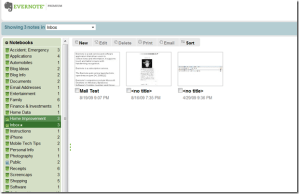
image_4

The Evernote Web Clipper makes it easy to grab all or part of your screen and send it to Evernote.  I want the clipper to be more robust, with the ability to edit and annotate the clip before sending it.  One mandatory improvement: all web clips should go to your default notebook (“Inbox” in my case) rather than the most recently accessed folder.  Emailed content works that way already, so it should be easy to have clips work the same way.

From within notes, I’d like the ability to right-click on photos, PDFs and similar files and send them to destinations (i.e., PhotoBucket) with a single click.  Perhaps Evernote could facilitate third party created plug-ins to do this sort of thing.

The Evernote iPhone app is well designed and allows easy access to your data.  Like the desktop and web applications, however, it needs folders.  Screen space is limited on a phone, and it would be helpful to group your notebooks in folders to allow faster navigation and retrieval.
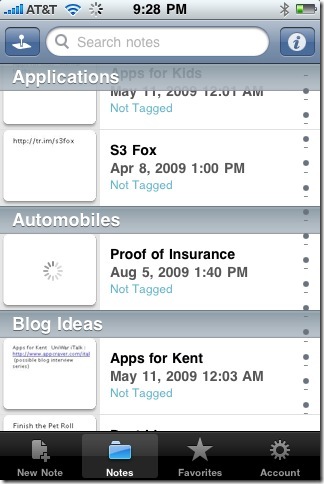
photo (11)

Now let’s dream for a moment.

If the Evernote developers wanted to send Evernote into another plane of awesome, how about the ability to embed all kinds of media in a note?  Zoho Notebook, a fine application in its own right, has allowed this for a long time.  Imagine the ability to embed, access and play YouTube videos, audio files and the like- from within a notebook.  Below is a test notebook I created months ago in Zoho.
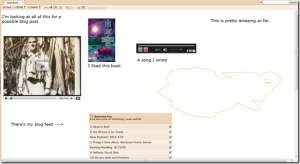
image_5

I’m not holding my breath for this to happen, but to paraphrase David Wooderson, it’d be a lot cooler if it did.

What I very much want (in case you can’t tell) are folders.  Folders, folder, folders.  So Evernote- get to work.

How to Make Everything Better: Google Edition

There are a lot of cool services and applications on the internet- no doubt about it.  I use a lot of them, and they make my life easier, more organized and more fun.  But they can be better.  And I’m going to tell you how.  Starting right now.

I’m going to improve the various services and applications I use, one or two at a time.  Starting at the top, with Google.

googleI have capitulated to Google and have moved a lot of my information and data to the various Google apps.  Most of them work very well, though it was a mistake to abandon Google Notes, since a full featured application suite needs a note taking app.  So Google improvement number one is to bring back Google Notebook with a commitment, or better yet buy Evernote.

Google Calendar is very elegant, and the sync app works well.  I have generally moved my personal calendar to Google Calendar.  I wish there was a better, more flexible way to sync multiple calendars, so I could sync my Outlook calendar at home and at work with Google Calendar.  Much of the business population that Google covets has this issue, and Google could make great inroads with that population by making it easier to sync multiple calendars, without the soul crushing multiple (upon multiple, in some cases) event problem that many of us have experienced.

While Google Calendar is elegant and works, Google Contacts is an absolute train wreck.  It looks like something that was tossed in as an afterthought.  But people need a central contacts application just as much as they need a calendar.  Google needs to put 10 or 20 of its best people in a room for a week (or however long it takes) and tell them to completely rewrite Google Contacts, including a way to sync contacts along with calendars.

Some will point to Google’s exchange-based sync option, which works reasonably well.  The fatal flaw in that approach is that the much-desired business population uses Exchange to access their work email and, as we all lament, you can only configure one Exchange sync.  So Google needs to create a way to do the same thing via desktop applications.  And while they’re at it, add the ability to sync email via the exchange-based sync.  Currently, only contacts and calendar are supported.

The easiest and perhaps most needed improvement is to make the various Google apps more integrated.  Google has made strides in this area, but too many of the apps still look and act like separate programs.  They should look, feel and act integrated.  One giant, easy step would be to give the user more control over the links at the top of the various Google app pages.  Why can’t I add Contacts, Google Voice, Google Maps, Tasks and even custom links to other sites (like Flickr) to this list?

image_3

Google needs to give the user more control to create a personal control center, from which the user can easily access the things the user needs- not just the stuff Google thinks we might need.

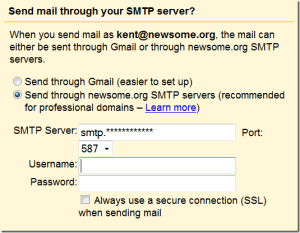
I’m slowly learning to like, if not yet love, Gmail, and I’m not going to preach again about Gmail folders, though folders should be implemented, at least as an option.  Another mandatory thing Gmail needs is a one click way to backup all of your Gmail on your hard drive or to the cloud location of your choice.  With the backed up data to be searchable, perhaps via Google desktop search.  Also, while the ability to use a third party mail server to avoid the annoying “on behalf of” confusion is wonderful, Google should not limit the ports you can use to do that.  For various reasons, some people have to use another port to access their mail server.  Google should accommodate this.

image_4

The port choices above are limited to 587, 465 and 25

I use Google Reader more than any other Google app.  It works great, with one small annoyance that, like dripping water, can drive you mad over time.  Google badly needs to figure out a way to speed up the process of marking a group of items as read.  There is a small but aggravating delay between clicking the “Mark all as read” button and the moment the applicable items disappear.  I don’t care how much of my computer resources it takes, I want that action to be instantaneous.  I’m talking speed of light fast.  That one little thing would vastly improve the quality of my online life.

image_5

Google Documents is very close to becoming a legitimate alternative to Microsoft Office.  I have migrated my wife and kids to Google Documents, and I’d like to migrate there too.  But for me- or any other corporate user- to have the option to use Google Documents full time, Google must implement a way to show document edits in a track changes compatible manner.  If someone sends me a document, I simply must have the ability to edit the document and send it back with my changes apparent.  Google Documents has a way to view versions and edits (Tools>Revision history), but the compare feature is not elegant and there’s no way to send a document with revisions marked that can then be accepted or rejected by the recipient.  Sure, it would be nice- for Google- if everyone collaborated online via Google Documents, but that is never going to happen.  If Google really wants business users, it is going to have to come up with a workable, emailable, track changes equivalent.

That’s enough to keep Google busy for a while.

Coming up next: Evernote

7 Ways to Improve Blip.fm

blipfm

I’m a big fan of Blip.fm, the “Twitter for music” service that lets you search for songs, post them to your Blip.fm page with brief, Twitter-like commentary and, if you want to, export that post to Twitter or another service.  It’s a great way to introduce others to good music, and to allow others to do the same for you.

While my primary music genres are classic rock, blues and alternative country, I am in the middle of an A-Z survey of new wave bands.  Using these two lists from Wikipedia, I am finding and “blipping,” the Blip.fm jargon equivalent of “tweeting,” a song from as many new wave bands as possible.  At the end of this exercise, I’ll have the greatest new wave mix on the internet!  In the meantime, I am turning people on to some great music, and the Twitter integration facilitates some good discussion.

As cool as Blip.fm is, it could be better.  Here are 10 things that would improve the Blip.fm experience.

1. Survival.

This sounds trite, but it is probably the biggest hurdle Blip.fm has to overcome.  Between the catless bag holding RIAA slinking around looking for innovation to quash and the inevitable end of the Web 2.0 cash supply (undoubtedly heavily contributed to by said slinking by the RIAA), there is the unpleasant possibility that Blip.fm could just shut its doors. leaving music lovers sad and silent.  Unlike most Web 2.0 services, Blip.fm actually has at least one revenue source- Amazon affiliate purchase links to each song.  See the “Buy MP3” link at the bottom of the box below.

image

I have long proposed that services like Blip.fm be permitted by the priority-challenged record industry to pay a share of the affiliate revenue in lieu of royalties.  Face it, lots of people hear songs on Blip.fm, especially via the Twitter integration, that they would not otherwise hear.  Some of those people buy the songs.  That market simply would not exist without services like Blip.fm.  In other words, the RIAA should be thrilled about Blip.fm, and not anxious to kill it.

2. Queued Blips.

While the process to search for, locate and blip a song is not hard or time consuming, it would be a lot easier if there was a dedicated place to store blips until you are ready to post them.  That would make it easy to search for and save a queue of songs and blip them later, one or two songs at a time.  Currently, I use my playlist to queue blips.  Your playlist is a separate page where you can add songs by clicking on the star (see the star at the bottom right of the box above).  If you’re willing to use your playlist for this purpose, you can store songs there to blip later, but it would be preferable to have a separate place to queue blips without having to use your playlist page for that purpose.

For example, I don’t want to blip any non-new wave songs until I get through my alphabetical survey.  But I see other good songs all the time on Blip.fm and via Twitter.  There should be a dedicated place to save those songs for easy access later.  Sure, you can do this with a third party service like Blipster, but it should be a native feature.

3.  Multiple Playlists.

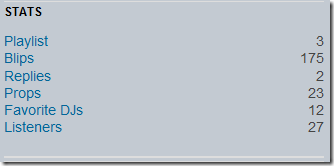
Speaking of playlists, an easy way to solve both the queued songs problem and vastly improve the playlist concept would be to allow the creation and naming of multiple playlists.  Currently, you get one playlist (see the navigation box below; the 3 means I have 3 songs in my playlist).  I’d like the ability to have a separate playlist for classic rock, blues, alt. country and queued blips.

image

4. Ability to Rearrange All Songs.

Once you have blipped a song, you can delete it from your main Blip.fm page, but you can’t rearrange the order on that page.  You can drag songs around to rearrange the order on your playlist page.  But I’d like the ability to rearrange songs on my main Blip.fm page.  The lack of this feature prevents me from dragging other new wave songs I previously blipped up into the grouping of the new wave songs I am currently adding.  It also limits my ability to control the genre, tempo, etc. mix for better effect, as more blips are added.

5. More Developer Interactivity.

On the one hand, I could argue that @blipfm is a clinic on how not to use Twitter.  None of my @ twits have been answered, even though I write often and positively about Blip.fm, and the activity there is sporadic at best.  On the other hand, it seems Blip.fm may be operating with a skeleton crew.  I want to see Blip.fm secure its survival, and then take advantage of the built-in interactivity of Twitter and other networks to improve its service and build its brand.  You don’t have to hire people to do that.  You can create an group of dedicated volunteer users (like Blogger does, and like Microsoft’s MVPs) and let them brand build Montessori style.

6. Improve Embedding.

Blip.fm allows you to embed songs.  Here’s a great one:

The problem of course is that gigantic, space eating graphic and the fact that the embedded player is just too big in general.  The graphic needs to be a lot smaller, as does the player in general.  Compare Blip.fm’s embedded player to the much more elegant divShare one (more on divShare here):

7. Don’t Get Bought by Last.fm.

There has been speculation that someone will scoop up Blip.fm if it gets in dire straits, rather than let it die.  If that’s the only way Blip.fm can survive, so be it.  But please don’t let Last.fm buy it.  I tried to like Last.fm. I really did.  But it is the Photobucket of the music space.  Good idea, but horrible design.  If someone has to save Blip.fm, let it be Google.

I really want Blip.fm to survive and thrive.  I hope it happens, and I hope we see some of these features added over the coming months.  If I am ever able to connect with anyone at Blip.fm, I will invite him or her to our next podcast to discuss Blip.fm in more detail.

How to Turn iGoogle into a Content Reading and Twitter Posting Juggernaut

Until last night, I hadn’t looked at iGoogle, Google’s personalized homepage service in some time.  But I was interested in Steve Rubel’s Twitter setup, so I took a look.  It became instantly clear to me that I could use iGoogle, along with some other applications, to create a fun and efficient page to consume content and push it to various places, including Twitter.

So, with thanks to Steve for the idea, here’s how I turbo-charged my iGoogle page for content and for Twitter.

There are a couple of limitations to Steve’s initial setup that I wanted to fix.  First, ironically the weakest link in the iGoogle implementation is the Google Reader gadget.  If you have a lot of feeds, it is hard to access and manage them via a single Google Reader gadget.  There also needs to be an easier way to share items from the iGoogle page to your Google Reader shared items.  That is important to me, because I use those shared items to populate the “Interesting Reading Elsewhere” box on the right hand side of this page (or, if you’re reading this in a feed reader, the Newsome.Org pages).  Finally, I wanted to access more data, more ways, and without cluttering up my iGoogle page.

So here’s how I created what I think is the most efficient content reading and pushing (to Twitter, etc.) page reasonably possible with readily available and easy to use tools.  The resulting setup allows me to consume content centrally and quickly and to add lots of cool stuff to Twitter by dragging and dropping right into the TwitterGadget message box.

Feed Mashups

This part is, by far, the most time consuming part of this exercise, but it also resulted in one of the best features of my iGoogle page.  You can skip to the next section if you don’t want to create these feed mashups (but I am going to make it easy).

Largely because of my concerns with the Google Reader gadget, I wanted to create a list of headlines only – no photos, no summaries – for the feeds I read the most.  And I wanted to group them into genre-specific lists, like “Tech,” “Hardware,” “Music,” etc.  Fortunately, there is a free, powerful and largely underappreciated tool that will let me do this.

Yahoo Pipes.  Oh how I love Yahoo Pipes.

I decided to create a combined feed for several genres.  I used Tech Blogs (broken into 3 separate feeds, because there are a lot of them), iPhone, Music, Entertainment, Life, Blogs (broken into 2 separate feeds), Tech, and Hardware.  You can choose your own.  All you have to do is create one Yahoo Pipe and then clone it and replace the source RSS feeds.

Let’s take a look at my Tech Blogs 1 group.  Here are the steps to create this Pipe.

1. Select Fetch Feed from Sources menu, and add the feeds you want.  I try to keep each pipe at around 10-12 feeds, otherwise, the feeds can become unwieldy.
2. Select Sort from the Operators menu and select Sort by “item.pubDate” and in “descending” order.
3. Select Loop from the Operators menu and select emit “all” results.
4. Select Item Builder from the Sources menu and place it in the box on top of the Loop module (here’s a picture):

yp1

5. Complete the options in the Item Builder module as shown above.
6. Connect the items above together by dragging between connection points and connect output of the Loop module above to the Pipe Output module.

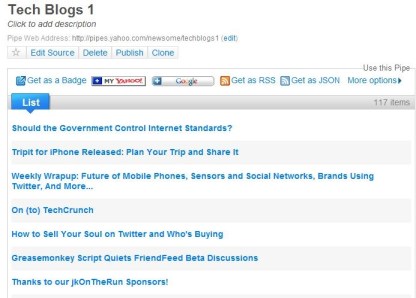
This will generate a combined feed of the sources you added in step 1, with links and headlines only.

yp2

Note the “Get as RSS” button above.  You can right click on that button and copy the combined RSS feed for use in iGoogle.  Once you have one pipe working, all you have to do is clone that Pipe, rename it and replace the source RSS feeds.

Configuring iGoogle

Now, back to iGoogle.  The first problem I had to address was to avoid screen clutter.  iGoogle makes it easy to do this, by allowing you to have multiple pages.  Click the down arrow in the left column beside the page you’re on and select “Add a tab.”  The new page will be added to the left hand column.  You can rename it, and (and this is a big timesaver) you can drag gadgets from one page to another.  Thus, if you want to have a gadget on three pages, you can add it three times (by refreshing the gadget page and adding it again) to one page and then drag the extra copies to their desired location.

At the moment, I have three pages on iGoogle: Google Reader, Headlines (for the feeds I created above with Yahoo Pipes) and Google News.  Let’s take a look.

First, there are two gadgets you’ll want on every page.  TwitterGadget and Google Mini Search.  Add them as described above.

My first page is for reading and pushing content from Google Reader.  Yes, the Google Reader gadget can be unwieldy, but we can vastly improve it with one simple trick: you have have multiple instances of the Google Reader gadget on any page.  I have a 24″ monitor, so I used the three column layout for this page (only) and added Google Mini Search and TwitterGadget to the middle, and eight Google Reader gadgets on the sides.  In the first one, I show All Items and hide items I have already read.  This lets me quickly scan for fresh content.  The other seven show other of my Google Reader folders (the display selection stays in place when you close iGoogle).  I show items I’ve already read in the other seven boxes, since I may have seen something in the native Google Reader application that I want to push to Twitter.  Here’s what it looks like (click on the picture for a larger view).

igoogle1
A Cornucopia of Tweeting goodness.

My second page is for the headlines I created above with Yahoo Pipes.  If I’m in a hurry, I want the ability to scan lots of headlines very quickly.  A great gadget for serving those headlines is Feed Tabs Reader.  I added each one of the genre-based combined feeds that I made with Yahoo Pipes to this gadget.  I love the efficient tabs-based navigation.  This allows me to quickly scan headlines and push a little content, even when I don’t have time to fully consume my feeds.  Note that on this page, I use the two column layout to make TwitterGadget bigger.

Here’s what this page looks like.

igoogle2
You can quickly tab through the various topics.

My third page is dedicated to Google News.  In addition to TwitterGadget and Google Mini Search, this page has the Google News gadget.  Along with selectable regular sections (news, sports, etc.) the Google News Gadget makes it beautifully simple to create custom news sections.  Click the + button at the top right of the gadget and enter the applicable topic in the blank.  So far I have custom sections for “Social Networks,” “Blogging,” and “Digital Music.”  Again, I love the efficient tabs-based navigation.  Again, on this page, I use the two column layout to make TwitterGadget bigger

Here’s what this page looks like.

igoogle3
The Google News gadget is extremely flexible.

The Shared Items Problem

Inexplicably, the Google Reader gadget does not allow you to add items to your shared items list with a single click (you can add a star with one click).  So we need a work-around.  The best I have found so far is to install the Google Reader bookmarklet.  You can add to your shared items by clicking on the bookmarklet, though this requires that you have the actual article or post open.  It’s not ideal, but it works.  Another option I tried and discarded is to have the mobile version of Google Reader open in the browser’s sidebar.  You can one-click items to your shared items that way, but even a big monitor starts to get crowded.

Putting it All Together, via TwitterGadget

Once you have everything in place, this setup rocks.  Completely.  And largely thanks to TwitterGadget.

You can drag and drop items from any of these sources into TwitterGadget.  Once the link is in the TwitterGadget message box, simply highlight the link, click “Control+Y” and the link is shortened.  Following, unfollowing and retweeting are also easier- just hold the cursor over the user’s picture.  Again, there’s simple, tab-based navigation for replies, DMs, favorites and even the public timeline (“Everyone”).

The beauty of this setup is that it is both infinite and flexible.  You can tailor it to your preferences.

I hope this helps.  Enjoy!

Tech for Grownups: My Online Toolbox (Part 1)

OK, so you’re a relative grownup, aren’t trolling the internet looking for chicks or dudes (let me say again how thankful I am that I got through school before Al Gore and Mark Zuckerberg invented the internet), but would like to use the vastness of the web to find, manage and organize data.  And maybe have a little fun in the process.  Here are the tools I use to do that, from the baby step of a web browser, to the giant leap of a central online data repository.  I’m going to do this in two parts, and I think I’ll stay inside the box and start with Part 1.

First Things First, the web browser.

You are almost certainly reading this on a Windows based machine, which means you are probably using Internet Explorer as your web browser.  That’s messed up, but it’s easy to fix.  You need to download and install Firefox.  It’s free, easy and quick.  And your efficiency and coolness factor will get a huge boost.  Why? Because of the many add-ons that are available for Firefox.  Basic installs of Windows Explorer and Firefox are a wash (particularly the newest version of Internet Explorer), but Firefox with the right add-ons is still a superior experience.  There are hundreds of people who use other browsers like Opera and Chrome, and there are teens of people who use something called Flock.  Unless you drive a Smart car, make all your own clothes and grow all your own food, you don’t need to worry about those.

And of course, those on Macs and iPhones use Apple’s Safari.  You can and should get Firefox for a Mac, and we’ll deal with Safari on the iPhone later.

Now, let’s improve the Firefox experience with some of those add-ons.

Here are some of the ones I use.

AdBlock Plus, to remove ads.  This one is a little controversial, since lots of people are trying to make money on the internet and unless you actually have something to sell (most of them don’t) the only legal way to make money on the internet is to put ads all over your page and hope someone accidently clicks on one.  We need to help these people get real jobs by blocking the ads.  Trust me, this is positive social activism.  We’re doing them a favor.

BugMeNot, to anonymously log in to free web sites that insist on making you register.  Many of us use fake names anyway (I was Antigone Tellyeaux (get it?) at the Houston Chronicle site for years; I was William Frawley during the glorious Napster years).  This is also positive social activism by demonstrating that you don’t really need my name and email address to let me read your news stories and accidently click on your ads.  BugMeNot does not provide credentials for paid sites, which is good since we’re all law-abiding grownups.

Foxmarks, to synch bookmarks on all your computers.  I keep separate bookmarks on my work computer, but synch them across my home computers and laptops.  One caveat: Foxmarks is changing into something called Xmarks and will start offering suggested sites to visit.  This sounds to me like a social networking hysteria induced attempt to be something I don’t want, so who knows what the future holds.  But until they screw it up, Foxmarks rocks.

TinyURL Creator, to make web links smaller, so we can use them on social networks and whatnot, which we will get to below and in Part 2.  In the meantime, you need to practice using the words “social networks,” “Facebook” and “Twitter” in every sentence to show everyone how hip you are.  “Hey, Junior, if you don’t change your Facebook status to finishing his homework, I am going to come up there, delete all your social network accounts and then talk about it on Twitter.”  See, it’s easy once you get the hang of it.

Photobucket Uploader, to easily upload photos to your Photobucket account.  Photobucket’s interface is a train wreck, but combined with this add-on it makes grabbing and sharing photos very easy.  I don’t use it to share my personal photos- I use Flickr for that, but Photobucket is great for uploading stuff I want to use on my blog or on one of the social networks.

Evernote Web Clipper, so we can easily add content to Evernote, one of our primary tools, that we’ll get to in a moment (I have mad love for Evernote).

These are just a few of the plug-ins I use.  There are thousands more to choose from.  You can browse and search for them here.  Here are the ones “recommended” by the makers of Firefox (at the moment, I don’t use any of the ones at the top of that list) and here are the most popular ones.  The point is that you can tailor Firefox to your needs via the selective installation of add-ons.

Now you need a war chest to buy the cool stuff you find while surfing around on your tricked-out Firefox.

Paypal is the only way to go here, for a couple of reasons.  Lots and lots of places take Paypal; it’s owned by eBay, which is a huge company that has lots of legal and business incentives to make it safe; and most importantly, you can use it to keep your credit card information off the big scary internet.  I just keep money in my Paypal account to use when I need it.  You can use a credit card or your bank account as a back up source of funds, but either way, Paypal can serve as a buffer between you and all those people trying to steal your money on the internet.  I don’t really believe all that but it’s amazing how many of my real world friends are still terrified by the internet.  I have one friend who will clutch her purse to her chest and tremble if she hears the word internet.

One caveat: If you get an email from Paypal, asking for your password, don’t give it to them.  It’s not Paypal.  Delete that one and move on to t
he
one from the brother’s nephew’s cousin’s former roommate of some dead African president who needs a little help moving some money around.

Now we need to find some places to store, organize and access our data.

For my personal photos, I use Flickr, because I like the interface and the iPhone integration via Mobile Fotos.  Plus, you can determine who can see each photo you upload- everyone, people you designate as friends or only you.  There are other options, like Picasa (owned by Google and integrated with other Google applications), SmugMug and, as noted above, Photobucket.  I think Picasa is a decent alternative for very basic photo sharing and SmugMug has a lot of non-geek traction, but most of the others are either feature or interface challenged.  In other words, they are too hard or not as good.

For online file storage (or the Cloud as the cool people call it), I prefer Dropbox.  You get 2 gigabytes of free storage (that’s a lot if you aren’t a hardcore geek), a good web interface, and the ability to direct link to your files, including music files (here’s why that’s important).  The only criticism I have of Dropbox is that it currently lacks an iPhone app.  Box.Net and ZumoDrive are other similar, but not quite as good, alternatives.

The most wonderful, Evernote.

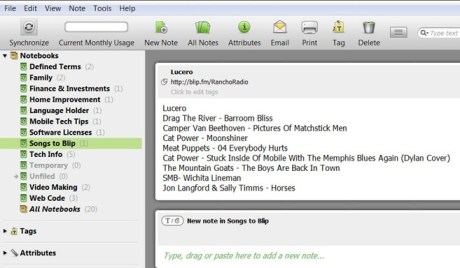
For note taking and general data archival, I use and highly recommend Evernote.  It has a great desktop application, a decent web interface and a very good iPhone app.  You can add, sort, synch and access your saved data from any computer.  Evernote is so important and so hard to explain without pictures, let’s take a look at how I organize my data in Evernote.

evernote1

I have Notebooks (think of them as folders) for various types of information.  The one highlighted above is where I list songs I come across on Blip.fm that I may want to later add to my Blip.fm page.  I also have folders for Web Code I use regularly (so I can copy and paste it), Software Licenses, Home Improvement projects, etc.  With the Evernote plug-in (see above) I can easily add information, web clips, etc.  Let’s look at one more example.  Here’s a clip from my Mobile Tech Tips Notebook on how to connect to ATT hotspots via my iPhone.  Through the Evernote iPhone app, I can access this information whenever and wherever I need it.

evernote2

Evernote makes it easy to accumulate, manage and access all sorts of information.  The premium (e.g., not free) version even allows you to add and synch files and documents.  I don’t use Evernote for that yet, but if it ever catches up to Dropbox, it would present a compelling case for one-stop shopping.

That’s enough to get you started.  We’ll cover the rest of the stuff you need soon in Part 2.

If you have questions or other ideas for the perfect online toolbox, let me know in the Comments and I’ll address them in Part 2.

Creating a Private Cloud

After thinking about the various online storage options, and particularly the high cost for those who need or want a lot of space, I started to think there might be a cost savings to creating a private cloud.  Like lots of other business people, I have a remotely hosted, dedicated server to host my web sites.  I could always use a desktop, web based or plug in FTP client to access space on that server, but that would require me to separately configure each computer I want to use to access that space, including borrowed computers.  It would work, but it wouldn’t be fun or efficient.

I could also set up some space through Amazon S3, find a web based front end, and access my data that way.  Again, it would work, but it wouldn’t be ideal.  Plus, the cost formula used by S3, while inexpensive, doesn’t lend itself to certainty.  The fee is based on both the space you have and the amount of data transfer in and out (and out could be a big number if your shared items become popular).

So I decided to experiment with a private cloud.  Here’s how I made one and what I think of it so far.

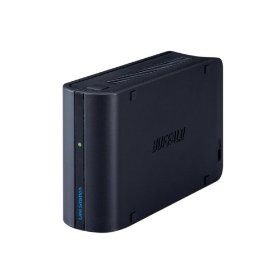
bls First, the hardware.  I have a home server that I use to serve audio and video content throughout the house, to back up our computers and for storage that I don’t need to access remotely.  Because that box has plenty on its plate already, I elected not to use it for my private cloud, even though it has the ability to permit remote access.  Rather I bought a Buffalo Linkstation Mini.  It’s small (5.2 x 1.6 x 3.2 inches ; 1.1 pounds) and fits easily inside the electronics chest in my study (an old chest of drawers with grommets drilled in the back, so I can charge laptops and other devices in drawers and out of the way).

I ran a network cable from the nearest switch (the one that serves my Mac not-so-Mini) to the Linkstation, ran the power cables through the grommet and out to the the power strip I previously installed on the back of the electronics chest.  Less than 15 minutes after opening the box, the Linkstation was installed and ready to go.

Next, the software.  The Buffalo installation disk is reasonably straight forward.  It identified my Linkstation on the network right away and installed the NASNavigator 2 software, that allows you to manage the Linkstation via your computer.  Like with a router, most of the Linkstation setup is done via your web browser (always change the default password right away with routers, wireless access points and web accessible drives).  If you’ve ever set up a router, this process will be a breeze.  Even if you haven’t, the process is pretty simple and the manual is helpful if you need some hand holding.

You name your Linkserver, set the date and time, assign it to an existing Windows workgroup if you want (though it will be visible on most networks even if you leave the default workgroup name).  You create folders to share via this same web based application.  It’s not hard to do, but it’s not as easy as it would be if you could set up shared folders via Windows Explorer.  You can also switch between a RAID 1 or RAID 2 setup, but no action in this regard is necessary unless you want to switch arrays.

Setting up web access consists of selecting the folders you created as described above and selecting the desired level of access: none; users who have accounts you set up via the setup application; or anyone.  You can (and should) also set access levels- generally read only- for publicly shared folders.

To complete the web access setup, you pick a name for your web accessible space, which is then accessible via a Buffalo owned and administered remote access domain and create a key to give to those who you want to allow access to your “non-everyone” folders.  If you have a firewall or a router, you need to configure it to permit access.  The Buffalo application will attempt to automatically configure your firewall/router, but this did not work for me.  Having some experience setting up routers, I was able to manually configure my router pretty quickly.  This would be a major pain for someone without this experience but it is unavoidable.  Anyone who has ever set up a Slingbox has already been through this process.

All in all, the software is about as simple as can reasonably be expected.  It worked, but it could be more elegant.

Finally, my first impressions.

Once you test your settings and happily get the all clear sign, accessing your private cloud is as easy as pointing your browser at the web address Buffalo creates for you, and filling in the shared space name and your name and password.  The Buffalo web access application works reasonably well, though it is not as appealing as the interfaces for some of the commercial online storage services.  I greatly prefer the Box.Net interface, for example.  On the other hand, once you access the shared folders, when you click on a file you are presented with options to link to a file or to email a link to the file.  You can also remotely add files to the cloud if you have the requisite permissions.

I wanted the ability to serve some content from my private cloud to this blog and my other web sites.  To accomplish that, I created a new folder, set the sharing level at anyone and the permissions as read only.  Here’s a cloud theme song (buy this excellent Jayhawks record on Amazon), which is temporarily located in that folder to see if it works.  Initial results are mixed.  It looks like the files can be accessed, but it doesn’t seem to play well with Yahoo Media Player (which I use and recommend to allow readers to easily play embedded audio), and buffering times vary.

It’s too early to tell if a private cloud will do the trick for me, but it might.  More on my private cloud later.

Solving the 401 Error: Windows Live Writer & Remotely Hosted Blogger Blogs

I finally figured out why I couldn’t get Windows Live Writer to recognize my blog.

If your blog is remotely hosted (meaning on your server), you have to add this in the head area of your template:

<meta content=”blogger” name=”generator”/>

After that it works like a charm.

Too bad it took me about two hours to figure that out…


Technorati Tags: ,

Annoying Windows Vista Problem Solved

Ever since I installed Vista on KN-1, my home built computer, I have had one extremely annoying problem.  After my computer runs for a while, the toolbar gets all out of whack.  Like this:

mess 2

The buttons get all jumbled up and stop responding.  It is very, very annoying.

The only solution I could come up with was to reboot, which was very disruptive to whatever task I was working on.  The problem was even more irritating because when this happens, the restart button stops responding, and I have to do the control-alt-delete thing just to restart.  This mess has been a major drain on my efficiency and I had even begun to consider trashing my computer and starting over- in a desperate attempt to solve this problem.

Weekends in the Houston language translates to “rains all day.”  So I decided to use my forced indoor time today to see if I could find a solution to this problem.  Of course, I started with the answer machine- Google.  After running down a few wrong trails, I came across this inviting Microsoft Knowledge Base page.  I first tried the work around:

1. Press CTRL+ALT+DEL.
2. Click Task Manager.
3. Click the Processes tab.
4. Click the explorer.exe process.
5. Click End Process, and then click End process.
6. Click the Applications tab.
7. Click New Task.
8. Type explorer in the Open box, and then click OK.

Lo and behold, that fixed the problem.  At least now I wouldn’t have to control-alt-delete and restart every hour or so.

Next I installed the hotfix from that page.  It installed.  I was hopeful.  I rebooted, even though I wasn’t prompted to.

Four hours later, I am still working and my toolbar looks normal.  And the buttons work.

I can’t adequately explain how happy I am to (cross my fingers) have this problem solved.

If this post can help one other person solve this problem, it will be worth it.

How to Convert LPs to MP3s

NOTE: The original post had a bunch of helpful photos.  But the hosting service died, and the photos with it.

I’ve been writing some about my recent project- converting some old, hard to find LPs into MP3 format, so I can put them on my music server and CD-Rs to listen to in the car.

Here’s how I do it.

First the equipment. Other than a computer, you need a turntable. I use the Ion USB turntable, but any turntable that you can hook up to your computer will work. I haven’t tried them, but here’s a device that allows you to connect a traditional turntable to your computer’s line-in jack and here’s one that works via USB.

You’ll also need some recording software. I use Audacity, which is free, for both my LP to MP3 conversions and for doing my podcasts.

First, hook up your turntable to your computer. This is an easy process with the Ion turntable. You just plug in the USB cable and, at least in Windows XP, the computer does the rest. The turntable comes with drivers on a CD if you need them.

Then take out the LP, place it on the turntable, blow it clean with canned air, and wipe it gently with a soft, lint-free towel. The quality of the LP is the biggest factor in how the converted MP3 will sound. If you have an old LP, expect some static and maybe a skip or two- just tell your friends that it adds to the vinyl experience.

Then open Audacity. Under Edit/Preferences, be sure you do 3 things (see Figure 1 below): select the USB turntable as the recording source (on my computer it shows up as ” USB Audio Codec,” set the channels as “2 Stereo,” and select software playthrough so you can hear the record while it’s being recorded. This will allow you to start over if the sound is especially bad.

Then press the Record button in the main Audacity window (no need to hurry- you can trim the beginning of each song after you record the LP), and then place the needle on the LP and record that side. After you’re done with Side A, trim the excess part at the beginning of the first song by selecting it with your curser (see Figure 2 below) and either selecting Edit/Cut or by simply hitting the Delete key on your keyboard.

Then do the same thing for Side B of the LP.

When you finish recording Side B, trim the excess part at the beginning of Side B, like you did above for Side A. Then align the beginning of Side B with the end of Side A by placing your cursor at the correct location and selecting Project/Align Tracks/Align with Cursor (see Figure 3 below). In Figure 3, Side A in on the top and Side B is on the bottom. Side B is longer than Side A. In this example, I have placed the cursor at the location in the Side B track that corresponds to the end of Side A. Selecting Project/Align Tracks/Align with Cursor will cause Side A and Side B to line up.

Place the cursor where you want Side B to begin and select Project/Align Tracks/Align with Cursor

Then make the entire LP viewable on your screen by clicking on the “Fit project in window” icon.

Then delete the extra silence between each track and place a label at the beginning of each track. The label is the name of the song. Sometimes it takes a little time to properly identify the beginning of each track- I keep the album cover handy so I can refer to the song lengths that are almost always printed thereon. After selecting the extra silence between each track and deleting it using the Delete key, you can immediately add a label by clicking the label icon.

Once you have everything labeled, you need to do two things. First, normalize the tracks by selecting Effect/Normalize (see Figure 6 below). Check both “Remove any DC offset” and “Normalize maximum amplitude to -3dB.” and click “OK.” Second, put your computer volume on a typical music listening level and play parts of a few songs see if the recording is loud enough. Almost all the time, they aren’t. If not, slide the slider at the beginning of each file (remember there are 2- one for Side A and one for Side B) to increase the loudness. Generally +3 dB or +6dB will do the trick.

WARNING: I don’t know if this is a problem specific to my system or not, but NEVER try to use the Backspace key when typing the song name labels. Audacity crashes every time I do that on any label other than the first one. If you need to fix a typo, place the cursor before the letters you want to delete and use the Delete key. It is a very good idea to save your project after every step.

Then select File/Export Multiple to split the recording into individual song files. You need to select the export format, and the location for the files. I use a particular folder on my music server (called “LP to MP3”), so I can easily import the finished MP3s into my music library. I simply tell my media player to search that folder, and it finds the new song files automatically. Then I edit the tag info and add album cover art (which you can almost always find either via a Google image search, at AllMusic.Com, at Amazon, or via an eBay search).

That’s it. The first couple of times, it takes a little time. But once you’ve done it a few times, it goes really fast.

It’s a great way to hear some good music that isn’t available on CD or iTunes.

Tags: , ,

Blog Improvements and the Backup

I tell my friends all the time how important it is to always back up their data. That to choose not to back up is to choose to lose data, and all that.

But yesterday, when I was making some changes to the left and right columns of my blog, I didn’t take the time to back up my current template before I made those changes. I am pretty good changing the html and scripts used to pull and display information, so I figured I’d be in and out in less than a half hour.

What I didn’t count on was the second half of my template page getting accidentally selected and deleted by mistake, along with those few lines I intended to delete. I still don’t know how it happened, and only realized it had happened when I went back to my blog later and there was nothing but random code on the page.

Big honking problem.

I have many old backups of my template, but none from the last few months. So I had to spend about 3 hours figuring out what was missing and rewriting the template. That is not a recipe for a relaxing Saturday afternoon. At least it was raining cats and dogs, so I wasn’t missing anything fun.

At the end of the day, my improvements were added. Here’s a summary of what I did and how I did it:

paint1) I added an automatically updating “recent links” list using Dave‘s advice given in a Comment to my WordPress Blues post. I tried that approach a year or so ago, and only got 3-4 links in the list. Technorati must have fixed it in the meantime, because now it seems to work reasonably well. One beauty of the blogosphere is that it allows you to have smart friends from all over the world who can help you out. Thanks Dave!

2) I added a tag cloud using ZoomClouds. It is easy to set up and configure (I had to make mine very narrow to fit in the column). The links lead to a page on the ZoomCloud site where the relevant portion of your RSS feed is displayed. I wish it linked to the actual blog post, but ZoomCloud has to pay the bills, so I can live with it the way it is.

3) I fixed my Last.fm plug-in to J. River’s Media Center (the best media player on the market, yet one that is ignored by many writers), so my playlist will appear on my Last.fm page. I also designed a weekly top artists chart, which I am not going to display all the time, but which I will post from time to time. Here’s how it looks:

4) I deleted all of the old feed buttons in favor of the standard one, and put it, my email subscription form and a new mobile feed via Plusmo at a better location, to encourage more visitors to subscribe. If you aren’t subscribed to Newsome.Org, how’s about clicking that little orange button over there?

5) After considering removing it altogether, I moved my Skype button to a less obvious place- below the fold. Anyone who ought to be Skyping me will know it’s there, and it will hopefully keep me from getting too many young, drunk and clueless calls.

6) I added an automatically updating list of people who recently Commented on my posts. Note that it isn’t the last 10 to Comment anywhere- it’s the last 10 to Comment on a post that is still on the front page. Not my preference, but that’s the way the system I found works.

The idea of a lot of the new features is to give people who link to me and Comment on my posts some instant and automatic return traffic. I am good about responding to people who link and Comment, but when I get busy or distracted, I don’t want links and Comments to go unrecognized. After all, blogging is about community and about back and forth.

Lastly, I updated my music and book lists. Many thanks to Donncha Caoimh, who recommended Bryan Peterson’s Understanding Exposure in a Comment. That is the most helpful photography book I have ever read. Bryan knows how to teach exposure. I just wish there were a few more photos of his extremely fine wife in that book. If you’re a guy and you’ve read it, you know what I mean.

Donncha is a fantastic photographer. Visit In Photos to see his amazing photography.

Back to backups. While I was finally able to get things back up and running with the new content in place, my failure to backup my data made a 30 minute job a 3 and a half hour job.

Do as I say, not as I (sometimes) do- go back up your data.