PimpMyNews: Make Blogs Talk

I have been experimenting a bit with PimpMyNews, an Xzibitly named service that allows users to create a feed list of blogs, news and other selected sources and listen to that content over the web or on an iPhone, iPod Touch or other mobile device that can play MP3s.  While this is a pretty handy tool for anyone, I think it’s greatest potential may be as an accessibility device.

Let’s take a look.

According to co-founder John Atkinson, PimpMyNews, which launched its first generation platform in 2008, “puts consumers in control by automatically collecting the news and blogs they wish they had time to read – and converting them to audio – so they can listen while doing other things, like driving, working out, riding the train and more.”  The service allows users to choose from over 1,200 sources to create personalized audio playlists, and to share that content with friends via email or on Facebook, Twitter, MySpace, Digg and other social networking sites.

Once you’ve completed the quick registration process, and clicked on the expected email confirmation link, you can easily create playlist of feeds.  You can start with a pre-selected group of feeds via a “FastPack” or you can browse the available feeds and create your own mix.  There are FastPacks for Apple, Entertainment, Politics, Sports and Technology.  At present, you can’t add feeds to your playlist that aren’t already available in the various PimpMyNews categories.  If the ability to add new feeds is ever added, it would be cool if you could also import OPML files exported from your feed reader.

But there are plenty of feeds available to get you started.  After you have your initial feed mix set up, you can access your playlist via the My Account tab at the top of page and you’re off and listening.

The audio conversion is excellent, with the read text sounding about as natural as can be expected.  I like the fact that you get an assortment of voices.  Here’s a sample of how it sounds.  Note that you can view the text by hovering over the View Summary link.

Once you have your playlist set up, you’ll want to enable your podcast so you can listen on the road.  Click the set up link, and add the content from your playlist you want to include (which can be all the feeds or just some of them).  Click the save button, and you’re presented with a one-click button to subscribe in iTunes and a link to use to subscribe elsewhere.  Here’s my feeds podcast link if you’re interested.

You can rate posts and share them easily, via the handy buttons at the bottom of the View Summary pop-up box.

And, of course, there’s an iPhone app (iTunes link).  A Blackberry app is forthcoming.

I’ll be using the iPhone app this weekend as I run errands and do my chores.  As noted above, I also think people with accessibility issues could find PimpMyNews very useful.  I can’t wait to see what new features are added in the coming months  There are lots and lots of cool possibilities.

And the best thing is, now I can make those so-called A-List bloggers talk to me, whether they want to or not!

Take a Email, Betty

Send a copy to my inbox, gotta organize my life.  Apologies to R.B. Greaves.

Cc:Betty, not to be confused with CC Rider, CCR or the German techno band C.C.C.P., is a service that turns an email exchange into a threaded message board-like page, and archives attachments for easy access.  Getting started is a simple as adding betty@ccbetty.com to the cc (e.g., carbon copy) field in an email.

When you do that, the service creates a page like this:

Email replies (assuming they leave betty in the cc field) show up on the list, and attachments are archived too.  Additionally, participants can comment and leave attachments directly from the Cc:Betty web page.  The process works smoothly, with attachments showing up as thumbnails (see the screen clip above) you can click on for a full size view:

More info via the FAQ.

I’m not exactly sure how I can use Cc:Betty, but I want to find something to do with it.

Because it’s just cool.  Sometimes just cool is enough.

There’s Something About Mixx

As a part of my content/Twitter superpage I have created on iGoogle, I set up a section for feeds from various content sharing sites.  I used the handy Feed Tabs Reader gadget, which lets me create a tab for each site so I can quickly scan for interesting stuff to read, blog about or push to Twitter (follow me on Twitter to enjoy the fruits of all this work).

I populated this section with RSS feeds for Delicious (Popular), my Delicious bookmarks, the Onion, Fark, Digg-Tech and Digg-Entertainment (which will soon be deleted unless I get relief from the hated DiggBar), Yahoo Buzz, Mixx, Reddit, Propeller and my FriendFeed feed (which is useless because people tend to post a lot of items at once to their FriendFeed and there isn’t a feed for one item from each person you follow).  Let me know in the Comments if there are other feeds I should add.

Until I was surfing around looking for sites to include, I had never used Mixx.  I decided to add every promising site I could come up with and then delete over time those I find unhelpful.  Boy, am I glad I added the Mixx (Popular) feed.  So far, it has proven to be, by a large margin, the site with the best ratio of interesting content to static.  The current Mixx tab shows 20 items (the most you can have in a Feed Tabs Reader tab), all of which are at least semi-interesting.

According to Wikipedia, Mixx was created in 2007 by a team of industry veterans with deep internet, news publishing and online content expertise, including several former executives from Yahoo, USA Today and AOL. The private beta version of the site was launched on September 21, 2007, and the public beta of was introduced on October 10, 2007.  It has content partnerships with various old media outlets, including USA Today, Reuters and CNN. The LA Times owns a stake in Mixx.

There is a Mixx blog for more information (though it should be a lot more active), a Firefox plugin and some other tools.

I played around a bit with the Digg-like adding stories and voting up features, but those don’t interest me nearly as much as the content feeds, which just seem to be of a higher quality that the alternatives.  I wish Mixx had a private bookmarking feature like Delicious.  If it did, I would consider consolidating my bookmarks there.  I’m far from a Delicious power user, but I do use it to store content I find on the web- as opposed to in Google Reader– for future use.  You can add content to your Mixx Conversations page from within Mixx and there’s an RSS feed for your saved Conversations, but I didn’t see an easy way to add content from the web directly and privately to your Conversations page.  Still, I came to Mixx for content and as long as the ratio of interesting content to static stays high, Mixx will have a place in that Feed Tabs Reader.

My only material complaint about Mixx is that its front page doesn’t render well, at least in Firefox.  I have seen this word jumbling issue with other sites, but in 2009 there ought to be a design fix to prevent this from occurring, regardless of font selections (I generally “control+” sites in Firefox to take advantage of my large monitors and to assist my aging eyeballs).

I’m surprised it took me a year and a half to find my way to Mixx.  But as they say, better late than never.

Evening Reading: 4/15/09

Marriage Made in Nerdville: You can now send stuff to my beloved Evernote via Twitter.  What they need to do now is to convert #hashtags to tags on importation.

Spam vs the World Department: Crap like this and that stupid, obvious and utterly idiotic Twitter traffic machine nonsense are the worst thing about Twitter.  I don’t know what Twitter’s position or plan is with regard to spam, but if they aren’t proactive, spam will kill Twitter.  You can count on it.  At least all those self-affirming, very serious and unintentionally hilarious Deep Thoughts-like posts are funny.

Oversharing Department: Speaking of all those Deep Thoughts, the New York Times tries and generally fails to play the role of Twitter apologist.  Few if any of the examples mentioned in that article couldn’t be done much better via email or text message.

That’s Not a Nut, that’s a Cherry Bomb: What do all parks do for self-improvement?  Why detonate some squirrels, of course.

Saying a Lot Department: Here are Rush Limbaugh’s 10 dumbest remarks.  I’m profoundly apolitical, but I lose a lot of respect for someone who lives on either end of the spectrum, when we all know the truth lies somewhere in the middle.  End dwellers aren’t looking for truth or justice.

Still Whining: Dave Winer is still crying about not being included in Twitter’s suggested users list.  Now he points a green finger at Mashable.  I wonder if he has convinced himself it’s about who’s on that list as opposed to that he’s not?  Dave will not talk to me, so I’d love the thoughts of some of his minions.

Yes, Yes, Yes Department: Feedburner is completely and totally messed up.  It is unforgivable that Google would acquire a tool used by so many bloggers and then completely ignore it to death.  If Google isn’t going to take care of it, give it to Mozilla and let it go open source.

Horrifying Twitter Post of the Week:


I’d like to add a witty comment, but there’s nothing I could possibly add to that.

OK, Maybe I Can: Why do I feel like I’m caught in a yelling match between Jack Handy and P.T. Barnum every time I visit Twitter?

Evening Reading 4/13/09

Lots of good stuff tonight.

Wally Bangs Department: When a blog post starts off with this sentence, you know it’s going to be good: “Twenty four years ago I loaned Ken Kesey’s Garage Sale to a dude that worked with me at McDonalds.”  I wish Wally Bangs would quit all other pursuits and just write blog posts all day.

Make Light Not War: I was really surprised it wasn’t via Facebook.  Or Twitter.  This is an interesting video.  I love it when scientists talk about scientific topics without sounding like eggheads.

Beautiful Math Department: I like this math game for the iPhone or iPod Touch.  I have to somehow let Delaney see it on her own and ask for it so she won’t realize it’s the “E” word.

Stupid Jargon Department:  I am fired up that Alan Meckler is fired up about the “Semantic Web.”  Anything that increases the chance that the entire “Semantic Web” concept will disappear into deep obscurity, like Virtual Reality World Magazine or CD-ROM World, is a very good thing.  If you doubt that, don’t take my word for it.  Take a moment to consider Business 2.0’s attempted definition:

[The Web is] basically a compendium of billions of text documents designed to be read by humans. You can search it for keywords, but the results aren’t much use until you sort through them to find the page that has the info you want. To take the Web to the next level – to move from Web 2.0 to Web 3.0 – the information in those documents will have to be turned into data that a machine can read and evaluate on its own. Only then will computers be able to take over tasks we now do by hand: find the nearest restaurant, book the best flight, buy the cheapest CD.

A Truly Smart Server:  HP is preparing an update for its MediaSmart Sever software to add video streaming functionality for remote devices.  Yes, including the iPhone.  Plus, an improved Time Machine configuration.  My pal Ed Bott has more on this.  Unfortunately, this update doesn’t work on first generation MediaSmart Servers- like mine.

Great Record of the Day: 30 Days Out, one of my favorite music blogs, has a post on the Byrds’ excellent 1968 record.  This was the great Gram Parsons’ only album with the band.  Gram Parsons and Clarence White is a combination that would make a Reece’s Cup feel inadequate.  Here’s the most excellent track, You Ain’t Going Nowhere.

Expensive Hardware Department: Engadget has a detailed review of the very expensive and, in my opinion, not worth the high price Dell Adamo.  Engadget says it’s pretty, but tends to agree with me about the price thing.

HD Camcorder Roundup:  PC World has a primer on shopping for an HD camcorder, a list of cameras that also take HD video and a link to Macworld’s HD camcorder buying guide.  As noted before, here is my HD camcorder buying guide.  I’m going to buy one the day they are available.

Desperately Seeking Smartphone: After reports that some carriers thought their proposed Smartphone was boring, Dell is looking to partner up with China Mobile to release a Smartphone in China.

Light a Firecracker, Mini-Explosion Results: I generally enjoy Penelope Trunk’s posts.  And she seems like a good person, if perhaps not at the very top of the curve on the self-awareness scale.  But how a parent can tell the worldNo school today and the nanny’s on vacation. A whole day with the kids gets so boring: all intergalactic battles and no intellectual banter” (here‘s the Twitter post in question) and then go nuts when someone craps all over you is a supreme mystery to me.  Yes, parenting is hard work and yes there are times every parent gets frustrated.  But there’s such a thing as over-sharing.  And another thing.  There’s a whole lot more to life than so-called intellectual banter.  Now I’m sure that Penelope knows and appreciates that, and I bet she’s a good mom.  But for crying out loud, don’t say something like that to a world full of devoted parents and then act surprised by the resulting firestorm.  And not just because it might be banal (that’s an intellectual word that would be useful in bantering).

Twazzup: Don’t Judge a Web 2.0 Application by Its Name

Compare how cool most new wave bands were named to how stupidly most Web 2.0 applications are named.  Where is Prefab Sprout when you need them.

Speaking of stupid names, Twazzup, perhaps a new low in naming, wants to be your better Twitter search engine.  Taking a page from the FriendFeed beta, Twazzup search results are real-time (assuming Twitter is, which it often ain’t) with a pause button.  Stupid name aside (and it’s a little hard to put it aside), Twazzup has a really well designed interface.  I like the tabs at the top, and the photos on the right side.  And even the colors.

twazzup

I don’t see an RSS feed to export search results to a feed reader or to my new love iGoogle, which is the feature of Twitter Search I use the most.  As part of my very half-hearted efforts to monitor my “online reputation” I have a Twitter Search feed that picks up my Twitter mentions, replies and retweets.  Here it is, if you want to use it as a go-by to create one for yourself:

h t t p://search.twitter.com/search.atom?q=%40kentnewsome+OR+%22Kent+Newsome%22+OR+Newsome.Org.

A try or two at Boolean searches also came up empty.  I didn’t find any meaningful help or support options, and job one for Twazzup should be an FAQ.  I would also like to have a list of saved searches that I could click on for easy access, and maybe a way to search only people I follow or who follow me.  Or better yet, who follow a particular user.

One cool feature it does have is a clickable tab for relevant hash tags.  For example a Grateful Dead search returned hash tag tabs for #musicmonday, #grateful dead, and #1071 (which is some sort of Grateful Dead playlist thingy).  Another thing I like is the way thumbnails of attached photos show up in the applicable Tweet.  You’d think Twitter would have added that functionality months ago.

ReadWriteWeb likes the fact that Twazzup displays a list of the “most authoritative” Twitter users for any given topic.  I suspect we are, once again, confusing popular with authoritative, which is probably the single biggest fallacy of Web whatever.whatever.  Just because there isn’t a readily available method to accurately measure something doesn’t mean you have to come up with inaccurate methods.  The New York Times doesn’t call its bestsellers list the most authoritative books on the subject.

Mashable wonders if we really need a Twitter search alternative.  I agree with the point that most if not all of these alternative search engines may shortly suffer the dual death knell of redundancy and remoteness once Twitter integrates a better search component on Twitter pages.

CNet likes the fact that Twazzup doesn’t monkey with the time-sorted results, but also likes the fact that it does have those popularity features in the right hand column.  The CNet post looks at three Twitter search alternatives and concludes that Twazzup is the best.

Like many, I suspect these Twitter search alternatives may have a limited shelf life, but so far, only the lack of an RSS feed for search results is keeping me from making Twazzup my preferred choice for Twitter search.  At least for a while.

How to Turn iGoogle into a Content Reading and Twitter Posting Juggernaut

Until last night, I hadn’t looked at iGoogle, Google’s personalized homepage service in some time.  But I was interested in Steve Rubel’s Twitter setup, so I took a look.  It became instantly clear to me that I could use iGoogle, along with some other applications, to create a fun and efficient page to consume content and push it to various places, including Twitter.

So, with thanks to Steve for the idea, here’s how I turbo-charged my iGoogle page for content and for Twitter.

There are a couple of limitations to Steve’s initial setup that I wanted to fix.  First, ironically the weakest link in the iGoogle implementation is the Google Reader gadget.  If you have a lot of feeds, it is hard to access and manage them via a single Google Reader gadget.  There also needs to be an easier way to share items from the iGoogle page to your Google Reader shared items.  That is important to me, because I use those shared items to populate the “Interesting Reading Elsewhere” box on the right hand side of this page (or, if you’re reading this in a feed reader, the Newsome.Org pages).  Finally, I wanted to access more data, more ways, and without cluttering up my iGoogle page.

So here’s how I created what I think is the most efficient content reading and pushing (to Twitter, etc.) page reasonably possible with readily available and easy to use tools.  The resulting setup allows me to consume content centrally and quickly and to add lots of cool stuff to Twitter by dragging and dropping right into the TwitterGadget message box.

Feed Mashups

This part is, by far, the most time consuming part of this exercise, but it also resulted in one of the best features of my iGoogle page.  You can skip to the next section if you don’t want to create these feed mashups (but I am going to make it easy).

Largely because of my concerns with the Google Reader gadget, I wanted to create a list of headlines only – no photos, no summaries – for the feeds I read the most.  And I wanted to group them into genre-specific lists, like “Tech,” “Hardware,” “Music,” etc.  Fortunately, there is a free, powerful and largely underappreciated tool that will let me do this.

Yahoo Pipes.  Oh how I love Yahoo Pipes.

I decided to create a combined feed for several genres.  I used Tech Blogs (broken into 3 separate feeds, because there are a lot of them), iPhone, Music, Entertainment, Life, Blogs (broken into 2 separate feeds), Tech, and Hardware.  You can choose your own.  All you have to do is create one Yahoo Pipe and then clone it and replace the source RSS feeds.

Let’s take a look at my Tech Blogs 1 group.  Here are the steps to create this Pipe.

1. Select Fetch Feed from Sources menu, and add the feeds you want.  I try to keep each pipe at around 10-12 feeds, otherwise, the feeds can become unwieldy.
2. Select Sort from the Operators menu and select Sort by “item.pubDate” and in “descending” order.
3. Select Loop from the Operators menu and select emit “all” results.
4. Select Item Builder from the Sources menu and place it in the box on top of the Loop module (here’s a picture):

yp1

5. Complete the options in the Item Builder module as shown above.
6. Connect the items above together by dragging between connection points and connect output of the Loop module above to the Pipe Output module.

This will generate a combined feed of the sources you added in step 1, with links and headlines only.
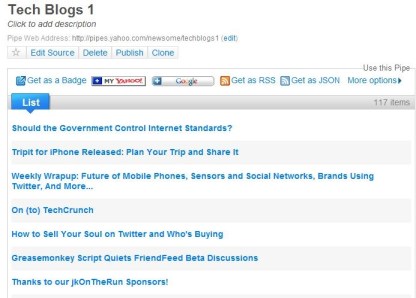
yp2

Note the “Get as RSS” button above.  You can right click on that button and copy the combined RSS feed for use in iGoogle.  Once you have one pipe working, all you have to do is clone that Pipe, rename it and replace the source RSS feeds.

Configuring iGoogle

Now, back to iGoogle.  The first problem I had to address was to avoid screen clutter.  iGoogle makes it easy to do this, by allowing you to have multiple pages.  Click the down arrow in the left column beside the page you’re on and select “Add a tab.”  The new page will be added to the left hand column.  You can rename it, and (and this is a big timesaver) you can drag gadgets from one page to another.  Thus, if you want to have a gadget on three pages, you can add it three times (by refreshing the gadget page and adding it again) to one page and then drag the extra copies to their desired location.

At the moment, I have three pages on iGoogle: Google Reader, Headlines (for the feeds I created above with Yahoo Pipes) and Google News.  Let’s take a look.

First, there are two gadgets you’ll want on every page.  TwitterGadget and Google Mini Search.  Add them as described above.

My first page is for reading and pushing content from Google Reader.  Yes, the Google Reader gadget can be unwieldy, but we can vastly improve it with one simple trick: you have have multiple instances of the Google Reader gadget on any page.  I have a 24″ monitor, so I used the three column layout for this page (only) and added Google Mini Search and TwitterGadget to the middle, and eight Google Reader gadgets on the sides.  In the first one, I show All Items and hide items I have already read.  This lets me quickly scan for fresh content.  The other seven show other of my Google Reader folders (the display selection stays in place when you close iGoogle).  I show items I’ve already read in the other seven boxes, since I may have seen something in the native Google Reader application that I want to push to Twitter.  Here’s what it looks like (click on the picture for a larger view).

igoogle1
A Cornucopia of Tweeting goodness.

My second page is for the headlines I created above with Yahoo Pipes.  If I’m in a hurry, I want the ability to scan lots of headlines very quickly.  A great gadget for serving those headlines is Feed Tabs Reader.  I added each one of the genre-based combined feeds that I made with Yahoo Pipes to this gadget.  I love the efficient tabs-based navigation.  This allows me to quickly scan headlines and push a little content, even when I don’t have time to fully consume my feeds.  Note that on this page, I use the two column layout to make TwitterGadget bigger.

Here’s what this page looks like.
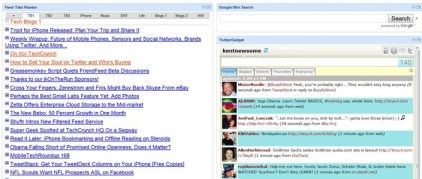
igoogle2
You can quickly tab through the various topics.

My third page is dedicated to Google News.  In addition to TwitterGadget and Google Mini Search, this page has the Google News gadget.  Along with selectable regular sections (news, sports, etc.) the Google News Gadget makes it beautifully simple to create custom news sections.  Click the + button at the top right of the gadget and enter the applicable topic in the blank.  So far I have custom sections for “Social Networks,” “Blogging,” and “Digital Music.”  Again, I love the efficient tabs-based navigation.  Again, on this page, I use the two column layout to make TwitterGadget bigger

Here’s what this page looks like.

igoogle3
The Google News gadget is extremely flexible.

The Shared Items Problem

Inexplicably, the Google Reader gadget does not allow you to add items to your shared items list with a single click (you can add a star with one click).  So we need a work-around.  The best I have found so far is to install the Google Reader bookmarklet.  You can add to your shared items by clicking on the bookmarklet, though this requires that you have the actual article or post open.  It’s not ideal, but it works.  Another option I tried and discarded is to have the mobile version of Google Reader open in the browser’s sidebar.  You can one-click items to your shared items that way, but even a big monitor starts to get crowded.

Putting it All Together, via TwitterGadget

Once you have everything in place, this setup rocks.  Completely.  And largely thanks to TwitterGadget.

You can drag and drop items from any of these sources into TwitterGadget.  Once the link is in the TwitterGadget message box, simply highlight the link, click “Control+Y” and the link is shortened.  Following, unfollowing and retweeting are also easier- just hold the cursor over the user’s picture.  Again, there’s simple, tab-based navigation for replies, DMs, favorites and even the public timeline (“Everyone”).

The beauty of this setup is that it is both infinite and flexible.  You can tailor it to your preferences.

I hope this helps.  Enjoy!

How to Get Unblocked by Websense (or Another Blocking Application)

Websense is a company that develops and sells web security gateway software. This is the sort of software that companies use to keep employees from surfing porn, downloading virus infested files from peer to peer sharing sites and visiting other unacceptable sites.  There are various levels of restriction and the customer (e.g., the company IT department) decides how restrictive it wants to be.

Some folks have an emotional reaction to any sort of access restriction and claim that companies like Websense are inherently evil.  Websense has also come under criticism on the grounds that its software assists repressive regimes in restricting freedom of speech.  All of these points are worth discussing, but we have to realize that the issue is not as black and white as emotional reasoning may make it seem.

Anyone who has kids or lots of employees who will click on anything knows that sometimes you simply have to protect people from themselves.  And you have to protect your network from the people who need protection from themselves.  Blaming Websense because some dictator de jour uses its software to oppress freedom of speech is not too far from blaming Google because someone types hate mail using Google Docs.  While it might be a small victory to whip the pen and paper, it would be a more effective victory to whip the person writing with it.  Sure, it would be nice to live in a world where these applications weren’t necessary, but we don’t.

Having said that, I believe strongly that the developers and operators of these blocking applications have a duty to ensure that access to legitimate sites is not affected.  Legitimate should be broadly defined, without regard for politics, religion or philosophy.  If that duty is not met, then the developers and operators should be held accountable.  These blocking applications are the online equivalent of weapons- they can kill a website in an instant.  Just like guns, you need to be trained to use them, and you must handle them with utmost care.

Of course, that doesn’t always happen.  This family oriented, tech and music blog has been snared in Websense’s blocking net.  Twice.

For reasons that I never understood, Newsome.Org was first blocked by Websense back in 2006.  Eventually, I was able to get it off of whatever blacklist it had accidently been placed on, and Newsome.Org happily rejoined online society and we all went about our business.  For a while.

Earlier this week, while trying to figure out why Evernote occasionally has authentication problems when I synch the desktop client from my office, I tried to click through to Newsome.Org to test my internet connection.  I ran straight into this.

ws1

I’ve seen that before.  In three years I have moved from a bad “Entertainment” site to a really bad “Malicious” site.  I was greatly irritated, to put it mildly.

So I resolved to get out of Websense’s net, again.  Here’s what to do if Websense is blocking your blog or website.  While I was dealing with Websense, the same general approach should be applicable for any blocking application.

Email No. 1 (to my IT department)

First, I wanted to get the IT guys at my company on my side.  These guys are the customer of some security vendor who is a customer of Websense.  I figured if Websense wouldn’t listen to me, it might listen to them:

I just noticed that Websense has somehow added my blog (tech, music, etc.) to its list of malicious web sites. My blog has been operational for years, and has been quoted by C|Net, Business Week, etc. In other words, it’s a legitimate web site and not malicious.

Do we have a contact there who I can speak to about this? It would be a lot easier if I could talk to someone and work it out the nice, friendly way. I am concerned that people all over the place are unable to read my blog because these jerks have somehow decided to censor me.

Thanks,
Kent

The IT guys at my company are cool guys and friends of mine.  They very quickly reached out to their security vendors to see what could be done.

Research

Next, I did a little Google work to see what I could find out.  I saw a lot of discussion about what to do if your site gets blocked, with several links to a Websense “suggest a URL category” page that looked promising.  Unfortunately, that page no longer exists.  Eventually, I saw a reference to an email address for “suggesting” a site (suggest@websense.com).  So I decided to write and suggest that they stop blocking Newsome.Org.  I was irritated, but in most cases it’s best to start out friendly, as you can generally catch more flies with honey and you call always get meaner later if you have to.  Once you’ve been an asshole, it’s really hard to go the other direction.

Email No. 2 (to Websense)

Next, I wrote a short, but thoughtful, email to Websense.

Hello.

My name is Kent Newsome. I am a partner at ################ (a Websense customer). Here is my bio for confirmation.

[link to my company bio]

I also have a personal blog, Newsome.Org (www.newsome.org), which focuses on technology, music and family life. You will note the frequent references to my family, kids, etc.- all very family friendly.  Newsome.Org has been online since 1996, has a lot of readers, and has been quoted/linked by Business Week, C|Net, CBS news and numerous other major media publications.

And it is apparently being blocked by Websense as a “malicious site.”  See the attached screencap.

I have spent over a decade building Newsome.Org into the popular website it is today. It is a family friendly site. In fact, I have written for CBS news on family-related issues.

http://www.newsome.org/2006/06/cbs-reaches-out-to-bloggers/

http://www.cbsnews.com/stories/2006/06/12/gentech/main1704170.shtml

Blocking my site has a huge adverse impact on my traffic, and it is unnecessary and unfair.  Please remove Newsome.Org from whatever list it was incorrectly placed on, so that it will not be blocked by the Websense application.

Thanks,
Kent Newsome

See, I was courteous, but made my point.  I gave them a way to verify who I am and evidence that my blog was legitimate and certainly not a “Malicious” site.  Meanwhile, my IT friends filed a similar request with Websense.

The Happy (and Quick) Resolution

Less than 24 hours later, I received a satisfactory response from Websense:

Thank you for writing to Websense.

The site you submitted has been reviewed by Websense Security Labs. We have made an update to the following URL(s) in our master database to address this issue:

http://www.newsome.org/ – Social Networking and Personal Sites

Categorization updates should be available in the next scheduled publication of the database. A new database is published every business day, five days a week, Pacific Standard Time. You should notice any updates referred to in this message within 72 hours.

Thank you for your assistance,
The Websense Database Services Staff

You know, I really can’t argue with that.  It would have been better if I’d never gotten snared.  Or if once I got out the first time, I was put on some whitelist to avoid a second problem.  But Websense responded very quickly and did the right thing.  Sure, their algorithm for indentifying malicious sites needs some work, but it’s hard to find fault with their response once the problem was pointed out.

A Cautionary Note

As noted above, Websense and undoubtedly other blocking applications have various administrator-selectable restriction levels.  My IT guys told me that Newsome.Org should not have been blocked based on my company’s Websense configuration.  But if a company blocks “music” or “social networking” sites, it would likely be inaccessible from that company’s network.  In that case, I would have to take it up with the company.  Or drop it.

Resources

Here are a few more resources that may be helpful if you’ve been snared.

Lightspeed Database Search
Blog Herald: How Do You Know if Your Blog is Banned or Blocked
Boing Boing:  Guide to Defeating Censorware