How to Share Your Google Calendar

I’ve done a few hard things. Learned code. Built a computer from parts. Finished a Rubik’s Cube. Learned how to navigate around Facebook (sort of).  You get the picture.

But nothing prepared me for the chore that was configuring my Google Calendar to allow my secretary to see and add appointments.

So I thought I’d so a step by step to save someone a little agony.

I use Google Apps for my email and calendar, so there are a couple of extra steps that may not be required for regular Google Calendar users.

Step 1: Configure Sharing Rights (Google Apps Only)

This is where a lot of Google Apps users get tripped up.

To share your calendar with people outside your domain (in my case, those without @newsome.org email addresses), you must enable sharing with people outside your domain, within Google Apps.  From your Google Apps Dashboard, click on Calendar and then set the “Sharing options” for users "Outside this domain" to "Share all information, and outsiders can change calendars."  If you don’t do this, the person you are trying to share your calendar with will, at most, only be able to see if you are free or busy- no details and no ability to add items to your calendar.

image

Step 2: Wait a While (Google Apps Only)

Once you configure your Google Apps as described in Step 1, it takes a little while (maybe an hour) for your revised sharing settings to take effect.  This can be very frustrating to those who don’t know about this delay.

So be patient.  Go grab some lunch.

Step 3: Make Sure the Person Has a Google Account

In order to log-in and see your calendar, the person you want to share your calendar with must have a Google account.  This is not the same thing as a Gmail account.  Any email address can be used to create a Google account.  The sign up page is here.

Step 4: Grant Access via Your Calendar

Now go to your Google calendar.  Navigate to Settings>Calendars.  Look beside your calendar (the one you want to share, not someone else’s that is being shared with you) and click on "Shared: Edit Settings."  Add the person’s email address to the blank under “Share with specific people” and choose "Make changes to events."  Click on the "Add Person" button, and the entered email address should appear in the list below, with the correct sharing level.

image

If it still says "See only free/busy (hide details)," then you need to go back to Steps 1 and 2 above.  Probably it’s a matter of the delay described in Step 2.

Step 5: Log-in and Share Away

Then, once the person logs into his or her Google account, he or she will be able to access and add to your calendar.

That’s it.  Post any questions in the comments.

More on Blogger Custom Domain Publishing

I’ve been spending a lot of time working on Newsome.Org’s move to WordPress, which is going remarkably well (more on that later).   But today I want to look a little deeper into the process and benefits of publishing your blog via a Blogger Custom Domain.

bcd-150x150First, a recap.  Recall that Blogger has announced that it will discontinue publishing via FTP on March 26, 2010.  This caused a general panic here at Newsome.Org, followed by a somewhat more thoughtful election to move Newsome.Org to WordPress and my music publishing company (Errbear Music) to a Blogger Custom Domain.  As I noted before, the process was generally very easy.  Here’s the step-by-step walk-through of the process.

Here are some updates.

Adding Post Pages

When I was publishing to Errbear Music via FTP, I was hosting the blog files in a directory on my Newsome.Org server, and using a page in that directory (errbear.html) as the blog’s front page.  I  then parked the  errbear.com domain on that page, meaning that when someone directed their browser to errbear.com, he or she was forwarded to the errbear.html page.  It looked reasonably seamless.  The problem became that all of the post pages and other ancillary pages were located at Newsome.Org, and had a Newsome.Org URL.  Once I set up my Custom Domain, I wanted to have all of the post pages and ancillary pages located within that domain.  This happened automatically for the post pages, but could not happen automatically for the various ancillary pages located in that directory.  The majority of those ancillary pages were the very important lyrics and streaming mp3 pages for my songs.  This required me to create a new post page, containing the lyrics and a streaming mp3,  for each of my songs.  It wasn’t a soul-crushing task, using Live Writer and the time saving Text Template plugin, but it did take some time.

I want to be clear about something, to avoid confusion.  The pages I am talking about were not previous blog posts.  They were html files on my server that I linked to from the sidebar and in blog posts.  For those who wonder how things got that way- my Errbear Music pages pre-dated by years the advent of blogging and blogging software.  Those pages existed when I moved to a blogging platform.

A couple of pointers for anyone who has to do this:

1. Blogger allows you to mass edit labels.  This is a huge time-saver.  I decided about 2/3 of the way into the process to create genre-based labels.  It would have been soul-crushing to go back and add labels to each post page manually.

2. There is a limit to the number of posts you can make each day to a Blogger blog.  I don’t know the number, but it’s large.  I ran into the “too many posts”  error a couple of times when adding the post pages.  Wait a day and you can get back to uploading pages.

I would note that I decided to leave the mp3 song files on the Newsome.Org server.  The size of that song library and all the links out there (via a lot of the music search engines) led me to conclude that those files should be left where they are.

Templates are Themes

I wasn’t all that crazy about the default selection of templates.  Initially, I hacked up one of the default selections and made it work.  There are, however, a lot of good templates out there, you just have to look for them.  I started with the Natural Health theme, and went from there.  I think that template is as pretty as any WordPress themes I have seen.

It’s easy to upload a template via your Blogger Dashboard.  Simply find a template you like and then:

1.  Download the template to your computer.  If the template is contained in a zip file, extracted the XML template file.

2. Log in to your Blogger Dashboard and go to Template> Edit HTML.

3. Back up your old template in case you decide to use it again. Simply click on the “download full template” link and save the file to your hard drive, or just copy and paste the html to Notepad.

4. Look for the section near the top where you can browse for your XML template.

5. Enter the location of your template and click “upload”.

6. The html of your new template will now appear in the box below. You can preview your new template or save it and start using it right away.

Hacking the Template

Much of what you want to change can be done via the Layout editor within your blog settings.  Blogger has a “Gadget” approach, very similar to WordPress’s “Widgets.”  While there isn’t the developer community behind Blogger Gadgets like there is for WordPress plugins and Widgets, I am confident that you can do just about anything layout or content wise on a Blogger template that you can do in a WordPress theme.

At the end of the day, I found the manipulation of  Blogger templates to be a little less powerful and a little easier than WordPress themes.  It’s not the kiddie pool, by any means, but there is a rope to help you keep from drowning.

One tip:

While you can do a lot via the Layout editor, you’ll need to (and can) edit the html for some tweaks.  For example, until I went in and hacked the template code, my email subscription form was subscribing people to the email feed of the template developer.  For what it’s worth, I have been using Feedblitz for my email feed for years, but moved back to Feedburner for both my blogs today.  (If you don’t know what a Feedreader is and want to subscribe to Newsome.Org via email, see the link in the left column on this page.)

At the end of the day, moving to a Blogger Custom Domain is very easy, and Blogger provides the tools to create just about anything you could want.  I’ll do a feature by feature comparison of Blogger and WordPress soon, but in the meantime, I can say that publishing to a Blogger Custom Domain is a fine, feature-rich option for your blog.

As always, I’ll try to answer any questions posed in the comments.

How to Enable YouTube’s (Sort of) Parental Controls

parentalcontrolMy two oldest kids ( 11 and 8 ) are pretty intensive computer users, for both school and, to a lesser extent, fun.  They have a shared computer, here in my study.  Sometimes you can find them working away on their homework while I’m writing these exciting blog posts.

I use- and recommend- Windows Live Family Safety to control what they access on their computer.  It’s a good program, that does much of what I want it to do.  But there are holes to plug and redundancy is a good thing where my kids’ eyes and ears are concerned.

YouTube is one of their favorite web sites, and I have given access to it via Windows Live Family Safety.  But I want them to be able to see the things they should see there, without seeing the things they shouldn’t.  This has been a bit of a challenge, so I was happy to read today that YouTube has added parental controls.

If you want to control your or your kids’ YouTube experience, you can now do so via an opt-in feature known as Safety Mode (not to be confused with Safety Dance).

Let’s take a quick song break to dance around for a moment. . .

OK, back to YouTube.

The problem with YouTube’s implementation of these controls is that each YouTube user has to opt-in to Safety Mode separately.  Which means (from the FAQ):

Q: My kids and I each have separate profiles on our family computer. Do I have to log in to the same browser on each profile to lock strict filtering on each profile?
A:
Yes, each profile operates independently, so you would have to lock your preference on each browser on each separate profile.

There are a heap of problems with that, but I’ll pick three.  One, I have to log in to each of my kid’s computer accounts on every applicable computer (they have accounts on one of my laptops and the rarely-used Netbook), and enable Safety Mode.  Two, none of my kids have YouTube accounts, so I guess I log in as me from their computer account and enable this feature.  Three, it will take any kid who’s smart enough to use a computer about 30 seconds to disable this restriction.  Surely there’s an better way.

Let’s give it a try anyway.

After clicking over to YouTube and logging into my account, I see a recommendation of The Bangles doing one of the best songs ever.  Maybe it’s the fact that I’m hearing a great Big Star song without Alex Chilton, but, so far this feature seems a little half-baked.

So let’s take a better song break, shall we?

At the bottom of a YouTube page, you’ll see a link to enable Safety Mode.

image

You can lock Safety Mode if you are signed into your account (from the FAQ):

Locked Safety Mode:

  • Sign In to your YouTube account
  • Click Safety Mode at the bottom of every page to open the preference setting
  • Click On and Save and Lock to opt-in and lock this browser
  • You are now in Locked Safety Mode!
    To opt out open preferences and Click Unlock Safety Mode.
    Enter your YouTube password to unlock Safety Mode.

This all seems like a lot of work to put a system in place on lots of accounts on lots of computers, which could be easily disabled.  I guess it’s better than nothing, but content filtering and parental controls could be addressed in a much more effective, easier way.

Note that Safety Mode is being rolled out gradually, so it may not be available to everyone yet.  In the meantime Read/WriteWeb has a detailed look at the feature, and its shortcomings.

Windows Live Movie Maker: An Often Overlooked Gem

I, along with many others, constantly rave about Windows Live Writer.  It is probably my favorite current application.  I could easily give another sermon about it.

But not tonight.  Rather, I’m going to talk about Live Writer’s often-overlooked Microsoft Live Essentials suitemate: Windows Live Movie Maker.  It’s free, it’s relatively powerful, and it makes great videos.

I use it mostly for creating slideshows- a series of photos set to music.  Here’s how I made a pretty cool little video of some old photos of my parents and some of their friends.  In less than 10 minutes.

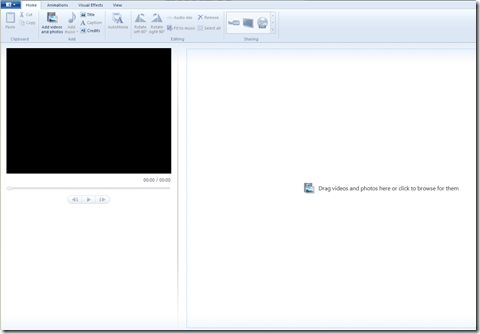
Step 1: Drag and Drop Photos

image

Open the application, click on the “Add videos and photos” button and drag and drop photos into the space on the right.  I grabbed photos from a folder in my Pictures Library called Old Prints.

image

Step 2: Add Music

Next, click on the “Add music” button, navigate to an MP3 you want to use and click on it.  I chose one of my favorite songs, Valse de Grand Pere, by the Bluerunners, from their excellent LP Honey Slides (purchase @ Amazon; Lala link).  The green band above the photos tells you there is audio associated with the movie project.

You’ll want to pick a song with a length consistent with the duration you want for each photograph.  For example, if you have 50 photos and you want each photo to be on-screen for 5 seconds, you’ll want a song that lasts around 4:10 (50×5=250; 250 seconds=4:10).

Step 3: Fit to Music

Next, click on the “Fit to music” button, which will automatically configure your movie length to equal the length of the song you added.

Step 4: Make Your Movie, Automatically

Next, click on the “AutoMovie” button, which will immediately and automatically add a title, cross-fade transitions between photos, and pan and zoom effects.

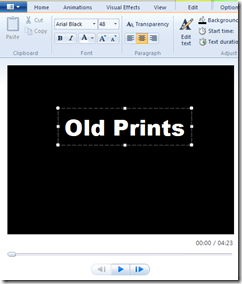
Step 5: Customize Your Titles

image

Click on the first and last slides, and replace the default text with the text of your choice.  You can add nifty text effects via the “Text Tools” tab.

Step 6: Choose Your Format

From the “Home” window, select your format via the “Sharing” box at the top.  I wanted an HD movie, so I clicked on the TV icon (which is the HD option), named my video file and, presto, an HD Windows media file is quickly rendered.

There is also an option to upload directly to YouTube or to burn a DVD.

Step 7: Upload and Enjoy


That’s all there is to it.  Not a bad way to spend 10 minutes.

How to Move From FTP Published Blogger to a Blogger Custom Domain

The backstory is here.

I decided to move Errbear.Com, my music publishing company’s web site, from FTP published Blogger to a Blogger Custom Domain.  Here’s how I did it, and my initial thoughts.  I’ll update this post as the process continues.

After getting encouragement from my friends Rick and Louis, I started out at the Blogger Custom Domain instruction page.

Step 1: Converting to a Blogspot.com address

From the Blogger Dashboard, select Publishing and click on “Switch to blogspot.com.”  You will be sent to a form to pick  blog name.

I picked errbear.blogspot.com, which thankfully was available.  This step was very easy and took about 5 seconds.

Step 2: Configuring Your Custom Domain Settings

Again, from the Blogger Dashboard, select Publishing and click on “Switch to Custom Domain.”  Then, since you already own your domain, click on Advanced Settings.

I want to direct the entire errbear.com address to my Custom Domain-managed blog, so I selected www before errbear.com.  This step was also fast and easy.

Step 3: Make the CName and A Record Changes

This part is done via your domain registrar’s web site.  And things get a little more complicated, but fear not, we’ll walk through it.

First, the CName change.  I use Network Solutions, but the process is very similar everywhere.

From your domain management page, select the domain you want to use for your Custom Domain and then click the button or link to edit the domain’s DNS.  Depending on your registrar, you may need to then click on Advanced Settings (or some similar phrase).

Create a CName Record for your Custom Domain that points to ghs.google.com.  Again, because I want to direct the entire errbear.com address to my Custom Domain-managed blog, so I used www before errbear.com.

Next, the A Records.

I was confused by this passage in the Blogger instructions:

I didn’t know you could point a domain to “each” of four separate IP addresses.  So I did what any good nerd should do and consulted Twitter:

And got a quick answer, that made me (a) like Twitter a little more, and (b) feel a little like a dumbass.

image

So I added the A Record three more times.  Duh.  At the end of the process, I have four A Records each for @ and * (nothing and everything other than www, respectively), one pointing to each of the IP addresses listed above and on the Blogger Custom Domain instruction page.

And immediately, the previous error message took a happier tone.

But all was not well, yet.  When I republished my test post, that I did after moving to errbear.blogspot.com, the post was not there:

image

Don’t panic.  This is normal.  It takes a little while for the DNS changes to make their way across the internet.  A little while later, all was well.

Almost.

Step 4: Getting Rid of the NavBar

There was this horrifying Blogger NavBar at the top of my blog:

image

This is not going to work.  To fix this you have to add

#navbar-iframe { display: none; }

to your style sheet, if you use one, or above the </style> line in your blog template, if you don’t use a style sheet.

More good information about ridding yourself of the NavBar can be found here.

Step 5: Changing Your Template (Optional)

I have been using a custom template for years.  But a lot of the new and promised features at Blogger don’t work well with custom templates, so I thought I’d experiment a little with some new templates.

Important: If you decide to do this, back-up your current template by copying it from your Template>Edit HTML page and pasting it into a text document.  This is as important as not forgetting your parachute when sky-diving.

I put on my parachute and jumped.  From my old template

OldEBM

to the current one.

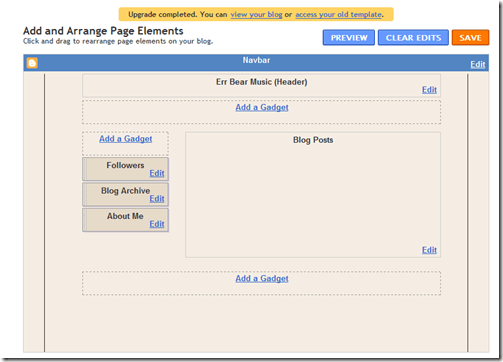
Immediately, I got the opportunity to make some customizations that were not possible with a custom template.

image

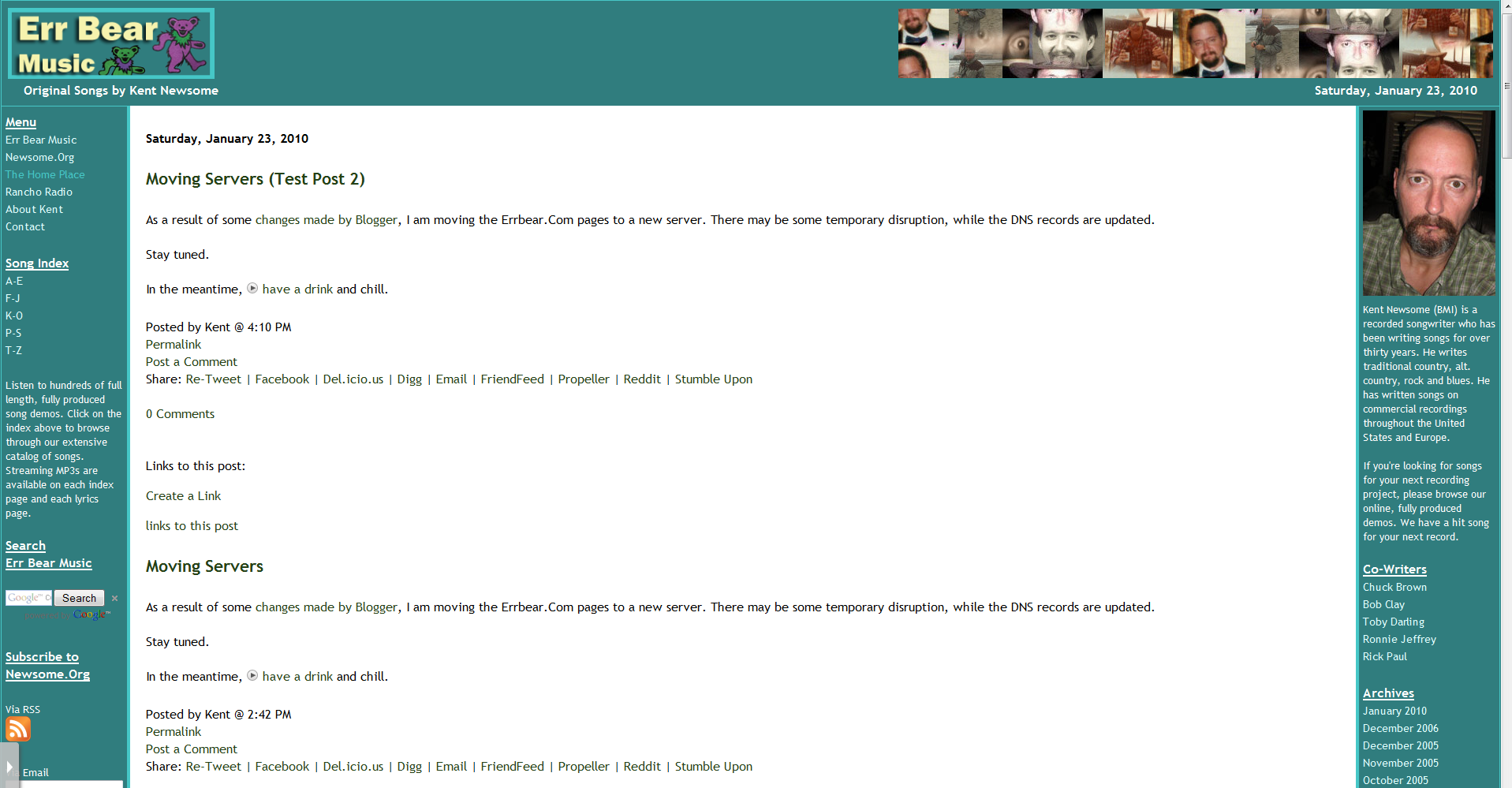
Looks promising.  Having said that, I hate reading a little narrow box of content on a big computer screen.  It’s such a waste of screen space.  Maybe I’ll work on some CSS to fix that.

But first there are a couple of pressing modifications that must be done.  First, I need to add the Yahoo Music Player code, for the embedded music player.  To do so, all you have to do is add this before the </head> tag:

<!– Begin Yahoo Player Header–>
// <!–[CDATA[
javascript” src=”http://mediaplayer.yahoo.com/js”&gt;
// ]]>
<!– End Yahoo Player Header–>

And I need to, once again, get rid of the NavBar, this time by adding this before the line that begins with ]]>:

 #navbar-iframe { display: none !important; }

After this, you can add features and customize your template as you see fit.

Update 1:  I’ve now experimented with Blogger Custom Domains and the newer features enough to confidently report that publishing via Custom Domains is a reasonably powerful platform.  The inclusion of static pages (via the Blogger in Draft beta page) adds the much needed ability to include ancillary pages.  See the index pages I added to Errbear.Com for an example of how to implement static pages.  I also found it reasonably easy to modify the new template, as you will see.  It’s early, but so far I’m pretty impressed.

Conclusion

Overall, this was a pretty easy process.  I don’t know if I the additional Blogger features that weren’t available with a custom template will outweigh the limitations of a canned template, but I can tell you that the process of moving to a Blogger Custom Domain was pretty easy.

I’ll try to address any questions or problems you face in the comments.

Compute Easily and Cheaply With Cloudy, Free Software Alternatives

My computer was getting a little long in the tooth, so when Windows 7 was released, I decided to buy a new one.  I also decided, following my earlier move to Google Apps, to create my application toolbox with as many cloud applications and free software alternatives as reasonably possible.  Here’s what I did, for those who want to simplify their computer toolbox and put some extra money in their pockets.

The Computer

image I bought an HP Pavilion Elite e9280t.  I’ve had good luck with HP computers, both laptops and desktops, so I decided to stay with what was working.  Plus, it seems to me that you get more bang for your buck from HP than other PC makers.  I went with the 64-bit version of Windows 7 Professional, because it will give the computer a longer lifespan and I’ve only rarely had problems getting my software and hardware to work under the 64-bit versions.  I also bought 9GB of RAM, because I do a fair amount of video editing and music mixing and the extra memory will make the computer faster at that sort of resource intensive activity.

When the computer arrived, the first thing I did was to remove the bloatware.  HP has gotten a lot better about bloatware, but there is still some clean up required.  I would rather bathe in computer viruses than use anything Symantec/Norton related, so I immediately uninstalled Norton Internet Security and Norton Online Backup.  Rather, I’ll use the free Microsoft Security Essentials and my HP MediaSmart server.  I was a beta tester for Microsoft Security Essentials, and I think it works very well.  Plus, it’s free.  I deleted the screen litter for eBay (which I use, but I don’t need a shortcut on my desktop), and the various online services.  Finally, I deleted all those HP games.  It’s absurd that HP makes you manually check every one separately during the uninstall process.  I interpret that to mean that some of these game developers are paying HP to pre-install this junk.  Regardless, they’re gone.

My Data

Next, I copied over the data I need from my old computer, via an HP Personal Media Drive.  Photos, MP3s, videos, in process song mixes, and some, but not all, of decades worth of Word files I have accumulated.  My new documents are created via Google Docs, but I have some old documents I want to save, just in case.  I like the Libraries feature in Windows 7, which basically lets you use multiple folders for your music, photos, etc.

I saved my old Outlook emails, now uploaded to Gmail, as PST files, and copied them to my new computer’s “Old Files” Library, just in case.

Software and Applications

Now for the fun part.  Here’s what I elected to use in lieu of software I used to pay for.

My first download, of course, was Firefox.  A quick install of Xmarks allowed me to import my bookmarks.  I’m trying to go relatively light on add-ons.  So far I have installed the mandatory Adblock Plus, Better Gmail 2, PhotoBucket Uploader, Read it Later and Xmarks.  All of the foregoing are free.

No more Microsoft Office.  I now use Google Apps (the “standard” or free version) for my email, calendar and documents.  The Gmail interface, with (but not without) Better Gmail 2 is an excellent email application.  Google Calendar is far superior to the Outlook calendar.  And of course, I can now access all of my data from almost anywhere.  And, again, for free.

For my task list, I use Remember the Milk.  It works flawlessly within Gmail and Google calendar via a gadget.  I have a premium account, but there is a free version.

Next, I installed my beloved Windows Live Writer, for blog posts.  Yep, free.

In lieu of the bloated Nero, I installed CDBurnerXP.  It works great, and it costs nada.

For photo management, I couldn’t decide between Picasa and Windows Live Photo Gallery.  So installed both.  Both are free.

Photo editing may be a challenge.  I use Picnik for basic (read easy) photo editing.  I may try Gimp as a Photoshop replacement, but I am a long-time Photoshop user, and I have a license already.  So at the end of the day the one expensive software program that finds its way only my computer may be Photoshop.  We’ll see.  If anyone has a recommendation, please send it along via a Comment.

For video editing, I installed Windows Live Movie Maker.  I’m a long-time Ulead VideoStudio fan.  Corel bought it, though, so it’s only a matter of time until it dies a painful, bloated death.  Since I have a license for the current version (VSX2), I may install it on my new computer.  I doubt, however, that I’ll buy any upgrades.  Hopefully, Windows Live Movie Maker or some other free or open source program will work for the long haul.  If anyone has a recommend
at
ion, please send it along via a Comment.

image Of course, I installed Evernote.  I am a huge Evernote fan, but the developers’ failure to add folders- or to even respond to my repeated inquiries about the possibility- are dampening my devotion.  Either they need to listen to my good advice or I need to move on.  Let me take a moment to digress.  I have written about issues with HP and Microsoft products in blog posts, and been contacted within hours with offers of help or information.  I have written to Evernote at least twice and asked about the plans, or lack thereof, for folders, and have never received a reply.  That is simply bad customer management.  For now, there are no better alternatives, but at some point there may be.   We’ll see, but for now, Evernote remains one of my most used apps.

For FTP, I use FileZilla, which is free and superior to every paid app I have ever tried.

For radio, I use Pandora and Slacker Radio.

Web site development and HTML editing proved to be a problem.  I installed the free and wonderful Notepad++, which is great for text editing.  I read good things about WYSIWYG editor KompoZer, but I hated the way it reformatted the text in my HTML files when I opened them.  I uninstalled it immediately.  I may not need a WYSIWYG editor, but if I do, I don’t know of a free and powerful option.

The Cloud

For backups and large data storage and redundancy, I use my HP MediaSmart server.  While I was immensely frustrated with my old server, the newer models have more memory and a much better GUI.  I love the media collector feature, that automatically grabs media files from the various network computers, backs them up and allows network access to them.  While I have not done it, you can easily configure your server to allow remote access over the internet.  There’s even an iPhone app.

image For general cloud cover, I use Dropbox for most of my needs.  I also have a Box.Net and a DivShare account that I use from time to time.  If today’s Google news is any indication, all of our cloud needs may eventually float over to Google.  I want GDrive and I want it bad.

For online photos, I use Flickr for my family photos, etc., PhotoBucket for other image files I want to save, and Picasa for reference-related graphics (e.g., maps, reference cards, etc.).  For online videos, I use YouTube, Qik and Vimeo.  All are free, though I pay for a Vimeo premium account so I can upload larger, HD videos.

And of course, I share certain things with friends via Facebook and Twitter.  Both free.

The Result

I have a lean, mean new computer with mostly free, web accessible, organized applications.  It feels really good- and the change in my pocket jingles when I surf.

How to Make Widescreen, HD, YouTube Ready Videos in Corel VideoStudio

I’ve used VideoStudio Pro to make my videos, going back to the Ulead Systems years and continuing after it was, sadly, bought by Corel.  Corel hasn’t screwed up the application- yet, so it is still a robust, easy to use video editing and creation application.  But creating a widescreen, high definition video for use on YouTube can be a little confusing.

Here’s a step by step.

After you get your video, audio, titles, etc. in the timeline the way you want them, here are the steps

1. File>Project Properties:

image

Be sure you have selected MPEG Files in the file format box shown above.  Then click the Edit button.

image

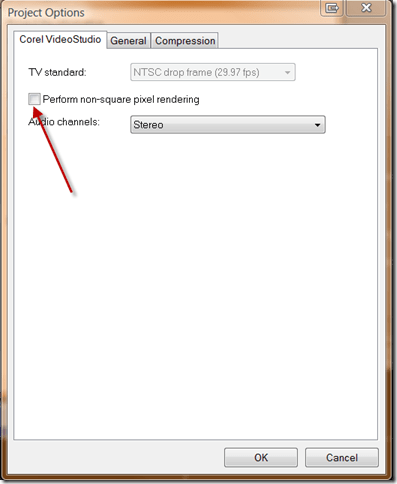
Under the Corel VideoStudio tab, deselect (i.e., no check in the box) “Perform non-square pixel rendering” as shown above.

image

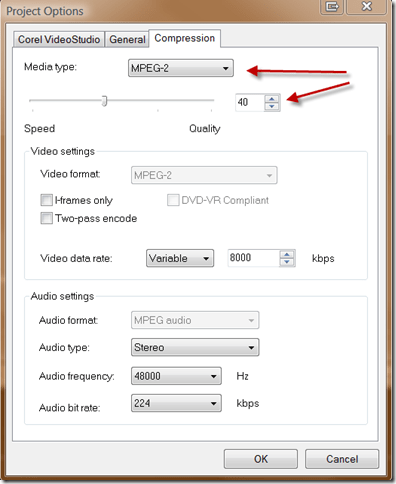
Under the Compression tab, select MPEG-2 and set the Quality at around 40%, as shown above.

image

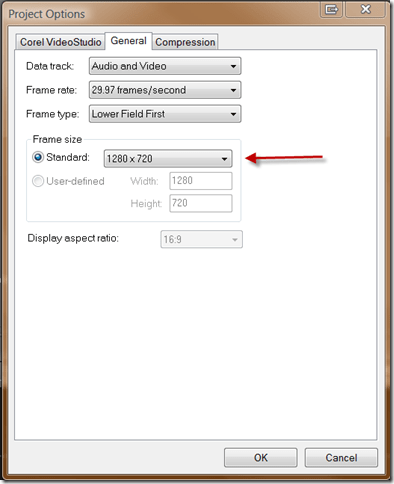
Under the General tab, select 1280×720 as shown above.

Click OK to get back to the application window.

image

Ignore any cache warnings or notices.

2. The Share Tab:

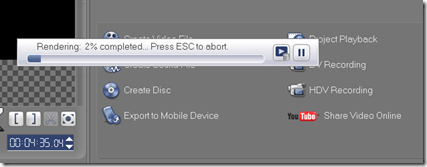
Click on “Create Video File” and select “Same as Project Settings.”  Name and save your video.  The application will render your video in widescreen HD.

image

When it’s done, you’re ready to upload your creation to YouTube.  Note that it takes a while for YouTube to process the video after it is uploaded, even after it is viewable.  The video quality will improve when the processing is complete.

Here’s the result of the project I used as a test case for this post.

Thanks to assasin301 for creating an excellent video tutorial, which taught me the steps I showed you above.

Tossing the Disqus

Or how I overcame Disqus and Blogger and by sheer force of will installed the Disqus commenting system on my remotely hosted, FTP published, highly customized Blogger blog template.

disqus

Whew.  OK, listen up ’cause I’m gonna tell you a sad story.

I have been watching Disqus for months, and considering trying to install it here at Newsome.Org.  Since I have a remotely hosted, FTP published, highly customized blog template and a Leopard-Skin Pillbox Hat (not really, but I’m punch drunk), both one of which I publish via Blogger, it was hard.  Now when I say it was hard, what I mean is that is was really, absolutely, just about impossibly, freaking hard.

So here’s how I did it.  All of this assumes you have registered at Disqus and have an account to use.  If this confuses you, move to Step 2 and skip Steps 1 and 3-7.

Step 1: Unsuccessfully Seek Help

First I tried the various options suggested by the Minimalist-inspired Disqus help pages.  I tried to manually upload my template, which I knew wouldn’t work.  I tried to manually add the code via these instructions.  No go.  I googled around looking for something to show me the way.  Nada.

Next I emailed Disqus to see if there was any other documentation I could look at.  I got a prompt response, telling me I should use a different blog template, thereby simultaneously experiencing both an epic instance of the tail trying to wag the dog as well as another reminder that I’m not as cool as my friend Louis.  I know that, of course, but I generally blame it on age.  Whatever the half-life of cool is, I have to be 2-3 half lives older than him.  If Dave Winer had invented the internet back when I was a young man, I’d be Robert Scoble and Louis Gray combined, baby.  Of course if I’d had the internet as a kid, I’d also be degreeless, homeless and living under a bridge somewhere.  In fact, the only technology we had when I was a kid were tractors and the phone.  And both got me in lots of trouble lots of times.  Generally when I should have been walking those four snowy miles to and from school.  And all that.

Anyway, after respectfully passing on Disqus’s suggestion that I demolish my blog and rebuild it just so I could use their application and pulling my bruised ego together, I got to work.

Step 2: Drink Some Bourbon

Locate a bottle of bourbon.  Open it, take a big gulp.  Place it within easy reach of your keyboard.

Step 3: Add the Standard Disqus Header

Add the standard Disqus header right before the </body> tag:

<!– Begin Disqus Header–>
<script type=”text/javascript”>
//<![CDATA[
(function() {
var links = document.getElementsByTagName(‘a’);
var query = ‘?’;
for(var i = 0; i < links.length; i++) {
if(links[i].href.indexOf(‘#disqus_thread’) >= 0) {
query += ‘url’ + i + ‘=’ + encodeURIComponent(links[i].href) + ‘&’;
}
}
document.write(‘<script charset=”utf-8″ type=”text/javascript” src=”http://disqus.com/forums/myusername/get_num_replies.js&#8217; + query + ‘”></’ +

‘script>’);
})();
//]]>
</script>
<!– End Disqus Header->

Step 4: Create the New Comment Link

Here’s where I had to start figuring stuff out on my own.  I changed the code at the end of the blogPost <div> to:

<$BlogItemBody$>
<div class=”byline”>
Posted by <$BlogItemAuthorNickname$> @ <$BlogItemDateTime$> |
<a href=”<$BlogItemPermalinkURL$>”>Permalink</a> |
<a href=”<$BlogItemPermalinkURL$>”>Leave Comment</a>

I did it that way so it would show both a Permalink and an obvious “Leave a Comment” link.  Yes, they go to the same place, but I want to make it easy for people to find the place to write a comment.

Step 5: Display the Comment Count

In my “Discuss” links, I changed the code to:

Discuss:
<a class=”comment-link” href=”<$BlogItemPermalinkURL$>#disqus_thread”>View Comments</a> |
<BlogItemCommentsEnabled><a class=”comment-link” href=”<$BlogItemPermalinkURL$>#comments”><$BlogItemCommentCount$> Pre-Disqus Comments</a></BlogItemCommentsEnabled> |
<a href=”
http://search.blogger.com/blogsearch?q=link:<$BlogItemPermalinkUrl$>” target=”_blank”>Inbound Links</a>
<br />

The <BlogItemCommentsEnabled>/Pre-Disqus Comments part was required to preserve my existing comments (see Step 6 below).

The only other change was to add the required #disqus_thread after the Permalink URL.

NOTE: This is before the <ItemPage> tag.  I want new commenters to use Disqus.

Step 6: Preserve Your Existing Comments

That got me up and running, with one gigantic problem.  I have lots and lots of existing comments, and inexplicably there doesn’t seem to be a ready-made way to import Blogger comments into Disqus.  Obviously, Disqus should spend some of that mad coin to write one.  I saw some roundabout ways that might work, but they were on the wrong side of the possible benefit – time required – likely result calculation.

So I needed to preserve my existing comments in place.

After some trial and horror, I ended up with this:

<ItemPage>
<BlogItemCommentsEnabled>
<a name=”comments”></a>
<h4><$BlogItemCommentCount$> Comment(s):</h4>

<BlogItemComments>
<a name=”<$BlogCommentNumber$>”></a>

<p class=”comment-body”>
<$BlogCommentBody$>
</p>

<p class=”comment-data”>
By <$BlogCommentAuthor$>, at
<a href=”#<$BlogCommentNumber$>”>
<$BlogCommentDateTime$></a>
<$BlogCommentDeleteIcon$>
<br />
**************************
</p>
</BlogItemCommen
ts
>

</BlogItemCommentsEnabled>
</p>

<div id=”disqus_thread”></div><script type=”text/javascript” src=”http://disqus.com/forums/newsome/embed.js&#8221;></script><noscript><a href=http://myusername.disqus.com/?url=ref>View the discussion thread.</a></noscript>
</div></div>
</ItemPage>

All of that brain damage does three things.  It displays my previous comments (recall the “Pre-Disqus Comments” code I added in Step 5).  It’s not ideal to have two Comments linkcounts, but you need to let people know those previous comments are still in place.  It removes (i.e., doesn’t contain) the code that creates the Blogger “Leave a Comment” link (because I want new commenters to use Disqus).  And it displays the Disqus comment box and comments underneath the previous comments.

NOTE:  All of this is within the <ItemPage> tags, because we only want the comments and the Disqus comment box to appear on the item pages, which are sometimes referred to as post pages.  Or, in the case of uninspired writing, ghost towns.

Step 7: Update Your Blog Via Blogger

After updating my blog, which takes forever (come on Blogger, please get a handle on the disintegrating Blogger/FTP experience), I have Disqus comments, while preserving my previous comments.

If needed, repeat Step 2.

So there you have it.  I hope this is helpful to someone.

Now, why not leave a comment and reward an old, un-cool man’s effort!

Improving the Google Reader Send to Feature

I still think Google could do a lot better than it has done so far with the new “Send to” feature.  And I sure hope Google isn’t going to get all sharing and social network obsessed and turn Google Reader into some chaotic FriendFeed wannabe.  But I will admit that half a feature is better than none at all, and I have been experimenting with the “Send to” feature.

To me, of course, experiment means use, customize and improve.

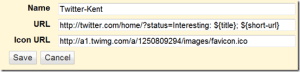
The first thing I wanted to do was add my typical “Interesting:” to the beginning of items I send to Twitter.  Here’s how to hack up a custom “Send to Twitter” link.

image

All you have to do is change the word “Interesting:” to whatever you want to appear at the beginning of your Twitter post.  Easy as pie.  After setting this up, you may want to uncheck the default Twitter “Send to” option in the provided list.

image_3

I also hacked my “Send to Facebook” link to add a shortened link,

image_4

but I haven’t figured out a way to pre-populate the “What’s on your mind?” box yet.

image_5

If there’s a way to do that, I can’t figure it out.  Another example of Facebook making it hard to control what’s inside those walls.  The end result, however, is simply that I will continue to create little or no content from within Facebook.  I’ll just send my content there via an alternate path, for consumption by those who live in Facebook’s Pelbarigan-like city state.

Finally, I hacked the Delicious “Send to” link to include a Note “For future blog post.”  I would have greatly preferred to automatically add a Tag “FNOBP,” but there doesn’t seem to be a way to populate a tag via a URL.  Which is but one of a long list of reasons I almost never use Delicious.  If I could auto-populate a Tag, Delicious might find its way back into my toolbox, so I could store article ideas there and save my “Starred” Google Reader items for other things.

Sooo, the way I got around Delicious’s crappiness was to create a dedicated Gmail sub-email address, and write an “Email to” link to that address.

image_6

Then I set up a Filter in Gmail that identifies these emails, archives them and adds a “For Blog Post” label.

image

All in all, not a bad afternoon’s work.

How to Make a Sporty, Customized News Page

I continue to believe (actually I know, but I’m trying to be diplomatic) that good old html and some cheap server space is a far better choice for creating customized news pages than My Yahoo, iGoogle and the like.  Over the past few days, I decided to make some upgrades and improvements to the Headline News pages I have used for years in lieu of newspapers (we haven’t subscribed to the paper in well over a decade).

Tools

To create these pages, I used Notepad (any text editor will do) and Feed.Informer.  I continue to be irritated by the stupid graphic Feed.Informer adds to the end of every RSS bundle, but the fact is that Feed.Informer is the best tool I have found for rolling up and serving bundles of RSS feeds.  It’s an awesome service.  I just wish they had a real business plan so they’d dispense with the page litter.

National News

I started with the National News Page, since it is the one I use the most.  First, I updated the layout to use the look, feel and CSS of the main Newsome.Org pages.  This creates site harmony, helps with branding and, most importantly, will allow me to implement future design changes across the entire site via Notepad and my CSS document.

imageI used the same basic header as the main Newsome.Org page, for the above reasons.  I used a similar left sidebar, but with a few tweaks.  I added a news-specific menu to the top, followed by the regular site-wide menu.  I added a box to display my latest blog post (via Feed.Informer).  I kept the Quote of the Day, Today in History and Today’s Birthday content, which is provided via scripts from BrainyQuote (script page) and BrainyHistory (script page).

I added the typical links for RSS or Email subscriptions, and a simple site search via Google.  I wanted to keep the page open, so I caused links to open in a new window via a <base target=’_blank’ /> <base target=’_output’ /> command.  This may be annoying to some users, but I greatly prefer it that way when reading news.

And, last but not least, I made my buddy Dave an involuntary regular contributor by adding a box that displays his latest Twitter post.  For some reason, the native Twitter RSS feed crashes Feed.Informer (it knocks Ruby right off the Rails), so I had to run Dave’s Twitter feed through Yahoo Pipes (what a great, under-appreciated application) first, and then to Feed.Informer.  It’s a roundabout path, but now I can feel like a real Web 2.0 developer by letting Dave unknowingly create content for my benefit.

The main content consists of a sub-table with two RSS bundles (again, via Feed.Informer).  I populated each bundle with my preferred national news sources.  You can add any RSS feed you like.

image_3

I used two bundles because the page looks better and is more functional with two columns of news.  Feed.Informer is very flexible, and allows you to manually configure the way the content displays.

image_4

At the end of the process, you have a highly customized news page, with the content you select, displayed the way you want it.  Plus you can incorporate the page(s) into your blog or website in a way that’s not possible with third party apps like My Yahoo.

Local News

After I finished the National News Page and admired my hard work for about ten seconds, I decided to make a similar page for local news.

The Local News Page (Update: now depreciated) is identical to the national one, except for the content of the two RSS bundles.  And I removed Dave, so he can focus full time on the national/international scene.  In his place, I added weather content from local channel 13.

All, Me, All the Time

Finally, I decided to create a mashup of all of my online content (other than my Facebook content, of course, which is walled-in and inaccessible).  I added my content from Newsome.Org, GoodSongs.Com, Twitter (because of the above mentioned Twitter RSS problem, I used my FriendFeed RSS feed), my shared Google Reader items, my YouTube content and my Flickr feed.  Update: now depreciated.

In lieu of Dave and the weather, I added a box showing my most recent Twitter reply.

The large majority of people I know in the real world don’t have the first clue what RSS is, and don’t use feed readers- despite my efforts to show them the light.  Plus, most people who read blogs via the web don’t visit everyday, so I thought it worthwhile to pile a lot of my content on a single page.  Unlike the traditional news pages, where items are in chronological order, I put this content in random order.  This gives slightly older content another chance at life, and it increases the usefulness of the page to periodic visitors, who may have missed something that I posted since their last visit.

Think of it as my own private FriendFeed.

Conclusion

I like the way these pages turned out.  The great thing is that you can create your own, at little or no cost and- hopefully thanks to this article- in just a few minutes.

If you don’t have server space, fear not.  Web pages can be kept locally and bookmarked, just like online pages.  You won’t be able to access your page(s) from another computer, but you’ll get the same benefits when you’re at
your desk.