The Two Biggest Apple Watch Buzz Kills

applewatch

As I mentioned the other day, I am enjoying my Apple Watch.

But it’s not perfect.  Here are the two biggest buzz kills.

IMG_4484

That screenshot was taken today, June 4, 2015.  If these apps and the corresponding Glances don’t automatically and seamlessly update, they are useless.  This is not an isolated problem.  It also happens with weather apps, among others.

IMG_4485

The only thing worse than old data is no data.  This is the rule and not the exception with some Apple apps (see above) and most third-party apps.  They rarely update before the screen goes blank.  I rarely have the perseverance to stick with it, and usually just give up.

And all of this happens within a foot or two from my iPhone.

Notifications are wonderful on the Apple Watch.  Phone calls are remarkably functional.  Apps, and most Glances, not so much.

The Coolest Thing Yahoo Ever Created is Going Away

yahoopipes

Yahoo Pipes fans have been expecting this news for a while, and today it came.  Yahoo Pipes, and some other Yahoo products that no one even knew existed, are gone.

I didn’t know Yahoo had a maps application, so I won’t miss it.  I have no idea what GeoPlanet and PlaceSpotter are, so I can’t miss them.  But I have always been a big fan of Yahoo Pipes, which TechCrunch describes as:

[A]n online (and somewhat geeky) visual interface that let you aggregate and filter web data without requiring the end user to have programming skills.

Yes, it was that, but it was a super-charged, very handy that.  It allowed you to easily and graphically create bundles of RSS feeds that you could then syndicate for use in other places and projects.  My original Headline News Page used Yahoo Pipes, as did numerous other content aggregations I developed over the years.  Sure, I didn’t use it as much in the last few years (and, undoubtedly, therein lies the problem), but it was a cool service, and I liked knowing it was a tool at my disposal when needed.

I’m not sure what Yahoo’s long-term plan is, or what it’s trying to become.  But I’m seeing fewer reasons to visit a Yahoo site, not more.  Yahoo could have owned the personal portal space (which I am convinced is not as meager as mobile-first developers would have you believe).  Yahoo ignored Flickr into near oblivion (though they are trying, at least for the moment, to revive it).  Yahoo bought and starved Delicious to death.  I’m not sure what’s left.  But I know what’s gone.

Adios, Yahoo Pipes.  You were cool.  You will be missed.


How to Play Lucent Voice Player Files on Your Mac

lucentphone

If, like me, you have a ton of old audio files in Lucent Voice Player (.lvp) format, here’s how to access and play them on your Mac.

1. The Lucent Voice Player application (setup_lvpphone.exe) has been deprecated.  So you need to find the player, if you don’t already have a copy.  Search the file name in the parenthetical and you can find and download a copy.  Proceed with caution, and consider scanning the download for viruses, etc. before you use it.

2. Buy a copy of the Mac app CrossOver.  It’s $60, and there may be cheaper ways to run the Lucent Voice Player on a Mac, but Crossover supports lots of other Windows applications, so for me it was worth it.

3. Open the Crossover App, and select “Install a Windows Application” at the bottom of the window.

coinstall

4. In the expanded list of applications, choose “Other Application,” near the bottom, under “Unsupported Applications.”

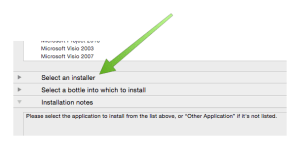
5. Choose “Select an installer,” and then Choose Installer File.
coselectinstaller

6. Navigate to and select the setup_lvpphone.exe file you downloaded in step 1.

7. Choose “Select a bottle into which to install.”  For old stuff, I use XP and for newer stuff, I use Windows 7.  Really old applications may need an older version of Windows.  Be sure to name your “bottle” at the right hand side.

8. Click “Proceed” at the bottom.

9. Follow the prompts.  These are the installation prompts you would see if you were a sad Windows user.  Click “Done” when the installation is complete.

Then you should see a Lucent Voice Player icon in your Crossover Programs window (see the top image above).  Click it, and magic happens.

lvponamac

From there, you can select File>Open and browse to the file you want to open.  Even better, you can right-click on an .lvp file from the Finder and choose to open the file with the Lucent Voice Player.

Problem solved.