I am testing a gadget. Here’s a link about using Twitter for link building.
And yes, I am still working on my turbo-charged iGoogle page.

I am testing a gadget. Here’s a link about using Twitter for link building.
And yes, I am still working on my turbo-charged iGoogle page.
Until last night, I hadn’t looked at iGoogle, Google’s personalized homepage service in some time. But I was interested in Steve Rubel’s Twitter setup, so I took a look. It became instantly clear to me that I could use iGoogle, along with some other applications, to create a fun and efficient page to consume content and push it to various places, including Twitter.
So, with thanks to Steve for the idea, here’s how I turbo-charged my iGoogle page for content and for Twitter.
There are a couple of limitations to Steve’s initial setup that I wanted to fix. First, ironically the weakest link in the iGoogle implementation is the Google Reader gadget. If you have a lot of feeds, it is hard to access and manage them via a single Google Reader gadget. There also needs to be an easier way to share items from the iGoogle page to your Google Reader shared items. That is important to me, because I use those shared items to populate the “Interesting Reading Elsewhere” box on the right hand side of this page (or, if you’re reading this in a feed reader, the Newsome.Org pages). Finally, I wanted to access more data, more ways, and without cluttering up my iGoogle page.
So here’s how I created what I think is the most efficient content reading and pushing (to Twitter, etc.) page reasonably possible with readily available and easy to use tools. The resulting setup allows me to consume content centrally and quickly and to add lots of cool stuff to Twitter by dragging and dropping right into the TwitterGadget message box.
Feed Mashups
This part is, by far, the most time consuming part of this exercise, but it also resulted in one of the best features of my iGoogle page. You can skip to the next section if you don’t want to create these feed mashups (but I am going to make it easy).
Largely because of my concerns with the Google Reader gadget, I wanted to create a list of headlines only – no photos, no summaries – for the feeds I read the most. And I wanted to group them into genre-specific lists, like “Tech,” “Hardware,” “Music,” etc. Fortunately, there is a free, powerful and largely underappreciated tool that will let me do this.
Yahoo Pipes. Oh how I love Yahoo Pipes.
I decided to create a combined feed for several genres. I used Tech Blogs (broken into 3 separate feeds, because there are a lot of them), iPhone, Music, Entertainment, Life, Blogs (broken into 2 separate feeds), Tech, and Hardware. You can choose your own. All you have to do is create one Yahoo Pipe and then clone it and replace the source RSS feeds.
Let’s take a look at my Tech Blogs 1 group. Here are the steps to create this Pipe.
1. Select Fetch Feed from Sources menu, and add the feeds you want. I try to keep each pipe at around 10-12 feeds, otherwise, the feeds can become unwieldy.
2. Select Sort from the Operators menu and select Sort by “item.pubDate” and in “descending” order.
3. Select Loop from the Operators menu and select emit “all” results.
4. Select Item Builder from the Sources menu and place it in the box on top of the Loop module (here’s a picture):

5. Complete the options in the Item Builder module as shown above.
6. Connect the items above together by dragging between connection points and connect output of the Loop module above to the Pipe Output module.
This will generate a combined feed of the sources you added in step 1, with links and headlines only.
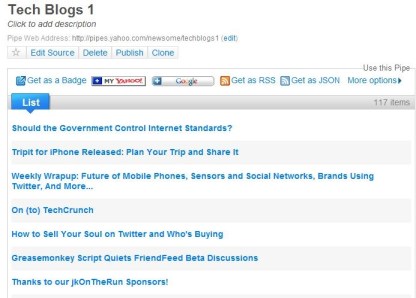
Note the “Get as RSS” button above. You can right click on that button and copy the combined RSS feed for use in iGoogle. Once you have one pipe working, all you have to do is clone that Pipe, rename it and replace the source RSS feeds.
Configuring iGoogle
Now, back to iGoogle. The first problem I had to address was to avoid screen clutter. iGoogle makes it easy to do this, by allowing you to have multiple pages. Click the down arrow in the left column beside the page you’re on and select “Add a tab.” The new page will be added to the left hand column. You can rename it, and (and this is a big timesaver) you can drag gadgets from one page to another. Thus, if you want to have a gadget on three pages, you can add it three times (by refreshing the gadget page and adding it again) to one page and then drag the extra copies to their desired location.
At the moment, I have three pages on iGoogle: Google Reader, Headlines (for the feeds I created above with Yahoo Pipes) and Google News. Let’s take a look.
First, there are two gadgets you’ll want on every page. TwitterGadget and Google Mini Search. Add them as described above.
My first page is for reading and pushing content from Google Reader. Yes, the Google Reader gadget can be unwieldy, but we can vastly improve it with one simple trick: you have have multiple instances of the Google Reader gadget on any page. I have a 24″ monitor, so I used the three column layout for this page (only) and added Google Mini Search and TwitterGadget to the middle, and eight Google Reader gadgets on the sides. In the first one, I show All Items and hide items I have already read. This lets me quickly scan for fresh content. The other seven show other of my Google Reader folders (the display selection stays in place when you close iGoogle). I show items I’ve already read in the other seven boxes, since I may have seen something in the native Google Reader application that I want to push to Twitter. Here’s what it looks like (click on the picture for a larger view).

A Cornucopia of Tweeting goodness.
My second page is for the headlines I created above with Yahoo Pipes. If I’m in a hurry, I want the ability to scan lots of headlines very quickly. A great gadget for serving those headlines is Feed Tabs Reader. I added each one of the genre-based combined feeds that I made with Yahoo Pipes to this gadget. I love the efficient tabs-based navigation. This allows me to quickly scan headlines and push a little content, even when I don’t have time to fully consume my feeds. Note that on this page, I use the two column layout to make TwitterGadget bigger.
Here’s what this page looks like.

You can quickly tab through the various topics.
My third page is dedicated to Google News. In addition to TwitterGadget and Google Mini Search, this page has the Google News gadget. Along with selectable regular sections (news, sports, etc.) the Google News Gadget makes it beautifully simple to create custom news sections. Click the + button at the top right of the gadget and enter the applicable topic in the blank. So far I have custom sections for “Social Networks,” “Blogging,” and “Digital Music.” Again, I love the efficient tabs-based navigation. Again, on this page, I use the two column layout to make TwitterGadget bigger
Here’s what this page looks like.

The Google News gadget is extremely flexible.
The Shared Items Problem
Inexplicably, the Google Reader gadget does not allow you to add items to your shared items list with a single click (you can add a star with one click). So we need a work-around. The best I have found so far is to install the Google Reader bookmarklet. You can add to your shared items by clicking on the bookmarklet, though this requires that you have the actual article or post open. It’s not ideal, but it works. Another option I tried and discarded is to have the mobile version of Google Reader open in the browser’s sidebar. You can one-click items to your shared items that way, but even a big monitor starts to get crowded.
Putting it All Together, via TwitterGadget
Once you have everything in place, this setup rocks. Completely. And largely thanks to TwitterGadget.
You can drag and drop items from any of these sources into TwitterGadget. Once the link is in the TwitterGadget message box, simply highlight the link, click “Control+Y” and the link is shortened. Following, unfollowing and retweeting are also easier- just hold the cursor over the user’s picture. Again, there’s simple, tab-based navigation for replies, DMs, favorites and even the public timeline (“Everyone”).
The beauty of this setup is that it is both infinite and flexible. You can tailor it to your preferences.
I hope this helps. Enjoy!
Lots of people still hoarse from crying about the new Facebook design got another punch in the pocket protector today when everyone’s third favorite place to bleat at lots of other nerdly dudes and a few nerdly women, FriendFeed, unveiled a new design. Since I didn’t like Facebook even before the new design, I skipped that whole brouhaha.
While I’m not a member of the migrating, new social network site of the day, let’s speak in massive hyperbole so regular people will laugh at us crowd, I have been a regular, and generally happy, FriendFeed user. I think it provides a nice way to aggregate content in a central place for easy access. I think it is a huge mistake from a content control and personal branding perspective to use any social network as the springboard for (and thus beneficiary if not owner of) your content, but I do believe it makes sense to push your content to various places where prospective readers may dwell. So while Newsome.Org will always be the hub of my online life, services like Twitter and FriendFeed have a place in my online toolbox.
Roll Call
First, we’ll see what some folks whose opinion I value have to say about the new FriendFeed. Then we’ll take a look for ourselves.
Louis Gray (I remember him when he was a pup; now he’s a virtual mastiff of tech blogging) likes the way the developers focus on the interface and listen to user feedback. He also has some ideas for further improvement.
Robert Scoble has a quick list of what he likes, and follows up with some tips for swimming in the new real time river. Based on my experience tonight, I agree with this: “if you’ve followed more than about 400 people, your feed will probably move too fast.” I only follow 111 people, and at times the real time river looked like end of movie credits in fast forward.
Thomas Hawk (the photographer/blogger, not those birds they mentioned in the best science fiction series ever) has the best and most effusive review I have seen so far. He likes the new FriendFeed more than Steve Rubel likes Gmail. Which is more than most people ever like anything.
Mike Arrington risks more spittle by staring at the bandwagon without jumping on. Let’s get serious for a moment. No one in the real world has ever heard of FriendFeed. Everyone at every LARP convention in the world has. It all depends on which end of the elephant you are talking about. As much as I hate to do it, I agree with Mike that FriendFeed is not going to slow Twitter’s momentum. Twitter will do that itself by being slow and crash-prone.
ReadWriteWeb took a break from talking endlessly about the “semantic web” to wonder if the new interface is really the path to mainstream (e.g., people who have never played WOW) acceptance.
Hutch Carpenter says that the new design is taking aim at Facebook. Hilarious, yes. But ever since David metaphorically slayed the giant, every little thing has to be the killer of some big thing.
Taking a Look (Updated- see below)
So let’s go see what the hubbub is all about.
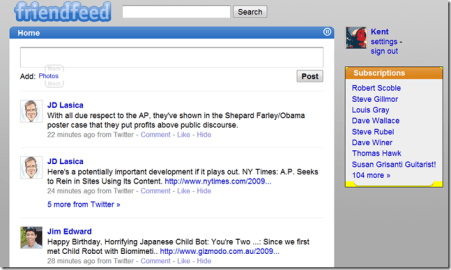
Here’s the right screencap, this time.
So far, this looks the same. But over at the top right hand side of the page is a new option of “Real-Time.” The new page has a cleaner, more stylish look. You can’t tell from this screencap, but the entries scroll, supposedly in near real-time, with new entries appearing at the top of the list. At one point, the new entries were moving so fast I couldn’t read them if I’d wanted to. Note the pause button to stop things as needed to read or reply.
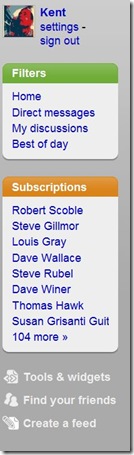 Navigation is at least somewhat more intuitive via the right hand column, which has settings, filters to selectively display data, subscriptions and some additional tools (see screencap below).
The filters allow you to choose what information appears in the main window. “My discussions” is helpful if you want to see things you have posted, or to follow up on comments you have made. Best of all, you can create and save custom filters to help you categorize and access particular types of information and/or users. I created a filter to mine for people discussing alternative country music. Right away I found some information that I would not have otherwise seen, including a post about an alt. country band from my home state, and one about the talented Neko Case.
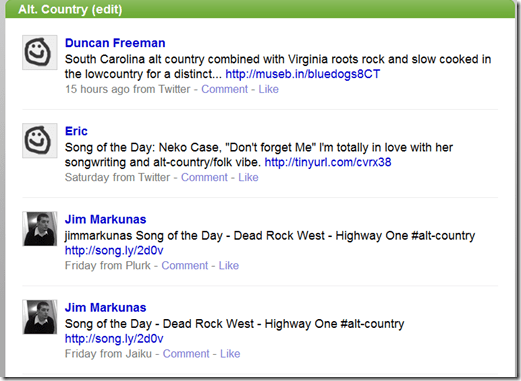 My nifty alt. country filter
Initially, I noticed one little problem. There was a lag of around 20 minutes between the time a tweet was posted on Twitter and the time it showed up in the FriendFeed stream. Later, it looked like the lag time was shorter.
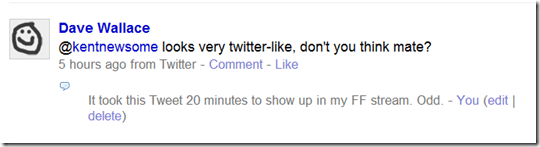
Delayed twitter post. Nice photo of Dave, though.
Early Conclusions
I don’t know that the new interface is going to bring FriendFeed to Main Street, USA, but I don’t think FriendFeed is going to get there anyway. For those of us who already use it, I think the new design is a definite improvement.
Like a new slide rule.
UPDATE:
I stupidly grabbed my original screencaps from the current FriendFeed page and not from the beta site which is here. Thanks to the Commenters for setting me straight. I replaced the original screencaps, added one of a custom filter I created in the meantime and ate a murder of crows.
Here are some tools I use to improve my, and hopefully my followers’, Twitter experience, and some thoughts on un-following, based on an article I read today.
Sharing Interesting Articles
One of the first things any Twitter user should do is to figure out how you can add value to other users. Not only because that will lead to a better experience for you, but also because the more value you add, the more followers you will acquire over time. Which leads to more interaction, which improves the experience, etc. As part of this process, I wanted a way to add my “Interesting Reading Elsewhere” list of shared items from Newsome.Org to my Twitter feed. I have a good reading list and believe that I can add value by directing readers to the most interesting posts and articles. I use Google Reader to save my shared items, which means that I generally add several items to the list whenever I read my feeds. And since I read my feeds anywhere from zero to three times a day, I can go days without sharing anything, or I can share lots of items at once. I don’t want to pull a Kawasaki, because there is a definite marginal utility to blasting links on Twitter. So I wanted to add a couple of items an hour, at most.
My answer for this is Twitterfeed. Twitterfeed allows you to add items from any RSS feed to your Twitter feed. You pick the frequency of these additions (I picked every half hour), how many of the new items in the RSS feed get pushed to your Twitter feed (I picked up to 2), whether to include just the title or the title and a description (I use the title only), a link shortening service (I use TinyURL) and a prefix for the Twitter post (I use “Interesting:”). It took about 5 minutes to set up, after which up to four of my shared items get pushed into my Twitter feed each hour (though in practice it ends up being only a handful a day).

Twitterfeed is free, although donations are encouraged (I donated a few bucks). I would almost certainly pay for a premium account, because Twitterfeed is very useful.
Tracking Your Follows
For enhanced Twitter email notifications, I use Topify. Once you sign up at Topify, you use your Topify generated email address as your Twitter address, and Topify notifies you via email of new follows and more. It tells you whether you already follow the person, sets forth in the email the person’s last few Tweets and allows you to follow them back merely by replying to the email. It sounds and is pretty simple, but it really improves the Twitter experience. I hope Topify adds the ability to track who un-follows you at some point.

Topify is also free. A few more features would make a premium account worth a couple of bucks a month.
Wallowing in Your Un-Follows
Since Topify doesn’t notify you of the people who un-follow you, you need another service for that. For this, I use Qwitter. Qwitter is about as simple as a service can be. Add your Twitter credentials and Qwitter will email you when someone un-follows you. I have found Qwitter to be very sporadic. I won’t get any emails for days and then I’ll get several at one time. Since I doubt multiple people are un-following me at the same instant, Qwitter must be accessing my Twitter data on some regular or irregular schedule and blasting out emails afterwards. I’m not interested in trying to track which of my Tweets run people off, so getting a bunch of emails every now and then is fine with me.
Generally, I find that most of my un-followers are obvious multi-level marketers, spammers or others who I have elected not to follow back. Knowing who un-follows me is not all that important to me, but I’m interested enough to use Qwitter. I doubt I’d pay for it, however.

I guess that’s the end of the road for the Wagon Train. Bummer.
And About Un-Following
Don Reisinger posts 8 reasons why he will un-follow someone on Twitter. Here are my quick thoughts on this list.
If you follow him merely because he follows you. When someone follows me, I look at their Twitter page and unless they are obvious spammers or multi-level marketers, I’ll generally follow them back, at least initially. After that, they stay on my list or not based on the content of their Tweets. I agree with Don that schemes to garner followers is gaming the system. Why would I want several thousand followers who don’t share any of my interests?
You’re a company that doesn’t contribute to the community. I think he’s talking about people who are clearly only there to advertise their goods, and not to add any additional value. I agree. The other day someone followed me who posts a link to their store at the end of every single Tweet. I did not follow him back.
You’re a music lover (to a fault). I don’t agree that music posts are not “real content.” I guess no music post could be as fun or important as this:

I actually like music content better than a bunch of navel gazing about the latest social networking non-feature. I know at least one other person who agrees with Don, though. The bottom line is that people should try to populate their Twitter content with stuff that interests them. I think Don should chill out to a little Europe ’72, but what do I know?
You’re an adult film star, cursing fool, bot or celebrity imposter. I can combine those four into one big “amen.” I would even delete the word “imposter.” I’m not much of a celebrity worshipper offline or on. Having said that, I think @mrskutcher provides good Twitter value, notwithstanding that she’s a celebrity.
You’re a constant updater. Don wants to hear from you in small doses. I think my tolerance is higher than his, but I agree that some people can over-share.
All in all, a pretty good list.
So now that we’ve figured all this out, how about following me on Twitter?

I signed up for Hunch today. Hunch, which is currently in beta, is a decision-making tool, built by its users. Hunch was developed by Flickr co-founder Caterina Fake, who describes the site thusly:
Hunch is a decision-making site, customized for you. Which means Hunch gets to know you, then asks you 10 questions about a topic (usually fewer!), and provides a result — a Hunch, if you will. It gives you results it wouldn’t give other people.
I’ve never been a proponent of mind-mapping or other thought-assistive applications, but I do consult various online resources to assist me with some decisions. For example, I regularly consult the customer reviews at Amazon when considering books, records or electronics. So I’m going to give Hunch a chance to earn its way into my online toolbox.
To get the most out of Hunch, you have to use it enough to allow the algorithm to map your preferences, etc. This will take some time, but in the meantime, here’s how the Hunch process works. Let’s start with one of the most popular questions.
Should I switch to a Mac?
Question 1: Does your job make you use Microsoft Outlook for email? Yep.
Question 2: Are you willing to spend more than $1000 for a new computer? Yes.
Question 3: Are you going to use this computer primarily for advanced, 3D gaming? No.
Question 4: Are you in the design, advertising, music, or video production business? Sometimes for music, but mostly No.
Question 5: Are you ok using the web-based version of Outlook? Yes, plus there’s my beloved iPhone.
Question 6: Do you make heavy use of Microsoft Excel? No.
Question 7: How much do you need to use Visio? I don’t even know what that is, so it’s “not a factor.”
Question 8: Do you want to go “under the hood”, change components yourself, to make your own personalized machine? You bet I do.
Question 9: Are you looking for a portable computer? For purposes of this question, no.
Question 10: Who do you prefer, Bill Gates or Steve Jobs. Actually, I prefer Elizabeth Mitchell. So “not a factor.”
Looks like Dave and Earl are going to be happy. . .
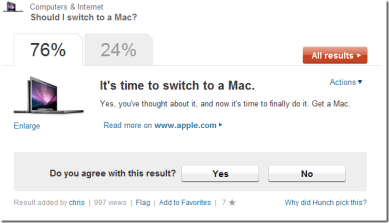
Based on conventional wisdom about Macs, I can’t argue too much with that. I’m not going to switch, but I totally get the argument that I should.
Clicking the “Why did Hunch pick this” link leads to a less than fulfilling list of the answers that supported the switch and the ones that didn’t.
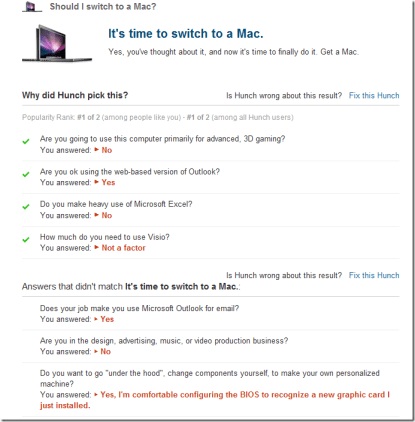
It’s too early to tell, but the process is interesting, and thought-provoking. The thought process will likely prove to one of Hunch’s biggest benefits- perhaps more so than the final answer.
OK, let’s try a more open ended question.
Which book author should I read?
Only 2 questions: fiction or nonfiction and sub-genre. I choose fiction, and then science fiction. The first suggestion was Cormac McCarthy. Well, he just happens to be my favorite author. Given there were only 2 questions, that has to be a coincidence. If somehow not, it’s 90% impressive and 10% disturbing. The second suggestion was Gabriel Garcia Marquez. I tried thrice to read One Hundred Years of Solitude, and thrice I concluded digging ditches was an easier way to spend my time. The third choice was Stanislaw Lem. I’ve not read his books, but I know of them and some of them look interesting. The “wild card” suggestion was James M. McPherson. Don’t know of him, so no way to tell.
There are options within Hunch to create a topic. I don’t know if I’ll ever do that, but if Wikipedia is any indication, there will be plenty of people who will.
Again, it’s too early to tell, but for now, Hunch is on my radar.
You have to give credit where credit is due. These mixtape services are resilient. In its futile effort to stuff the cat back in the bag, the RIAA keeps shutting them down. And like weeds, they pop right back up.
 The latest mixtape service to cross my radar is MixTape.me. Let me tell you- I have made a mixtape or two in my day. I remember sitting by the FM radio for hours with my Maxell cassette tape ready to go. I’d record the start of every song, and if it was one I didn’t want (as were most of them), I’d just rewind and wait for the next song. It took forever, but I created some awesome mixes. My mixtape glory years were from 1982 to 1985, courtesy of Vanderbilt’s WRVU. I taped Webb Wilder, the Beat Farmers, Raging Fire, Love Tractor, the dBs, you name it. Later, when I had enough money to actually buy tapes and CDs, I made a few mixtapes for the girls of the moment. Hey, it could have been worse. It could have been poetry. Well, come to think of it, I might have done that too, but let’s not talk about that.
So, given my illustrious mixtape history, I decided to give MixTape.me a spin.
And since I am a fan of Blip.fm, a similar- though not identical- service, I think I’ll compare the two.
MixTape.me
Registration is as easy as it can be. This is all there is to it.

Fill in the blanks, type the captcha (note the refresh and speaker buttons, to help you through the process), and you’re done. Once you login, you’re presented with a simple black and gray interface. It’s refreshingly uncluttered.
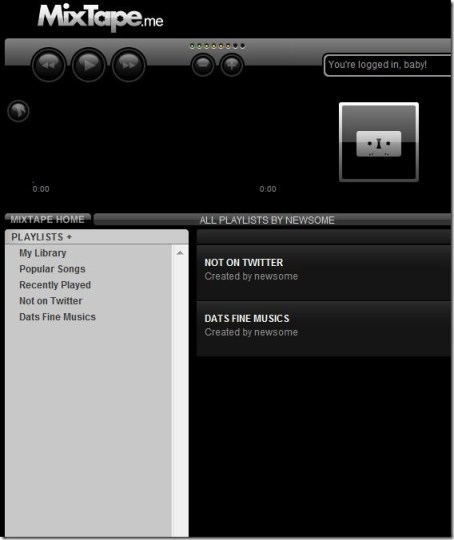
The gray column includes your library of saved songs, two pre-set playlists: popular songs and recently played songs. These pre-set playlists show the day’s most popular songs and songs that were recently played by MixTape.me users. Today’s most popular song was Flashdance. Flashdance!? Jeezus.
Below those are your playlists. You can see that I have created two so far.
To add songs to your library and/or a playlist, you search via a search box at the top right of the screen.

When you get results, you can drag songs into your library or a playlist.

The search process is fast, but I noticed that a lot of songs appearing in the search results are not actually available. If you click on a song that’s not available, the player will first look for another copy of that song in the database (good) and, if one isn’t available, play the next available song in the list (bad). Because the next available song is most likely a different song, I don’t like that feature. Like Blip.fm, you can add the URL of a specific MP3 to add it to your mix. This feature is not readily apparent, however- click in the +MP3 button at the top right of the song list window (the one just below) to add the URL.
Once you’ve added the songs to your playlist, click on it, and the song list appears.

From this screen, you can rearrange songs, edit the artist and title information, get information about the song or buy the song via a handy link to Amazon. In a neat design feature, the link leads to the Amazon download page, if one exists, as opposed to the CD page.
MixTape.me has two features that Blip.fm lacks. You can easily rearrange the order of your songs, and you can add songs to your library to store until you decide to add them to a playlist. On the other hand, there are not as many songs in the MixTape.me database, but it’s still in beta so more songs will likely be added over time. I also noted that MixTape uses music search engine SeeqPod. SeeqPod is being sued by Warner Music, so there is at least some question as to the longevity of at least that part of the search function. For all I know, Blip.fm may use SeeqPod too.
Once you create your mix, you are undoubtedly anxious to share it with your friends, love interest, dog, etc. There are two ways to do this. Via a link (handy for email) and by embedding the playlist on your site. Here’s one of my playlists (the first song is dedicated to all those cats on Twitter with arrogant Fg/Fs ratios):
Tell me that Jean Knight song doesn’t rock! People who’ve known me for a long time have told me the fourth song reminds them of me. That used to irritate me, but the older I get the more I kind of like the thought. I ain’t asking nobody for nothin’, and all that.
MixTape.me’s embedded player is more functionally and aesthetically pleasing than Blip.fm’s.
Blip.fm
I’ve been a Blip.fm user for a few weeks, and have really enjoyed it. One of the its best features is neat integration with Twitter, which let’s you automatically post songs to Twitter as you “blip” or add them. Lots of people blip songs into Twitter regularly. Of course song blips get in the way of all the rampant self-promotion that has become the main course on Twitter, so some people don’t like it.
Like MixTape.me, Blip.fm makes registration a breeze.

Fill out two blanks, click and presto, you have your very own Blip.fm page to fill with great music.
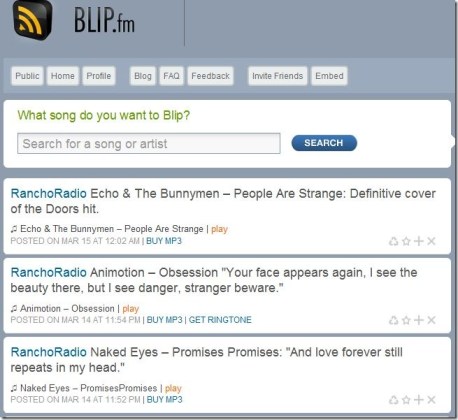
To add a song, you search for it in the search box.

You can preview the songs, and you should because some of them will be unavailable- though I find the frequency to be less than at MixTape.me. I find the searching and adding process on Blip.fm to be better that at MixTape.me, but not by a great margin. There are also more songs to be found in the Blip.fm database, though as noted above, MixTape.me is new and its database will likely grow.
Once you find a song you like, you can “blip” it or add it to your song list, with a witty comment.
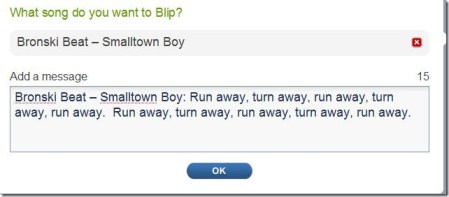
Click OK, and the song gets added to your page, to the Blip.fm front page, and, if you so-configure your account, to Twitter.

If you have your account configured to post to Twitter automatically, you can add an exclamation point (!) to the beginning of the message, and that particular song will not be posted to Twitter.
You can also give other Blip.fm users (and receive from them) “props” by clicking a little thumbs up button below a song you particularly like. Props are calculated and your number of props appears at the right hand side of your Blip.fm page.
As noted above, there is no way to rearrange the songs in your song list, though you can delete songs. It would also be nice to have a place to hold songs you want to “blip” later- sort of like MixTape.me’s Library. The sharing features are not as robust on Blip.fm either. The primary methods of sharing are to share the link for your Blip.fm page and to post your “blips” to Twitter. There is a third party Facebook app, but it didn’t work for me. There is a widget you can embed on your site, but the gigantic Blip.fm logo is too much of a space eater. My inquiry about that went unanswered. Not a wise practice, particularly when the question comes from someone using and writing about your service.
You can, however, embed individual songs.
That is one sad and beautiful song.
Conclusions
I think both services have a lot to offer. At the moment, if I could only use one, it would be Blip.fm, because I think the interface is more mature and elegant, but if MixTape.me grows its database and reduces the number of unavailable songs in its search results, its superior arranging and sharing capabilities would give it an edge.
Both are reasonably well designed and fun. And that’s good for everybody.
Now, if they can just stay in business.
OK, so you’re a relative grownup, aren’t trolling the internet looking for chicks or dudes (let me say again how thankful I am that I got through school before Al Gore and Mark Zuckerberg invented the internet), but would like to use the vastness of the web to find, manage and organize data. And maybe have a little fun in the process. Here are the tools I use to do that, from the baby step of a web browser, to the giant leap of a central online data repository. I’m going to do this in two parts, and I think I’ll stay inside the box and start with Part 1.
First Things First, the web browser.
You are almost certainly reading this on a Windows based machine, which means you are probably using Internet Explorer as your web browser. That’s messed up, but it’s easy to fix. You need to download and install Firefox. It’s free, easy and quick. And your efficiency and coolness factor will get a huge boost. Why? Because of the many add-ons that are available for Firefox. Basic installs of Windows Explorer and Firefox are a wash (particularly the newest version of Internet Explorer), but Firefox with the right add-ons is still a superior experience. There are hundreds of people who use other browsers like Opera and Chrome, and there are teens of people who use something called Flock. Unless you drive a Smart car, make all your own clothes and grow all your own food, you don’t need to worry about those.
And of course, those on Macs and iPhones use Apple’s Safari. You can and should get Firefox for a Mac, and we’ll deal with Safari on the iPhone later.
Now, let’s improve the Firefox experience with some of those add-ons.
Here are some of the ones I use.
AdBlock Plus, to remove ads. This one is a little controversial, since lots of people are trying to make money on the internet and unless you actually have something to sell (most of them don’t) the only legal way to make money on the internet is to put ads all over your page and hope someone accidently clicks on one. We need to help these people get real jobs by blocking the ads. Trust me, this is positive social activism. We’re doing them a favor.
BugMeNot, to anonymously log in to free web sites that insist on making you register. Many of us use fake names anyway (I was Antigone Tellyeaux (get it?) at the Houston Chronicle site for years; I was William Frawley during the glorious Napster years). This is also positive social activism by demonstrating that you don’t really need my name and email address to let me read your news stories and accidently click on your ads. BugMeNot does not provide credentials for paid sites, which is good since we’re all law-abiding grownups.
Foxmarks, to synch bookmarks on all your computers. I keep separate bookmarks on my work computer, but synch them across my home computers and laptops. One caveat: Foxmarks is changing into something called Xmarks and will start offering suggested sites to visit. This sounds to me like a social networking hysteria induced attempt to be something I don’t want, so who knows what the future holds. But until they screw it up, Foxmarks rocks.
TinyURL Creator, to make web links smaller, so we can use them on social networks and whatnot, which we will get to below and in Part 2. In the meantime, you need to practice using the words “social networks,” “Facebook” and “Twitter” in every sentence to show everyone how hip you are. “Hey, Junior, if you don’t change your Facebook status to finishing his homework, I am going to come up there, delete all your social network accounts and then talk about it on Twitter.” See, it’s easy once you get the hang of it.
Photobucket Uploader, to easily upload photos to your Photobucket account. Photobucket’s interface is a train wreck, but combined with this add-on it makes grabbing and sharing photos very easy. I don’t use it to share my personal photos- I use Flickr for that, but Photobucket is great for uploading stuff I want to use on my blog or on one of the social networks.
Evernote Web Clipper, so we can easily add content to Evernote, one of our primary tools, that we’ll get to in a moment (I have mad love for Evernote).
These are just a few of the plug-ins I use. There are thousands more to choose from. You can browse and search for them here. Here are the ones “recommended” by the makers of Firefox (at the moment, I don’t use any of the ones at the top of that list) and here are the most popular ones. The point is that you can tailor Firefox to your needs via the selective installation of add-ons.
Now you need a war chest to buy the cool stuff you find while surfing around on your tricked-out Firefox.
Paypal is the only way to go here, for a couple of reasons. Lots and lots of places take Paypal; it’s owned by eBay, which is a huge company that has lots of legal and business incentives to make it safe; and most importantly, you can use it to keep your credit card information off the big scary internet. I just keep money in my Paypal account to use when I need it. You can use a credit card or your bank account as a back up source of funds, but either way, Paypal can serve as a buffer between you and all those people trying to steal your money on the internet. I don’t really believe all that but it’s amazing how many of my real world friends are still terrified by the internet. I have one friend who will clutch her purse to her chest and tremble if she hears the word internet.
One caveat: If you get an email from Paypal, asking for your password, don’t give it to them. It’s not Paypal. Delete that one and move on to t
he
one from the brother’s nephew’s cousin’s former roommate of some dead African president who needs a little help moving some money around.
Now we need to find some places to store, organize and access our data.
For my personal photos, I use Flickr, because I like the interface and the iPhone integration via Mobile Fotos. Plus, you can determine who can see each photo you upload- everyone, people you designate as friends or only you. There are other options, like Picasa (owned by Google and integrated with other Google applications), SmugMug and, as noted above, Photobucket. I think Picasa is a decent alternative for very basic photo sharing and SmugMug has a lot of non-geek traction, but most of the others are either feature or interface challenged. In other words, they are too hard or not as good.
For online file storage (or the Cloud as the cool people call it), I prefer Dropbox. You get 2 gigabytes of free storage (that’s a lot if you aren’t a hardcore geek), a good web interface, and the ability to direct link to your files, including music files (here’s why that’s important). The only criticism I have of Dropbox is that it currently lacks an iPhone app. Box.Net and ZumoDrive are other similar, but not quite as good, alternatives.
The most wonderful, Evernote.
For note taking and general data archival, I use and highly recommend Evernote. It has a great desktop application, a decent web interface and a very good iPhone app. You can add, sort, synch and access your saved data from any computer. Evernote is so important and so hard to explain without pictures, let’s take a look at how I organize my data in Evernote.
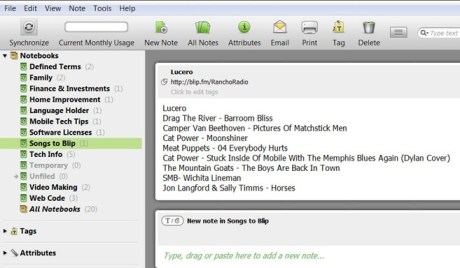
I have Notebooks (think of them as folders) for various types of information. The one highlighted above is where I list songs I come across on Blip.fm that I may want to later add to my Blip.fm page. I also have folders for Web Code I use regularly (so I can copy and paste it), Software Licenses, Home Improvement projects, etc. With the Evernote plug-in (see above) I can easily add information, web clips, etc. Let’s look at one more example. Here’s a clip from my Mobile Tech Tips Notebook on how to connect to ATT hotspots via my iPhone. Through the Evernote iPhone app, I can access this information whenever and wherever I need it.

Evernote makes it easy to accumulate, manage and access all sorts of information. The premium (e.g., not free) version even allows you to add and synch files and documents. I don’t use Evernote for that yet, but if it ever catches up to Dropbox, it would present a compelling case for one-stop shopping.
That’s enough to get you started. We’ll cover the rest of the stuff you need soon in Part 2.
If you have questions or other ideas for the perfect online toolbox, let me know in the Comments and I’ll address them in Part 2.
In my last Evening Reading, I mentioned that I was going to give Photobucket another look based on the new sharing features. I would love a place to store and serve photos I want to use here and in the various so-called social networks, and was hoping Photobucket had improved its interface and navigation since I last tried it.
It has, a little. But there’s still room for improvement. I can build computers and doghouses from parts. I can write (buggy) code. Heck, I can name all four Teletubbies. What I can’t do is wrap my mind around this:

I keep looking for ads for Ouch my Balls!

I see that I previously uploaded 2 images, because it says so at the top left, and I can see thumbnails in the middle, under the cut off “bulk uploader” box. Unfortunately, I was only able to delete the thumbnail on the left. The thumbnail of the other one (some jumbled up screen snip from days gone by) has the staying power of Guy Kawasaki on Twitter. The file itself appears to be deleted, since when I try to share it (and the sharing stuff is very nice, at least in theory), I get an image telling me so.

Let’s try to upload another image. Hmm, here’s one of me and the girls at the Father Daughter Valentines Dance I grabbed from the Houston Chronicle (hope that’s OK Clayton). Let’s try to upload it, resize it and share it here:

Well, it uploaded, but didn’t get resized (I can do that here). Other than the resizing thing, that was pretty easy.
So what about all this new sharing stuff. Let’s try to share a photo on Twitter. Here’s one of me chatting up Liz Taylor back in college. Take that all you Twitter celebrities. Oops, Twitter doesn’t seem to be one of the sharing choices. Thank God Bebo is so I’ll be able to sleep tonight. Those stuck in a time warp will be happy to know that Friendster is also an option. I’m going to try to add this to my Hall of Ancients album on Facebook.

It worked. This little photo is now on my Facebook page. It would take a horde of PhDs to figure out how to get it from there to my Hall of Ancients album, so I’ll let it stay where it is. Right there with the Young Frankenstein quotes.
Back to Photobucket. I see all these references to Albums. I guess Albums are the equivalent of Flickr sets. There are clearly some things Photobucket does better than Flickr- like sharing and sending your photos to Bebo (yeah!)- but it seems cluttered, disjointed and hard. For example, the Album Organizer seems like a completely different application. I was able to create a new Album, but it was not a clear and obvious process.
I have the feeling that Photobucket has a lot of features. So does Photoshop, but I’m not going to spend my life trying to figure them out. This stuff needs to be more intuitive and easier. And better integrated.
In sum, Photobucket is still a bit of a mess. But like that dude in The Holy Grail, it’s getting better.
So the other day, as part of my internet improvement post, I ranted about the incarceration of Rancho Radio, my internet radio station, behind the unnecessarily high walls of Live365, the broadcasting service I pay for and have used for almost 10 years. For some insanity-inducing reason, Live365 requires unregistered listeners to use its music player to listen to Live365 radio stations and makes it really hard for registered users to play the stations through other software. Even though Live365 stuffs lots of ads in the stream, it does not allow non-professional stations (e.g., ones that don’t pay a fortune for a professional broadcasting package) to publish streams that can be played on any music player. To make this utterly frustrating situation worse, you have to register as a listener just to listen to stations in iTunes or your other preferred music player- and even then Live365 tries to wrap your preferred music player over the Live365 music player.
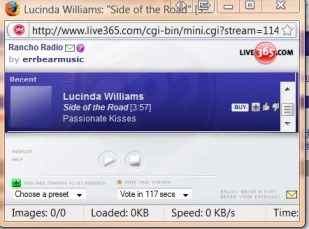
This little player is the bane of my radio existence
What I mean by wrap, is that the Live365 player will be open, but it will push the stream to another desktop music player, like iTunes or Winamp.
This makes Facebook seem like the wide open Serengeti and puts Live365 stations at a huge disadvantage compared to the plethora of other online music options.
So my good friend and IT guru, Dave Wallace, started poking around to see if he could navigate around this problem- if there’s anyone on earth who can figure this mess out, it’s Dave. He made some progress and was able to get the stream, at least temporarily, into iTunes. It even looks like the artist-song information was displaying. Mazzy Star. Hope Sandoval. . . . OK, I’m back.
I followed Dave’s tutorial, and actually got my stream to play in iTunes, with the artist-song information. That Jerry Garcia- Merl Saunders record is awesome.

I created a new Playlist, named it Rancho Radio, right-clicked the stream and added it to that Playlist. Presto, I now have an entry in that Playlist for Rancho Radio. I was able to stop and start the stream several times, including after closing iTunes.
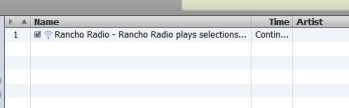
While this is certainly promising, there is at least one problem. You have to register with Live365 to have access to the Listen Settings Dave describes in his walk-through. Given that Live365 puts ads in the streams and that each station has a maximum amount of listeners (depending on the broadcaster package you buy), why is that necessary? Why can’t we just have a stream link that can stream directly from our music player of choice? We (me the broadcaster and Live365 the in-stream ad seller) should want to make it EASY for people to listen to our station. This is too HARD. I don’t want my listeners to be forced to register with Live365, because I know that for every one who will there are untold numbers who won’t. There is no conceivable legitimate business reason to make people jump through this hoop.
None. Nada.
And there could be a bigger problem. A little digging reveals the stream URL to be:
http://www.live365.com/play/11174?auth=8b64a2f702854181f5e8d7ebe4d0c684-1236680459-errbearmusic&ss=errbearmusic%3AVE30jMFgIG0BgWk3&tag
=live365&token=8965de820136fdc2267d00b64082298d-2002100084200000&sid=98.201.123.161
-1232926918910378&lid=618-usa&from=pls
I can think of only one reason why the URL has to be that long- because it’s temporary. Plus, why make us go to all this trouble to find a stream URL? And that “usa” reference doesn’t bode well for Dave and my other mates down under. I tried to open the URL in Windows Media Player, and it opened, without the artist-song information, but that could be a player configuration issue. I tried again in MediaMonkey, and it opened, but skipped horribly. This could be a software issue too. Say bye bye Mr. Monkey.
If- and I think this is a big if- the stream URL I came up with above is permanent, will work for everyone who wants to listen to Rancho Radio without having to register at Live365 and doesn’t violate an enforced Live365 term of service, then the problem is solved. I saw something in the Live365 forums indicating that non-professional stations aren’t supposed to have direct streams. I don’t know if what I am trying to do is OK with Live365 or not. If not, I’ll delete the URL upon Live365’s request, though that would be silly since anyone who wanted to could use Dave’s tutorial to find and bookmark the stream URL. My bet is that the URL above is temporary and/or won’t work for anyone but me.
I hope I’m wrong.
Clearly, Live365 wants you to be chained to the Live365 music player. Once you go through Dave’s tutorial and get the stream into iTunes, closing the Live365 player results in this:
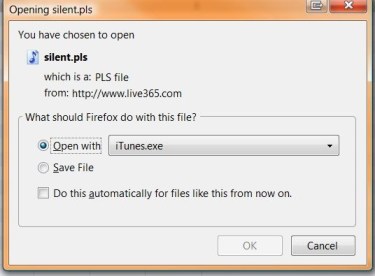
If you delete it without opening the aptly named “silent.pls,” the stream continues to play in iTunes. If you open it or if you’ve configured PLS files to always open in iTunes by checking the box, you get. . . silence and a notice that the broadcast has ended. I can’t tell you how much that pisses me off. Unless there is a constitutional amendment requiring this, it is unacceptable.
I know I’m coming across as a Live365 hater, and I know that they have the right to sell whatever product they want- and that if I don’t like it I don’t have to buy it. I get all that. But the thing is that Live365 has such potential. But for these unnecessary walls, it is a very good service. And – and this is probably a big part of the problem – it is the only service of its kind that I know of. It has the market cornered for broadcasters who want to upload their music and have it streamed from the host’s server. Sure you can broadcast live by uploading your songs to Live365 in real time, but that simply doesn’t work. I’ve tried it, only to have some hiccup knock out my upload – and thereby my station – for hours while I was away or at work.
Live365 is very close to rocking. They just need to knock down the walls and set the music free.
Strip Generator is a cool, easy to use online application that lets you easily create and share comic strip panels.
I am nobody’s Hugh MacLeod, but here’s one I did in about 10 minutes. Tweetie Bird might morph into a regular Newsome.Org feature or it may be a one-hit wonder. Either way, Strip Generator is cool.

 Newsome.Org