
OK, our migration to WordPress, which was documented here, is complete, and I am very happy with the results. In sum, I think the new look and the new functionality rocks.
But, as a blog partially targeted to grownups who don’t necessarily live in Google Reader or on Facebook or Twitter, we have a lot of readers who consume our content the old fashioned way. By coming to the web site and clicking around.
I’ve had a few questions, so here’s a rundown on how to use the new layout.
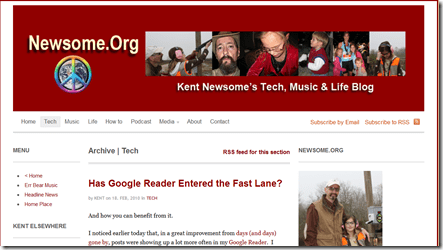
First, what hasn’t changed. The newest content, across all Categories, is still located in the middle column, with the newest post at the top. This has not changed- it was the same way in the prior layout.
Categories
But now, there are additional options, if you want to filter your content. You can slice and dice content several ways. First, by Category. Note the horizontal menu between the red header and the gray line at the top of the page: Home, Tech, Music, Life, How to, etc.
Let’s say you want to read only our music content. Click on that link in the top menu, and the center content will display only our music content, with the newest content at the top. Same with Tech, Life and How to (our tech tutorials). If you want to hear our podcasts, there’s the Podcast link.
Media, which has two sub-categories, is the place to go for photographs or videos.
Finally, there is an About page for those who want to know more about me and a Contact page, where you can send me an email or leave me a voice mail.
In sum, the default Home page has the same content as our old layout, but there are now topical options that display specific kinds of content.
More Ways to Find Good Stuff
Categories are great, but there are even more ways to drill down to the content you want.
See the box in the right hand column with tabs: Popular, Latest, Comments and Tags. Popular shows the recent posts that have the most discussion (e.g., comments, reactions, etc.). Latest shows a quick list of our latest posts. Comments displays the most recent discussions that have occurred in comments to posts. And finally, Tags are a clickable index where you can click on a topic and get only content about that topic. If you are looking for something very specific, the Tags tab is the place to start.
You Can Read Content in a RSS Reader
Another option is to read our content in a feed reader, such as Google Reader. We have our main RSS feed, which has the same form and content as always. Additionally, there are Category-specific RSS feeds near the top of each Category page.
Or Via Email
If you’d rather avoid the whole web-business and don’t use a feed reader, there’s the option to have a single email delivered straight to your inbox every night, with all of our posts for that day included. To subscribe by email, click on the link in the left column of the page.
What About the Sidebars?
There are a lot of extra goodies in the two side columns.
On the left hand side, we have a Menu of Newsome.Org content; links to my pages on the various social networks and photo and video sites; links to our excellent, hand-crafted Pandora radio stations (take a listen, you’ll like them); and hand-picked music and book recommendations (which are linked to Amazon, where you can buy and download them or have them mailed with just a couple of clicks).
On the right hand side is the tabbed content box described above; a search box, where you can search Newsome.Org and see what others have recently searched for (that list is also clickable); a list of my latest Twitter posts; and some of my Flickr photos (click for the larger versions).
That’s it.
We’ve made it easy to find the content you’re looking for. Enjoy. Leave us a comment and tell us what you think!

 First of all, as a practical matter, RSS has never been alive. Ask anyone other than a hard core geek (like me) what
  Here’s the

 I used to love the

 So why in the world someone would want to


 Newsome.Org