Tech for Grownups: What is Twitter and Why You (Might) Need It

I’ve actually heard a few adults I know in the real world mention blogs lately.  This is a good thing, as blogs are not just the nerd-infested web diaries many people (still) think they are.  Rather, blogs are a new, convenient and (at least theoretically) interactive content management platform.  As more and more “old media” sites migrate to a blogging platform, the distinction between blogs and traditional media continues to blur.  The bottom line is that the content determines the usefulness of a web site, not the software used to publish that content.  Producers of good (read accurate, reliable and well written) content will thrive and producers of bad content will not.

dsom Take the Drudge Report, for example.  That web site looks like something some kid tossed up on Geocities back in the nineties (as does all of MySpace, for that matter).  Notwithstanding these aesthetical challenges, the Drudge Report is one of the most popular and useful web sites in the world.  I check it at least once a day for news.  It’s not a blog by any definition, but it is extremely useful.  On the other hand, consider TechCrunch, the once and perhaps future home of nobody’s spittoon, Mike Arrington.  While TechCrunch is a blog by any rational definition, the content published there has the same quality and characteristics of an old media site (except for some of the temper tantrums).  Same with Mashable (sans the tantrums).  These are blogs, and they are also extremely useful.

Again, a blog, like the web in general, is a medium for distribution of content.  It is not the content itself.  As blogging platforms and other methods to publish and manage information make it easier and faster for content producers to deliver content to their readers, everyone benefits.  Much like the internet made the evening news stale and redundant years ago, these new platforms are making traditional “old media” internet formats stale and redundant.

Along with the expansion of the blogging platform, other applications have sprung up to facilitate the efficient (e.g., faster) delivery of watercooler information.  One of the most popular of these is Twitter.  Twitter is a virtual water cooler where people share information and post short, generally one-off messages.  It’s not so much an evolution of the blogging platform as the message board platform.  Now that Google has taken care of the archival requirements for internet information, where information is stored becomes largely irrelevant.  For example, if you search Google for “William Gay Books,” it doesn’t really matter where the information you find is located.  If Google is working as designed, you can zero in on the information you’re looking for, courtesy of Google’s algorithm.  The content can be spread all over the place, as long as Google or some other search engine helps you find it.  While not yet archival, Twitter takes advantage of and helps manage this sort of broadly originating content.  It allows you to consolidate information and communication from various people into a stream of information, at reasonably close to real-time speed.  Just as you can choose what blog content to read via Google Reader, you can also decide whose Twitter posts to read.  You “follow” those whose posts you want to see, and not those whose posts do not interest you.  A good way to find people who share your interests is to search Twitter posts via keywords.

Wikipedia describes Twitter as follows:

Twitter is a social networking and micro-blogging service that allows its users to send and read other users’ updates (otherwise known as tweets), which are text-based posts of up to 140 characters in length.

Like blogging in general, people use Twitter for various reasons.  Some treat is as a popularity contest, trying to amass as many followers as possible.  Others (and I am in this camp) follow less people so the level of interactivity will be higher.  Some people, most notably Robert Scoble (one of the early bloggers who did as much as anyone to bring blogging to the mainstream), have the ability to follow an insanely large number of people, while remaining fairly interactive.  Some use Twitter as an interactive business card.  Others use Twitter as a graffiti board to send random thoughts or notices of new blog posts.  Others, of course, use Twitter to spam or to impersonate famous people.  I was so excited today when I thought the Dalai Lama was following me on Twitter, only to find out it was not the Dalai Lama, despite lots of news reports to the contrary.  On the other hand, some celebrities do blog, including Demi Moore.

For me, Twitter is a quick and easy way to find pointers to events and breaking news stories.  When that airplane crash-landed into the Hudson River last month, Twitter was an early and reasonably accurate source of information.  It’s just another faucet for a quick drink of information.

Twitter is not perfect.  It’s not terribly interactive- like in real life and the blogosphere, most people are much more interested in talking than listening.  There are some users who are looking only for self-promotion opportunities.  And just like every real and virtual schoolyard, there are some who want to create distinctions between those “in the secret club” and those who aren’t.  But even with the warts, Twitter is a free and often interesting tool that gives you access to near real-time information with very little investment.

It’s not for everyone, but maybe it’s for you.  There’s only one way to find out.

If you are (or end up) on Twitter, here’s my Twitter page.

Technorati Tags:

Essential iPhone Apps Scoreboard

The other day, I summarized what I believe to be the essential iPhone apps.  Since then, I have uninstalled some apps and added some others.  Here are the recent changes.

pboard i.TV (free) has been uninstalled.  As I noted, I think it tries to do too much.  I want something simpler with better Netflix integration.  In its place, I installed Now Playing (free) (iTunes link).  I like the Netflix integration much better.

iTalk Recorder ($4.99, but there is a free version that I haven’t tried) is gone.  As noted, I use Note2Self ($1.99) for all my audio recording needs.

I added Pinboard ($1.99)(iTunes link), largely because I thought it might be useful as an outlining tool in connection with speeches and other public appearances.  It needs three tweaks to be a good tool for that purpose.  The ability to color the note boxes, the ability to change the note box color on the fly (e.g., when you have covered the outlined topic) and the ability to have multi-page pinboards.

The iPhone really needs an easy way to exchange vCards that is not dependant on both parties having an iPhone or the same card sharing app installed.  I have not found a solution yet, but my current best hope is Easycontact ($2.99) (iTunes link).  Apple needs to add this functionality to the OS to ensure universal compatibility.  In the meantime, at least Easycontact makes it easy to email a card.

Finally, I’ve used Byline ($4.99) as my mobile feed reader for a while, but the promise of faster Google Reader synchronization was enough for me to give Feeds ($2.99)(iTunes link) a try.  I won’t keep both apps, but right now they are fighting it out for a place on my screen.

With those changes, here is my current iPhone app lineup, not including games, which I’ll cover in a later post.

American Heritage Dictionary ($29.99, but I wouldn’t pay that much if I could start over)
AOL Radio (free)
AroundMe (free)
Beejive IM ($15.99)
Bloomberg (free)
Box.Net (free)
Byline ($4.99)
CameraBag ($2.99)
Darkroom (99 cents, but there is a free version that I haven’t tried)
Easy Wi-Fi ($1.99)
Easycontact ($2.99)
Evernote (free)
Feeds ($2.99)
Google Mobile (free)
GothPix (99 cents)
iBlogger (99 cents, at least for the moment)
iSports (free)
Juxtaposer ($2.99, but there is a free version that I haven’t tried)
Melodis Voice Dialer (free)
Mobile Fotos ($1.99)
Mobile News (free)
Note2Self ($1.99)
Now Playing (free)
Pandora (free)
Pinboard ($1.99)
Pocket Aid ($1.99)
Remember the Milk (free, but requires a $25/year premium description at Remember the Milk)
Sportacular (free)
Squiggles ($4.99)
TouchType (99 cents, but there is a free version that I haven’t tried)
Tweetie ($2.99)
Urbanspoon (free)

Bringing the Cloud to the People: What Does Google Know that Yahoo Doesn’t?

It looks like the maybe finally more than just a rumor Google GDrive is forthcoming.  Of course it’s looked that way for years, but maybe this time it really is.  I am interested in GDrive because if anyone can bring the so-called Cloud to the people it’s Google.

Notwithstanding all the hoopla over the mythical data migration from our computers to the Cloud that we see in the now institutionally dominated blogosphere (damn I miss all those A-Listers who used to ignore me so good), no one is going to move all their stuff to the Cloud for one obviously not as obvious to some as it is to me reason: people do not trust the big scary internet enough to toss all their stuff up there where someone can steal it.  Or lose it.

Nosiree, web based applications are great.  Storing copies (and that’s an important word here) of photos and MP3s are fine.  But all the important stuff (e.g., the stuff somebody somewhere wants to steal that you really care if they do) will remain on the local hard drives.  At least for our lifetime.

GDrive But that doesn’t mean people don’t need online storage space.  I use the excellent and highly recommended HP MediaSmart Server to back up my home network.  Unlike every single other backup solution I have ever tried, it really works.  Plus it gives me a shared Terabyte or three of space for song tracks, video files and whatever else I and the rest of my family are working on.  But I still need some online space for things I want to either use on this blog or access from other locations.  The Cloud is the obvious place for that.

And even though it didn’t have the cool name, the Cloud has been an option for years.  I’m a long time user of Box.Net.  I like it, but the cost of any truly meaningful amount of online space is high ($80 a year for 5-Gigabytes).  Higher than I want to pay and, in my semi-humble opinion, higher than it ought to be.  If I needed a lot of online space, I’d use Amazon’s relatively inexpensive S3 service.  But lots and lots of people don’t have the knowledge and desire to go to that effort.  They want something easy, delivered by a brand they think they can trust.  Google could be that brand, and GDrive could, without a doubt, bring the Cloud to the masses.

Meanwhile, in another part of town. . .

Yahoo announces that it’s shutting down its Briefcase service.  I remember a trillion years ago, I used to exchange song demos with co-writers via Yahoo Briefcase.  I didn’t know that this service, with its whopping 25 Megabytes of space, was still around.  But what I do know is that if Yahoo thought there was money to be made there, it could have long ago expanded, renamed and re-launched Briefcase, thereby getting in front of GDrive.  Yahoo could have been the first big brand to bring the Cloud to the people.  There would have been much buzz.  All of the tech blogs would write or copy identical blog posts.  It would have been huge.  And, more importantly, when it comes to online stuff, being first is a gigantic advantage.  You can blow it, like MySpace, AOL and Scoble, but it’s better to have to worry about staying on top than it is to worry about being on the bottom.  Right Seth?  I know Seth has my back on this.

Anyway, what I am wondering about tonight is what does Google know that Yahoo doesn’t.  At the same time Google is shuttering some of its bad acquisitions and other services that don’t have clear at least to Google paths to profitability, Google is apparently preparing GDrive for liftoff.  So what does Google know that Yahoo doesn’t?

Or should I be asking what Yahoo knows that Google doesn’t.

Somebody help me out here.

Technorati Tags: ,

That White Blur You Saw.

Was a glacier passing by while I wait for my RSS feed to update.

I’ve used Feedburner to push my RSS feed for as long as I can remember.  For a long time, I was generally happy with it.  Lately, and in particular since I made the mandated move to Google, my feed takes forever to update.  This, of course, means that it can take an hour or longer (and sometimes forever) before my new posts show up in Google Reader and other feed readers.  If this is happening to me, it is undoubtedly happening to lots of others.  Speed is everything on the net, but the goods, both inbound and outbound, are in slow motion.

RSS needs to be faster.  I don’t know what the alternatives to Feedburner are, if any, without losing your subscribers, but if things don’t get faster fast, I’m going to go looking.

This mess, along with the closing of Google Notebook, etc., raises a related and perhaps even more troubling issue.  The reason lots of us chose and continue to use applications developed or bought by the Googles and Yahoos of the world is brand permanence- the idea that you can trust products owned by these big, rich companies to always be there.  I’m not so sure that’s the case any longer.

I’ll worry about that later.  Right now I just want faster feeds.

UPDATE: I followed the instructions in item 4 of this post, and, at least in the case of this post, that seemed to speed things up.  We’ll see, but I am hopeful.

Me Too Phone: Dell to Release a Smartphone?

meetooThe WSJ reports that Dell is about to release a cell phone, possibly as early as next month.  Dan Frommer says it might be called the MePhone, and has a rumored release date of 9/9/09.  9/9/99 would be a better date, and here’s why.

First, the train has left the station.  And the iPhone is clearly the locomotive.  Far behind, but still hanging on, are RIM’s Blackberry Storm (if you’re thinking of buying one, click that link and the intro will send you scrambling towards the Apple Store) and the various Android devices (which have Google’s mojo, money and applications behind them, mainly to get more Google apps into use).  The once thought to be dead Palm prepares to attempt a comeback with the Pre (a silly name, but who knows, maybe it will give the iPhone some much needed competition).

When the Storm came out, there was a little buzz, but not a fraction of the buzz that surrounds even a minor iPhone update.  In the following weeks, the press and reviews were mixed, at best.  I work in the most Blackberry-centric industry there is, and I have seen exactly one Storm in the wild.

Even with Google behind it, the Android buzz came and went, almost without anyone outside of the tech blogosphere noticing.  The Pre is getting some attention, partially out of surprise and partially out of hope.

But in the end they are all playing for second place.  Or in Dell’s case, fourth or fifth.

The iPhone/Apple cult combination has created such tremendous loyalty and raised expectations to such an lofty extent that it would be almost impossible for any new device to measure up- much less blow people away.  Sure, I’m in the iPhone/Apple club, but a true competitor would be the best thing that could happen for consumers.

Yes, competition would be the best thing.  About the worse thing, at least for Dell, would be to toss out a “me too” handset just to get in the handheld game.  Dell already tried to compete with Apple in the MP3 player space, only to beat a hasty retreat.  Last year there were reports that another attempt was forthcoming, but that attempt was delayed.  I have no idea what the plan is now.

Remember the Dell Axim?  Me neither.  Dell entered the cooling PDA market in 2002.  And withdrew in 2007.

As computers complete the inevitable transition from beloved high-end electronic device to taken for granted low-end commodity, I suppose Dell has to follow the money and the margins.  But unless they have beat the odds and created something that is revolutionary, or at least evolutionary, and not at all devolutionary, it’s not going to work.

I hope I’m wrong.

Nothing From Nothing Leaves Nothing

But you gotta have something if you wanna get paid.

Techdirt has a piece today about US News and World Report’s plan to charge readers $20 a year for an online subscription.  There are very few publications that have content and delivery that will warrant an online charge.  Techdirt mentions the Wall Street Journal as one example, because of its excellent content and delivery, and because most people view the Journal as a tool in their quest to make money.

I’d add Consumer Reports (I subscribe to its online content) to that very short list.  I can’t think of any others.

The problem, of course, is that everyone, especially big media, was highly confused and short sighted when the internet land rush began.  Everyone and her dog tossed up web sites, gave their product away and focused all of their effort on getting readers.  This increased costs while generating little or no revenue.  The idea was to stake out an audience and figure out how to make money later.  The trouble with that plan is that there are only two ways to monetize that audience: get bought or sell ads.  The lucky ones who got up and running first have already been bought, many of them several times and at increasingly lower prices.  The later plan was also turned on its head by the inevitable economic slowdown and the resulting implosion of online advertising.  The Web 2.0 developers made the same mistake, which is why so many Web 2.0 sites are dead or on life support.

This implosion will be good for the internet in the long run, but those speculators and developers caught in the middle find themselves in a tough spot.

Billy Preston was right.  You have to have something somebody wants or needs to get paid for providing it.  But the cat’s out of the bag and, once you go free, it’s really hard to go back.  Especially in a bad economy.

You have to admire the effort.  But unless we can travel back in time and keep the free cat securely in his bag, it’s not going to work.

Tech for Grownups: The Essential iPhone Apps

Unlike just about everything else we in the tech blogosphere love to write about, the iPhone has crossed over into mainstream America in a big, big way.  Over half of the adults in my close circle of friends have iPhones and many of the kids are training for future iPhones with iPod Touches.  Everyone I know who has bought an iPhone and tried even a little to understand its many features and benefits has fallen in love with it.

iphoneheld But just having an iPhone is not enough to fully appreciate it.  You have to locate and install the right apps.

As the neighborhood technophile, I get asked all the time by non-facebooking, often technophobic grownups to tell them what iPhone apps they should install and why.  To save time and to give those who don’t live inside the so called social networks a primer on the beauty of iPhone apps, I am going to list the apps I currently have on my iPhone, describe what they do and tell you how often I actually use them.  Lots of iPhone apps are cool, the trick is to indentify those you will use on a regular basis.

I will also note the ones I consider must-have apps, and designate five of them as the top five essential apps.  I’m not going to address the apps that come pre-installed on your iPhone.  If you don’t know what those do, go explore your iPhone some more.  If you still get stuck, leave a question in the Comments and I’ll help you.  I’m also going to defer for later a discussion on games- which are an integral part of the enlightened iPhone experience.

Links are to the app’s iTunes store page, where you can read reviews by other users and, if you are so inclined, buy and immediately receive the app.  You can also buy and download the app via the App Store button on your iPhone.

A few cautionary notes.  Many apps have both a paid and a free version, with the free version supported by in-app ads.  If you’re like me and put at least some premium on ad-avoidance, be cautious with the free versions.  With one extreme exception, all of these apps are inexpensive.  Consider avoiding the ads and supporting hard working developers by buying the paid version of the app.  On the other hand, many apps are completely free, with little or no ads.  The ones only noted as free below only come in free versions.  You can get them for free, either via iTunes or the App Store button on your iPhone.

So, in no particular order, here we go.

Google Mobile (free):  This must-have app puts Google search and other Google apps (calendar, etc.) in an easy to read and use iPhone format.  It also allows you to search Google via voice.  Given that general web surfing via a browser is not the most effective way to find info via the iPhone, this is a must-have app and one of the top 5 essential apps.  I use it all the time.

Box.Net (free):  I’ve used Box.Net as my online storage space since the private beta before it launched.  I don’t need online space much, but when I do Box.Net is my choice, at least until Google’s rumored G-Drive comes out.  The iPhone app is well done and easy to use.  I use it regularly, but it’s not a must have app unless you need online storage.

Melodis Voice Dialer (free):  This was one of the first apps I installed.  When it works, it lets you dial from your iPhone’s Contacts (e.g., address book) by saying the name of the person you want to call.  I’ve had mixed results with it.  I rarely use it and will probably uninstall it at some point.

Note2Self ($1.99):  Every iPhone needs the ability to record notes while on the go.  This app does that and much, much more.  I can record a note and immediately have a voice file emailed to my secretary for dictation or other action.  It’s very handy, and I use it a couple of times a month.  It’s a must-have app.

Remember the Milk (free, but requires a $25/year premium description at Remember the Milk):  Every iPhone also needs a to-do list, and there are many to choose from.  I have used Remember the Milk since before I got an iPhone.  It’s a great web-based application that allows you to have various tasks and due dates, with notifications for the tasks that are due each day.  But at $25 a year, some may choose other options.  I still use it weekly, but if I can find a consolidated note taking and to-do list application, I would be inclined to switch.  Now that I’ve switched from Google Notebook to Evernote (see below), I hope Evernote comes out with to-do list features.

Evernote (free): Even if you don’t know it, you need a central place to keep notes, web clippings, registration numbers and all sorts of other data that you can access from anywhere.  Evernote is that place.  The iPhone app is elegant.  The web-based access needs a lot of work, but the free desktop application is fabulous.  You probably don’t think you need Evernote, but trust me, you do.  Not only a must-have app, but also one of the top 5 essential apps.  The Premium version ($45/year) allows you to add and store image files, PDF files and other files, all of which are accessible anywhere.

Beejive IM ($15.99):  Yes, that’s a lot by iPhone app standards, but if you use text messaging or, like me, have kids you want to stay connected with that do, this is a must-have app.  It lets you text- and send voice messages and photos- to other cell phones and to people on AIM and other instant messaging services.  Because it uses an instant messaging network to transmit data, it avoids the cell provider’s text messaging charges.  Saving those dollars is only the start.  This excellent app does a lot more, including working with iPod Touches to allow the iPhoners-in-training to send and receive text messages.  Clearly one of the top 5 essential apps.

Pandora (free):  If you like music, you want to start with this app, which is an iPhone optimized front end to the wonderful Pandora music service.  There are tons of radio stations to choose from or you can make your own.  If you like alternative country, I offer Newsome.Org radio.  If you like blues, here’s Kent’s Blues Mix.  And if you like an eclectic mix of classic rock, alternative country and blues, there’s my personal favorite, Rancho Radio.

AOL Radio (free):  My other music favorite.  This app, which is populated by CBS radio, offers tons of radio stations to choose from.  To give you an idea of the depth of choice, one of my favorite stations plays only classic rock cover songs!

CameraBag ($2.99): The camera on the iPhone is pretty good, but it’s still a cell phone camera.  CameraBag enhances your iPhone photos with several effects, such as “1962” (dynamic black and white), “Instant” (Polaroid looking, with those familiar borders), and “Helga” (washed out highlights and old-school vignetting).  I don’t use this one as much as I thought I would.  It’s a neat app, but not a must have.

GothPix (99 cents):  I really wish this was an effect in CameraBag (see the picture here for an example of the effect).  I use this one more than CameraBag, even though it’s a one-trick pony.  Not a must-have app, but close- at least for me.

Juxtaposer ($2.99, but there is a free version that I haven’t tried):  If you want to put your mother in law’s head on a monkey or something, this is the app for you.  I think it’s a really cool app, but I don’t use it very much.  It’s one of those “really cool” apps that you may install and rarely use.

Mobile Fotos ($1.99):  If you use Flickr, which is by far the best photo storage and sharing site, you must have this app.  It allows you to flip through your Flickr photos, and to upload additional photos to your Flickr account.  It also supports geotagging.  It is a must-have app, as is a Flickr account if you don’t already have one.

Darkroom (99 cents, but there is a free version that I haven’t tried):  This app, which used to be called SteadyCam, makes it easier to take non-blurry photos with your iPhone by waiting until the iPhone is steady to snap the picture, and by increasing the size of your shutter button- no more feeling around for that little shutter button.  It is a must-have app.

Squiggles ($4.99):  A full featured paint and image manipulation program for the iPhone.  It allows you to draw pictures, add cartoon captions to photos and to write or draw onto photos.  I got this one because my kids have it and were constantly playing with it.  It’s a neat little app, but I rarely use it.

Tweetie ($2.99):  I run hot and cold on Twitter, but a lot of people live on there.  Tweetie is the best app for Twitter, and I actually find myself using Twitter more because of Tweetie.  If you use Twitter, it’s a must-have app.  If you use Twitter, follow me and give me a shout.

Byline ($4.99): Now that you’ve followed my advice and set up a Google Reader account, use this must-have app to read your feeds via your iPhone.  It seems awful slow at times, but Byline is still the best way to read your feeds on the go.  It synchs with your Google Reader account and has an offline reading feature.  It’s one of the top 5 essential apps.

TouchType (99 cents, but there is a free version that I haven’t tried):  TouchType allows you to compose and reply to email in landscape mode, which, along with cute and paste, is one of the main yet-to-be-added native iPhone features.  I thought I would use this app all the time, but I never do.  I will probably uninstall it at some point, but if landscape emailing is important to you, you will find this app handy.

iBlogger (99 cents, at least for the moment):  I looked at a bunch of options before settling on this iPhone blogging application.  If you blog, this is the app to get.  If like the rest of the 99.999999999999999% of the world you don’t, move along to the next app.

Mobile News (free): Now we’re moving into the news and sports apps.  Lot of key apps coming up.  Mobile News is the Associated Press’s iPhone app.  It has news, sports, finance, local news and more.  It’s well designed and easy to use.  A must-have app and clearly one of the top 5 essential apps.

Sportacular (free): This was my first sports app.  It’s great for getting schedules and scores for various sports.  My favorite feature is the ability to set up a favorite teams list and get info about all of the teams you follow from a single page.  It’s not nearly as content-heavy as iSports (see below), but it’s great for quick score checks.  At least one of Sportacular and iSports is a must-have app.

iSports (free): iSports has a lot more content than Sportacular, including daily trivia games and live stats for some events.  If you’re stuck in an airport with some time to kill, iSports is the ticket.  I think iSports and Sportacular do different things, so I use them both regularly.  At least one of Sportacular and iSports is a must-have app.

Bloomberg (free):  For reasons I can’t really explain, I have always avoided the Bloomberg television channel, but the iPhone app is a different story.  It’s the app to get for stock quotes, market and business news.  A must-have app.

American Heritage Dictionary ($29.99):  I can’t believe I paid thirty bucks for a dadgum iPhone dictionary.  Granted, it’s a full featured dictionary, with pronunciations and whatnot, and I keep it by my side during family Scrabble games.  But there are cheaper alternatives out there.  I wouldn’t buy it again.  What was I thinking?  Stupid purchase.

Pocket Aid ($1.99):  A neat little app with first aid guides for insect bites, bruises, burns and other mishaps as well as how-tos for the Heimlich Maneuver, CPR, etc.  I bought it because we go camping a lot, but for a couple of bucks, it would be a good addition to any iPhone.

i.TV (free): I really wanted an app to show me TV and movie listings and to let me manage my Netflix queue.  This app does that and more.  Too much more, in my opinion.  It overwhelms me and I never use it.  I am going to uninstall it, but lots of people love it.

AroundMe (free):  This excellent app uses the iPhone’s build in GPS to locate restaurants, coffee bars, hotels, gas stations and many other points of interest in your immediate vicinity.  I use it frequently- a must-have app.

Urbanspoon (free): Another very popular GPS-based app, Urbanspoon locates restaurants in your vicinity and provides links to menus, editorial reviews and user reviews.  You can filter your results by neighborhood, cuisine or price.  I never (and I mean never) use the “shake for a random restaurant” feature, but I use the “near me” feature frequently.

iTalk Recorder ($4.99, but there is a free version that I haven’t tried):  This was my voice recorder before I discovered Note2Self.  It has a desktop application that will download the audio files to your computer.  It’s a neat app, but I like Note2Self better.

Easy Wi-Fi ($1.99):  One of the many wonderful things about iPhones is that you have free access to ATT wi-fi hotspots.  I have not travelled much since I got my iPhone, but I suspect this app, which automates the sometimes cumbersome process of logging into ATT hotspots, will be a big timesaver.  Based purely on potential a must-have app.

That’s my app list.  I’ll cover games in a subsequent post.

What are your essential iPhone apps?  Add yours to the discussion in the Comments.

If you aren’t already a Newsome.Org feed subscriber, please subscribe.  We have lots more articles like this coming up.

Technorati Tags: ,

The Refurbished Risk

As someone who likes to build (and take apart and rebuild) just about anything, I have saved a lot of money over the years buying refurbished products.  Back in the day, I made regular trips to the old Compaq outlet in Houston.  I bought a lot of damaged and refurbished hardware there, including several of those wonderful Compaq keyboard scanners, a product that was far ahead of its time.  Most of the stuff worked fine.  Some of it had to be fixed, but there was only one computer that was so internally mangled that I had to take it back.  I saw and fixed many a blue screen of death (BSD) back then.  After HP consumed Compaq, I quit visiting that store.  I don’t know if it’s still there or not.  And I hadn’t seen a BSD since.

Until yesterday.

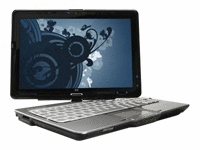
tx2525nr I have long been a fan of Woot, the “one deal a day” retailer.  Some of the items sold on Woot are refurbished.  I’ve bought several items from Woot and until now have never had any problems.  The other day, Woot was selling refurbished HP tx2525nr tablets for $699.  These boxes have 2GHz Turion chips, 3GB DDR2 of memory, a 12.1 WXGA touch screen, a 250GB hard drive and Vista Ultimate 64-bit.  Seemed like a good way to replace my trusty Thinkpad tablet that was long ago confiscated by my daughter.  So I, along with 511 others, bought one.

It came yesterday.  I set it up, went through the set up and registration process, and uninstalled all the crapware (less than it used to be, but still too much) that HP stuffs into its computers (why in the world do they make you check every one of those stupid HP games when you want to purge them?).  I connected to my wireless network and things were running smoothly.  For about 5 minutes.  As I always do with a new box, I went to the Microsoft Update site to update my software.  After installing the first round of updates, I get- you guessed it- a BSD.  I rebooted and the box restarted normally.  But when I tried to access the web, more BSD.  This time I had to remove the battery to get the box to restart.  And after that, it wouldn’t even boot.  BSDs galore.  The problem has something to do with the drivers for the wireless network card (a Broadcom 4321AG), but since I couldn’t get it to boot normally or access the web if it did, I couldn’t look for a new or alternate driver.

I don’t blame Woot.  The description clearly said the tablet was refurbished.  And if I had patience and several hours to kill, I could probably have sought help from HP.  But that’s not fun.

So I did what anyone else would do.  I wiped the entire hard drive.  And installed the Windows 7 beta.

I am already testing Windows 7 on another computer, so I have been through the installation process before.  Let me reiterate what others have said: the installation process is a breeze.  When the OS comes up, it automatically walks you through network connections and downloads updates.  I was able to reconnect to my network, access the web and even update some hardware drivers.  I lost some software that came with the computer, but some of it was unnecessary and I have alternatives for most of the rest of it.  I lost the fingerprint reader, but I found the drivers on the HP support site.  When I tried to install them, the fingerprint reader was not detected and I got more BSDs.  You can’t install these drivers in Safe Mode so I found the drivers in another format and tried again to install them via Device Manager.  More BSDs. And more, and more.

Ultimately, it fell into a BSD/restart death spiral.  By reinstalling Windows 7, I was able to interrupt the death spiral.  So the machine would boot, but without the fingerprint reader and, more importantly, without the ability to rotate the screen in tablet mode.

Since the early problems indicated an issue with the wireless card, I took it out and tried to install the tablet screen rotation application and the drivers for the fingerprint reader.  The rotation application installed without a hitch and worked upon restart.  The fingerprint drivers installed, and upon restart I could log in via the fingerprint reader.  No BSDs, at least not yet.  Eventually, I was able to get all the hardware working.  Well, except for the now absent wireless card.

During those happy and optimistic minutes I successfully installed some other applications: Microsoft Office, Evernote, Windows Live Writer.  The system seemed very stable.

But no wireless, which is pretty darn important in Tablet PCs.  So I marked a system restore point and reinstalled the wireless card.

Immediate BSD.  After a couple of reboots, I could get to the desktop and everything worked for a short while and then: BSD after BSD.  So I removed the wireless card, leaving me with an immobile mobile device.

I googled the wireless card and didn’t find any newer drivers.  I scanned the computer with Driver Scanner and it said all my drivers were up to date.

But the fact remains that the computer implodes when the wireless card is installed.

It has an ExpressCard slot, so I grabbed an ExpressCard wireless adapter and installed it.  So far this seems to work, though at the cost of the card protruding an inch and a half on the side of the computer.  I also ordered a different internal wireless card to see if a different brand with a different driver would work.  My guess is that it won’t, and if it doesn’t I can always put the new card in an another laptop.

After hours of work, it looks like this is a problem without an acceptable solution.  I have no way to know how many others who bought from Woot (or elsewhere) are experiencing problems, but at least a few are based on the discussion board at Woot.

In sum, this sucks.  Maybe I can get some help from HP.  Maybe I can’t, since I went to such extensive measures to fix the problem myself.

Either way, it’s a good lesson on the risks of buying refurbished products.

Technorati Tags: , ,

Tech for Grownups: Why You Need Google Reader

googlereader

As hard as it may be to believe for those of us who live in RSS, both from a content production and content viewing perspective, RSS and the associated feed readers remain vastly under-utilized by most adults.  Over the past weeks I asked many adults if they use RSS or a feed reader to manage their online reading.  Only one person used a feed reader.  Very few even knew what feed reader are.  In fact, I showed one reasonably tech-savvy friend how to use Google Reader.  He told me a day or two later that Google Reader had completely changed the way he approached the internet.  He loved it.

Meanwhile, many of my adult friends continue to consume the internet inefficiently and ineffectively by bouncing around from one website to another, in search of content that could so easily be centralized via Google Reader.  Yes, there are other feed readers, but they are more complicated and, frankly, not as good as Google Reader.

Wikipedia defines a feed reader as follows: “A feed aggregator, also known as a feed reader, news reader or simply aggregator, is client software or a Web application which aggregates syndicated web content such as news headlines, blogs, podcasts, and vlogs in a single location for easy viewing.”  In other words, you can take all that content that you run all over the place trying to find and read, and you can put it in one centralized place.  It puts you, not the various website developers and their advertisers, in charge of how you consume online information.  For those (and you know who you are) who continue to claim that the internet is a dangerous and scary place- Google Reader is perfect for you.  You get the content you’re after right from Google.  And while Google is certainly trying to corner the market on data storage and online advertising, it’s certainly not going to rob you or give you a computer virus.  As an aside, most of the people I know who are scared of the internet already have computer viruses because they are too afraid to find and update an anti-virus program, yet not afraid to open love emails and other obviously bogus missives from people they don’t know.

RSS feeds are not just for blogs.  Just about every newspaper, online news source and other content provider has RSS feeds.  Generally, they have many, broken down in a news, weather, sports, etc. manner.  Here is a list of Yahoo’s feeds.  Here are CNN’s.  And here are the feeds for the New York Times.  If you find all that stuff too boring, here’s mine.

There is one slight drawback to feeds.  Lots of people use full feeds, which means that the entire story appears within the feed reader.  Many news sources, however, are psychologically bound to the dying advertising model that traditionally paid their bills.  So some of them use partial feeds, which show only a headline and sometimes a summary within the feed reader.  You have to click through to the provider’s story (e.g., to its website) to read the whole thing.  This is a pain in the ass, but even so, feed readers are still the best way to organize and access your online content.  As another aside, big media can probably get away with partial feeds for a few more years, but anyone else who uses partial feeds is begging not to be read.  If Mashable and TechCrunch can make full feeds available, then so can you.  And if you don’t, many others with the same or better content will.  As you can tell, I really don’t like partial feeds.

Back to Google Reader and why you need it.

Here’s a video by the folks who developed Google Reader explaining all the great things Google Reader will do for you (link for feeds).

So what are you waiting for?  Go give it a whirl.  It will change your (online) life.

Technorati Tags: ,

Hacking a (Mini) Mac

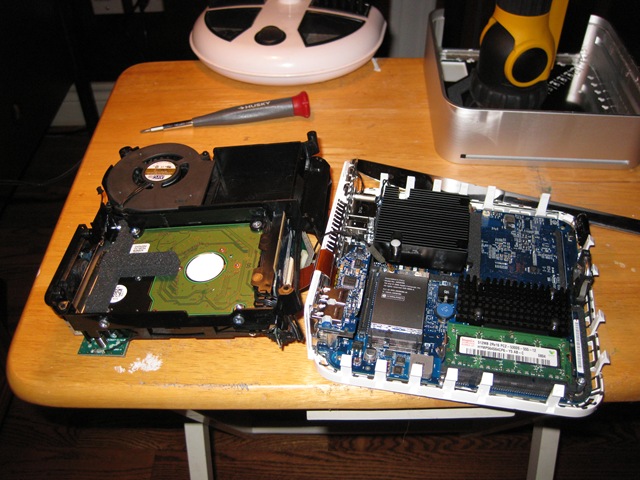
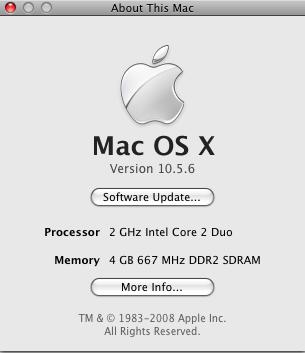
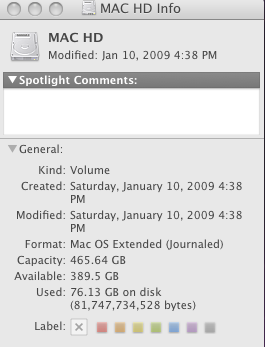
macopenedNow that I have taken that important first step and added a Mac Mini to my home office computer array, the only logical next step was to open it up, take a look at the insides and add stuff to it.  Here’s the story of how I upgraded my RAM to 4-GB and my hard drive to 465-GB.  Because of the small size of the machine, it was harder than upgrading a desktop, but no harder than upgrading a laptop.  And there are lots of tutorials on the web to guide you through the process.

First, I shopped around for new hardware.  I ended up getting two 2-GB memory modules and a 500-GB hard drive from OWC.  The items were shipped immediately and sitting in my office within a couple of days.

I decided to add the RAM first.  Methodshop has an excellent walk-through of this process.  Of course, I didn’t back up anything.  I decided to play marbles for keeps and just grabbed a putty knife and started prying the case apart.  As noted in the walk-through, this first step is probably the hardest part of the exercise.  Once you get the hang of it, it gets much easier, but at first that Mac Mini looks about as hard to get into as Fort Knox.  Once you get the case open, follow the steps as described in the Methodshop walk-through and a few minutes later, you have an upgraded Mac Mini.  The only part I couldn’t get done was to reinsert all 4 corner screws.  The back left one proved to be impossible, so my Mac Mini is secured by only 3 corner screws.  I hope it doesn’t feel inadequate.

atm Adding the RAM was easy- and easier than I expected.  Now for the new hard drive.

Applefritter has a good walk-through of both the RAM and hard drive upgrade process.  OWC sells upgrade bundles along with its hard hdinfo drives, which include an external SATA enclosure and software to clone your existing hard drive to the new one.  Cloning my existing hard drive to the new hard drive was easy- and I didn’t read any instructions.  I just installed the application, put my new hard drive in the enclosure, attached it to my Mac Mini, opened the application and looked for the right settings (clone).

After cloning the hard drive, I followed the steps as described in the Applefritter walk-through.  It went relatively smoothly, with a couple of complications.  When unfolding the case to access the hard drive, the audio cable to the DVD drive came loose (see the last picture in the Applefritter walk-through).  It’s easy to reattach, but it would be a huge drag to fully reassemble the machine, only to find later that the DVD drive wasn’t working.  I also accidently pulled the cable that attaches the airport antenna off of the connector on the internal airport card.  It can be reattached easily if you know where to attach it.  I also found that you need to pull the T-shaped foam rubber off of the old hard drive and attach it to the new one.  You can see this foam rubber attachment in the eighth picture in the Applefritter walk-through.

All in all, these upgrades were quick and easy.  And at the end of the day, my little Mac Mini isn’t quite as mini anymore.

Technorati Tags: