
OK, get ready for a big helping of awesome. Here’s how to create a custom sharing domain. In about 15 minutes.
Step One: Get a Cool Domain
Maybe you already have one you want to use. If not, pick one out and register it with your preferred registrar. I use Network Solutions, but any service will do. I chose newsome.cc. Get it? Like copying you on a an email or one of those old timey letters.
Step Two: Get a Bit.ly Pro Account

I’ve been using Bit.ly as my default and preferred link shortener for a long time. Their new Pro Accounts, which is required to make this process work, are free, but still in beta. I signed up on Sunday and got my acceptance email this morning. Excellent.
Registering for a Pro Account doesn’t affect your previously shared links. All existing data remains in place. The Pro Account merely adds features. Once you have the Pro Account in place, you are presented with a Settings page, where you insert your custom domain name, and receive instructions on configuring your domain. This is an easy process that consists only of changing your domain’s A-Record. Make note of the IP address Bit.ly provides. You’ll need it in a moment.
Step Three: Configure Your Domain
As noted above, I use Network Solutions, but the process should be very similar for all domain registrars.
Go to your Account Management page or dashboard, and select the applicable domain (in my case newsome.cc). Select the link to edit your DNS settings. At Network Solutions, it is “Edit Advanced DNS Records.”
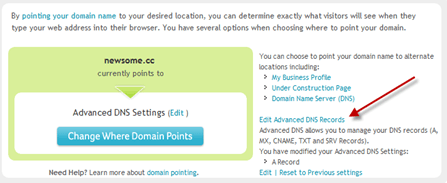
Then the link that allows you to edit the domain’s A-Records.

Then replace the “www,” “@ (None),” and “* (All Others)” records with the IP address Bit.ly provided you on the Settings page.

The editing form will tell you that it can take hours for the DNS change to take effect. In my case it happened instantly. Literally.
Go back you your Bit.ly Settings page and confirm your custom domain by clicking on the button. Easy peasy.
Now, when you shorten a link via Bit.ly (I use the Bit.ly Chrome extension), instead of the bit.ly domain, your shortened links will use your custom domain.
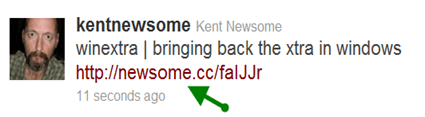
Very, very cool.
Step Four: Set Up a Google Reader Send To
Now that we have our custom sharing domain up and running, we need to create a way to share links from within Google Reader.
From Google Reader, go to Settings. Then Send To.
Click on “Create a custom link,” near the bottom of the page. Fill in the blanks as follows.
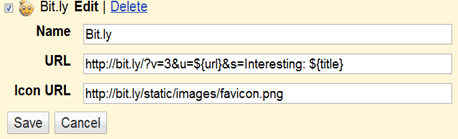
I put “Interesting” before my shared links. You can change that to whatever intro you’d like, or delete it altogether. If you don’t want any intro, the last part would read “&s=${title}”.
Bit.ly Pro rocks. I love, love, love it. In a day or so, I’ll tell you about some of its features. And being a good beta tester, a couple of features I’d like added.
Why not set up a custom sharing domain right now, and test it out by sharing this post!
 Newsome.Org