2009 Record of the Year

Well, I guess under the better late than never theory, let’s announce the Newsome.Org record of the year for 2009.

This will surprise no one who knows me well or has ridden in my truck in the past 9 months or so.  In my semi-humble opinion, the best record released in 2009 was Let the Lead Fly (purchase and download @ Amazon) by the Wrinkle Neck Mules.

image

This record is alt. country in its finest form.  Not that crappy Americana stuff that has invaded XM-12 and other so-called outlaw radio.  This is the real deal, in writing, playing and singing.  If Son Volt had stayed together in its original form, they would have eventually gotten around to making this record.

The record starts off with a bang, literally and figuratively, with the title track, Let the Lead Fly.  This is about as good as a song gets, and the fiddle at 2:35 sends a shiver down my spine, even after a hundred or so listens.  As a hunter and sporting clay enthusiast, this song has a special attraction for me.  In fact, I used it for a video largely comprised of pictures of me and Cassidy shooting clays.

Other great songs are Medicine Bow, which really channels early Son Volt, and One Hand in the Furnace, which has a lead banjo track that really, really works.  Things drag just a tad in the middle, but pick back up nicely with the fantastic Cracks and Seams.

And just when you think it couldn’t get any better, the record ends with maybe my favorite song, Before the Rise and Fall.

I’ve bought every record the Mules have released, and they are all excellent.  Great songwriting, great playing, fantastic singing.  Very few filler songs.

If you like alt. country or good music in general, you absolutely owe it to yourself to check out this excellent record, as well as the rest of their work.

image

More Record Reviews.

How About a Free Copy?

I really want to support the Wrinkle Neck Mules, so here’s what I’m going to do.  Leave a comment telling us your favorite record from 2009-date.  In a couple of days, I’ll randomly pick two of the commenters (three if we get more than 15 recommendations) and buy them a copy of Let the Lead Fly via Amazon.

Share some record recommendations, and get some free music.

Three Simple Things Twitter Should Do to Improve the User Experience

Twitter-Logo-150x150As everyone who reads this blog knows, I run hot and cold on Twitter.  On the one hand, I just don’t  get what’s so magical about trying to have a conversation in a what amounts to a public chat room often inhabited by a horde of spammers. MLM’ers and self-promoters.  I didn’t like chat rooms in the nineties, and I don’t see the appeal now.  On the other hand, a lot of my friends really love Twitter, and I have been wrong before (about Facebook, among other things).

So I keep trying to figure out how to use and enjoy Twitter.  During this process, I came up with three simple things that would greatly improve the Twitter user experience.  Without further adieu, here are three things that Twitter should do right now, today, that would help me and a lot of other people use and enjoy Twitter more.

1. Escalate the Spam Battle

I can’t give you numbers, but I am confident that a large number of the people who follow me in any given day or week are doing so only in the hopes that I’ll follow them back so they can turn around and send me some sort of spam.  MLM crap, outright scams, you name it.  I am equally confident this is the case for other people as well.

Twitter should fight the spam fight for us, or at least give us better tools to fight it ourselves.

Sure, you can send a spam report off into the ether.  I have reported a number of users for spam.  Maybe some action has been taken on some of them, but you can’t prove that by me.  Twitter should value the quality of its network- not just the quantity- and take a stand against spam.  I can’t remember the last time I saw a story about Twitter’s efforts to reduce the spam that runs rampant on its network.

But make no mistake.  There are ways to fight spam.

One of the most effective ways would be to take a page from the message board book and appoint a class of community “moderators” (call them whatever you want) who volunteer to monitor the network for bad behavior and who are empowered to take action against it.  Sure, you have to clearly define what is grounds for action, and you have to err on the side of allowing content, but I can tell you from experience that it can be done.  Cheaply and effectively.

Why hasn’t Twitter done this, or something similar?  The cynic in me says the developers are too busy reading their own press.  But maybe I’m wrong about that too.

I hope so.

2. Allow Embedded Media

This is something Pownce did years ago, and Facebook and Google Buzz do now.  You don’t have to host the files.  You just need a way for people to link content and allow others to hear or see it in line, right there on Twitter.

Some will want to play the copyright card, but if you aren’t hosting the content, I see that argument as a canard.

And even if someone who matters at Twitter thinks this is a bad idea, I don’t think Twitter has a choice.  Why? Because other services are doing it.  Twitter has all the mindshare right now, but as we’re seeing with all the Buzz hoopla this week, things can change.

Spam might kill Twitter.  The failure to stay feature competitive would, for sure.

3. Better Subscription Management

I try to keep up with my inbound and outbound Twitter follows, and in this regard let me give a mighty shout out to and recommendation of Topify.  If you don’t use it, you should. In fact, Twitter should buy Topify and make it part of the core Twitter code.  It’s that good.

Even with Topify, it’s inexplicably difficult to manage your Twitter follows and followers.  There’s no way to mass unfollow people, for example.  There are some services that try (or used to try) to provide this sort of thing (Your Twitter Karma, for example), but Twitter doesn’t like them, and has taken the position that some of them violate Twitter’s terms of service.

Here’s the problem with that.  Why is it OK for spammers to follow 999 people a day, unfollow them and then spam them, but there’s no way for a user to generate a list of people they follow and choose (e.g., by uncecking a box) which ones to unfollow?  Stated another way, why doesn’t Twitter allow us to manage our subscriptions any way we want?

Sure, you can unfollow people via the list of people you follow (click on the “following” link below your photo), but the list doesn’t easily tell you if the person follows you.  You can figure it out by clicking the Actions button and looking to see if you have the ability to DM the person (yes, they follow you; no, they don’t).  But why does it have to be this hard?

Last night, I decided to browse my follows and remove obvious spammers and most of the people I follow who aren’t major media writers and don’t follow me back (you know, my Pink Floyd policy).  This should have taken 60 seconds, but it took forever, because I had to find this list via FriendOrFollow, and then unfollow people one at a time.

Note: my Pink Floyd policy is not absolute.  There are plenty of people I find interesting enough to follow, regardless of whether they follow me.
fof0210-300x149

Another  problem: there are a ton of people who follow me, that I don’t follow back.  My general Twitter approach is to follow back anyone who follows me who (a) has more than a few posts, and (b) isn’t an obvious spammer or  MLM’er (Topify makes this pretty easy by including recent posts in the new follow email notice).  But, again, I come and go with Twitter, and I get behind.  There are tons of people who follow me that I’d like to follow back.  But I don’t have time to visit each person’s profile and decide whether to follow or not.

Twitter makes this a little easier by showing whether you you follow your followers (the “followers” link below your photo).  This is clearly designed to encourage following and to discourage unfollowing.  Why?

You should be able to slice and dice your follows, any way you want.

Users should have access to a page with profile information and a box that can be checked or unchecked to follow or unfollow people.  Candidly, I can’t conceive of why there isn’t something like this already.

That’s it.  Three simple things that would vastly improve the Twitter experience.  For me, and for everyone else.

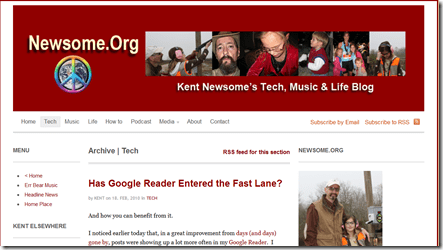
How to Use the New Newsome.Org

OK, our migration to WordPress, which was documented here, is complete, and I am very happy with the results.  In sum, I think the new look and the new functionality rocks.

But, as a blog partially targeted to grownups who don’t necessarily live in Google Reader or on Facebook or Twitter, we have a lot of readers who consume our content the old fashioned way.  By coming to the web site and clicking around.

I’ve had a few questions, so here’s a rundown on how to use the new layout.

image

First, what hasn’t changed.  The newest content, across all Categories, is still located in the middle column, with the newest post at the top.  This has not changed- it was the same way in the prior layout.

Categories

But now, there are additional options, if you want to filter your content.  You can slice and dice content several ways.  First, by Category.  Note the horizontal menu between the red header and the gray line at the top of the page: Home, Tech, Music, Life, How to, etc.

Let’s say you want to read only our music content.  Click on that link in the top menu, and the center content will display only our music content, with the newest content at the top.  Same with Tech, Life and How to (our tech tutorials).  If you want to hear our podcasts, there’s the Podcast link.

Media, which has two sub-categories, is the place to go for photographs or videos.

Finally, there is an About page for those who want to know more about me and a Contact page, where you can send me an email or leave me a voice mail.

In sum, the default Home page has the same content as our old layout, but there are now topical options that display specific kinds of content.

More Ways to Find Good Stuff

Categories are great, but there are even more ways to drill down to the content you want.

See the box in the right hand column with tabs: Popular, Latest, Comments and Tags.  Popular shows the recent posts that have the most discussion (e.g., comments, reactions, etc.).  Latest shows a quick list of our latest posts.  Comments displays the most recent discussions that have occurred in comments to posts.  And finally, Tags are a clickable index where you can click on a topic and get only content about that topic.  If you are looking for something very specific, the Tags tab is the place to start.

You Can Read Content in a RSS Reader

Another option is to read our content in a feed reader, such as Google Reader.  We have our main RSS feed, which has the same form and content as always.  Additionally, there are Category-specific RSS feeds near the top of each Category page.

Or Via Email

If you’d rather avoid the whole web-business and don’t use a feed reader, there’s the option to have a single email delivered straight to your inbox every night, with all of our posts for that day included.  To subscribe by email, click on the link in the left column of the page.

What About the Sidebars?

There are a lot of extra goodies in the two side columns.

On the left hand side, we have a Menu of Newsome.Org content; links to my pages on the various social networks and photo and video sites; links to our excellent, hand-crafted Pandora radio stations (take a listen, you’ll like them); and hand-picked music and book recommendations (which are linked  to Amazon, where you can buy and download them or have them mailed with just a couple of clicks).

On the right hand side is the tabbed content box described above; a search box, where you can search Newsome.Org and see what others have recently searched for (that list is also clickable); a list of my latest Twitter posts; and some of my Flickr photos (click for the larger versions).

That’s it.

We’ve made it easy to find the content you’re looking for.  Enjoy.  Leave us a comment and tell us what you think!

Has Google Reader Entered the Fast Lane?

And how you can benefit from it.

I noticed earlier today that, in a great improvement from days (and days) gone by, posts were showing up a lot more often in my Google Reader.  I marked it up to some hiccup in the pipeline.

Then I saw a post by Alex Wilhelm over at the Next Web speculating, with at least something approximating confirmation, that Google has widened the pipe, perhaps via PubSubHubBub.

Life in the Fast(er) Lane

If this is true, or even close to true, it is great, awesome news.  For one thing, I use Google Reader all the time, and my one complaint has been that it sometimes seems to be taking a leisurely drive, when I want an on-ramp to the information superhighway.

(numerous new items have populated my Google Reader in the time it took me to type that bad metaphor)

Enabling Your Blog

If you want to make your blog PubSubHubBub-ready, there are two ways to do that.

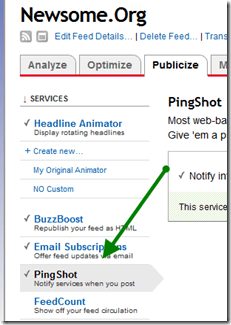
If you use Feedburner, enable PingShot:

image

If you use WordPress, grab a plugin.

Google Reader is truly my number one tool where online content is concerned.  I’m happy it has been speed-enhanced, however it was done.  And I’m happy Google is still improving it.  It would be a shame if Google lost focus on Google Reader.

I still miss Google Notebook.  But that’s a story for another day.  Right now, I’ve got a ton of new posts to read.  And more every minute.

How to Share Your Google Calendar

I’ve done a few hard things. Learned code. Built a computer from parts. Finished a Rubik’s Cube. Learned how to navigate around Facebook (sort of).  You get the picture.

But nothing prepared me for the chore that was configuring my Google Calendar to allow my secretary to see and add appointments.

So I thought I’d so a step by step to save someone a little agony.

I use Google Apps for my email and calendar, so there are a couple of extra steps that may not be required for regular Google Calendar users.

Step 1: Configure Sharing Rights (Google Apps Only)

This is where a lot of Google Apps users get tripped up.

To share your calendar with people outside your domain (in my case, those without @newsome.org email addresses), you must enable sharing with people outside your domain, within Google Apps.  From your Google Apps Dashboard, click on Calendar and then set the “Sharing options” for users "Outside this domain" to "Share all information, and outsiders can change calendars."  If you don’t do this, the person you are trying to share your calendar with will, at most, only be able to see if you are free or busy- no details and no ability to add items to your calendar.

image

Step 2: Wait a While (Google Apps Only)

Once you configure your Google Apps as described in Step 1, it takes a little while (maybe an hour) for your revised sharing settings to take effect.  This can be very frustrating to those who don’t know about this delay.

So be patient.  Go grab some lunch.

Step 3: Make Sure the Person Has a Google Account

In order to log-in and see your calendar, the person you want to share your calendar with must have a Google account.  This is not the same thing as a Gmail account.  Any email address can be used to create a Google account.  The sign up page is here.

Step 4: Grant Access via Your Calendar

Now go to your Google calendar.  Navigate to Settings>Calendars.  Look beside your calendar (the one you want to share, not someone else’s that is being shared with you) and click on "Shared: Edit Settings."  Add the person’s email address to the blank under “Share with specific people” and choose "Make changes to events."  Click on the "Add Person" button, and the entered email address should appear in the list below, with the correct sharing level.

image

If it still says "See only free/busy (hide details)," then you need to go back to Steps 1 and 2 above.  Probably it’s a matter of the delay described in Step 2.

Step 5: Log-in and Share Away

Then, once the person logs into his or her Google account, he or she will be able to access and add to your calendar.

That’s it.  Post any questions in the comments.

3 Things I Remember About: 1975

Let’s do another installment of my 3 Things series.

Here’s the list so far.  I started with the year 1965, because that’s the first year I can remember 3 things about.

1965
1966
1967
1968
1969
1970
1971
1972
1973
1974

I started the 10th grade.  It was my only year at the old Cheraw High School.  We moved into the new Cheraw High School, across town, at the beginning of my junior year.

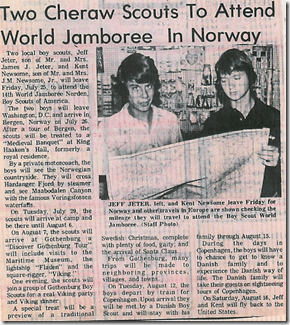
1) During the summer, I attended the Boy Scout World Jamboree in Lillehammer, Norway.  Here’s the newspaper article from my hometown paper.

wj

Before that, I lived with a family in Copenhagen, Denmark.  At some point during that visit, I ended up at a topless beach.  It was a great trip all around, but that was probably the highlight, for a 14 year old kid from rural South Carolina.

2) I remember seeing the Saigon airlift on TV, with the helicopter taking off from the U.S. Embassy.  Little did I know that I would one day have a close friend who left Vietnam and came to America at around that time.  She and her family were refugees from North Vietnam, having left for the south with little but the clothes on their backs.  Those of us born in America often forget just how lucky we were.

3) I also remember the Patty Hearst coverage on TV.  I didn’t really understand the point of it all (this was before the internet, etc.), but I had some vague understanding that some rich kid got kidnapped and then went all urban guerilla.  I think I had it just about right.

Assuming you were alive then, what do you remember about 1975?

Microsoft Store: Moving at the Speed of a Glacier

image My kids are starting to compete for computer time on their shared computer, so I decided to revive the old but still very functional HP Laptop I used to experiment with Ubuntu (verdict: beautiful GUI made useless by a complete inability to configure a wireless card).  Since I wiped the hard drive, I needed to do a clean install of Windows. Having somewhat of a current software obsession, I decided to part with $216.49 to buy a Windows 7 Home Premium license.

All of this happened on Saturday, so I thought I’d save some time and buy this license at the online Microsoft Store.  Did I say this was Saturday?  Three long days ago?

After completing my purchase, I watched my inbox eagerly for my confirmation and Product Key.  I watched.  And watched.  And watched.

Then I decided to go on living my life, and forgot about the whole thing.

Until today, when I got that email, with the confirmation.  And the Product Key.  That’s 3 days.  72 hours.  4,320 minutes.  259,200 seconds.

Which is about 259,170 seconds longer than it should have taken.

 image

In this real-time world where speed is measured in seconds, isn’t it crazy that an online purchase from Microsoft, of all companies, takes 3 days to complete!?

It would have been faster to have it delivered by pony express.  Or on a glacier.

Will Lack of Exchange Support Doom the iPad?

I have been on an emotional roller coaster with my hopes, expectations and plans for the forthcoming Apple iPad.  At first, I got swept up in the Steve Jobs as a Mystical Shaman euphoria and thought this device would change the entire landscape of personal computing.  Once I came to and let my Apple hangover subside, I decided I was disappointed with some of the notable- and mind-boggling- omissions.  Like standard ports, a camera, etc.

ipad-300x195Meanwhile, in my never-ending pursuit of technological efficiency, I continue to struggle with my mobile game plan.  Historically, I carry my iPhone everywhere, and put together an impromptu toolbox when I travel.  Depending on the location, method of travel, length of stay, etc., I choose between my HP tablet (smaller, but less powerful), my HP laptop (sleek and powerful, but big and heavy) or my HP netbook (which I rarely use, but take on short trips sometimes out of charity).  Along with the selected computer, I take my USB wireless broadband card.  Since iPhones still can’t tether, I have to pay another $60 a month to ATT for this card.  Anyone see a connection there?

This approach works OK, particularly as I migrate more and more to the cloud.  But it would be nice to have less equipment, and to use the same devices everywhere.  There are still times when I have one device, but need something that is local on the other device.

So I started to wonder if the iPad might just be my mobile game plan in a box.  Much of the time, whatever laptop I’m lugging around has more horsepower than I need.  Maybe an iPad could replace all of my laptops, reduce my gear load and make me a consistent mobile user.  Yeah, that sounds good.

Right?

No, wrong.  The iPad is probably going to screw up my plan- and break my heart- due to three major issues.  Issues that will be the end of any hope on Apple’s part for corporate acceptance of the iPad.

What Good is It If We Can’t Read Our Email?

While I haven’t seen any final word on this, I am concerned that the iPad won’t support Microsoft Exchange.  Most companies use Exchange for their email, which means that, in some techy Groundhog Day twist, the very thing that kept business users from getting iPhones for so long will prevent us from effectively using iPads.

I hope- and Apple better hope- I’m wrong, and the iPad will support Exchange.  It’s one thing for non-corporate users, all of whom are going to carry some manner of cell phone, to spring for an ATT-subsidized iPhone.  A more expensive, non-subsidized tablet is another thing altogether.  The iPad needs the business community, or it will become nothing more than a better Kindle.

A secondary, but important, issue is what will corporate IT departments do to the iPad in the (misguided in my semi-humble opinion) name of security?  I had to battle with my company to get an hour password screen lock window on my iPhone (that I paid for).  Assuming the iPad does support Exchange, will business users  have to hobble their iPads just to read their mail?

I Want to Fracking Tether, and I Want to Do It Soon

It’s beyond absurd that U.S. iPhones still can’t tether- something my Blackberry did 3+ years ago.  It is unthinkable to expect those who already pay for an iPhone and a wireless broadband card to pay ATT yet another monthly fee to get 3G on our iPads (should I mention that the lack of a USB port makes it impossible to use said wireless card with an iPad?).

If I can get rid of my wireless card, and apply that cost to a data plan for an iPad, great.  But that will require Apple to include a tethering feature on the iPad.  And I haven’t heard anything that leads me to believe that’s in the works.

Which leads me to ask: who do they think is going to buy all these iPads they plan on selling?  Seriously.

And the Final, Word?

Lastly, the iPad needs to support the viewing and editing of Microsoft Word documents.  The business world is based on- and largely hostage to- Word.  For meaningful penetration into the corporate world, Word on the iPad is a mandatory requirement.

Maybe Apple will figure this out, maybe it will be Microsoft, or an app developer.  But someone better, and soon.

So Will I or Won’t I?

I don’t know.  If at least two of these three issues are addressed to my satisfaction, probably. Otherwise, I’ll probably wait for the iPad 2.0.

Or maybe I’ll get a Kindle.

Update 1:

John Welch, via PCWorld, says that, happily, iPads will have Exchange support.  According to sources, iPads will have the same Exchange-related features as the iPhone.  Kudos to Roberto Bonini for predicting this via Twitter.  John seems to be on my side of the iPad as a potential business tool debate, though he shares my concern over the lack of Flash, and my fear that IT directors will overstate the network-related issues.

As we learned today, the Flash thing  may be an unsolvable issue, given the Hobson’s choice between no Flash or no battery life.  All of this assumes, of course, that Apple is telling the truth.

WP Plugin: WP to Twitter

I’ve been using the Twitter Notify plug-in via Live Writer to post new blog post notifications to Twitter, but there are problems with that approach.  It doesn’t work when I post from the WordPress Dashboard, or when I (try) to post with the WordPress iPhone app.  So I went looking for a better method, and came up with WP to Twitter.

You can configure WP to Twitter to do just about anything short of tying your shoes.  You can configure it to work with several URL shorteners, including Bit.ly.  You can configure it to Tweet new posts (good) or edits to posts (with my typo-correcting requirements, bad).  You can customize the content and sequence of the Tweet, convert tags to Twitter hashtags and more.

Best of all, it will automatically push new posts to Twitter, regardless of where and how the post is created.

All in all, pretty nifty.

WordPress for iPhone 2

With most of the heavy lifting behind me in my migration to WordPress, I’ve started looking at some more subtle features. I’ll cover plugins later, but I want to try WordPress for iPhone 2.

I can already tell it tries to overcome the aggravating inelegant linking issue that plagues every iPhone app to one extent or the other.  It’s easy to create a post, and, once you figure out how to do it (via the Status screen), easy to publish posts.

We are at Tokyohana with our good friends the Brooks, who are visiting from Atlanta.

I took a (blurry iPhone special) picture to add to this post. Wonder if and where it will appear?

Update: Pictures appear at the end of the post, which would be fine except they are huge (I resized it from my desktop).  If this is how it works, the photo addition feature is useless.

The company is great, the food is excellent, and the app is very good. It does about as much as can be done to make it less than torture to create a link.

I bet this will rock on an iPad!

Now back to friends and food.

Update 2: I was unable to post over 3G, but it seemed to work via wifi.  I hope that’s a network glitch and not an app limitation.