 Now that I’ve moved from doubter to cautious believer with respect to podcasting, it’s time to pull back the sheets and show non-geeks exactly how to make one. I have tried several ways and this is what I’ve settled on.
Step One: Gather the songs you want to include in your podcast.
Always be aware of the elephant. I tend to pick songs by new bands that, hopefully, will appreciate the exposure or songs by artists that I hope are cool enough not to care if I use one of their songs. I also add links to places listeners can buy the records and encourage them to do so during the podcast.
I pick songs by browsing through my MP3 collection and adding potential choices to a Playlist I cleverly call PC (for podcast, not personal computer or political correctness). I have tried all the major and many minor music players and the one I use for my large music library is Media Center. I’m sure others will work too, but I haven’t used them for this purpose. After I have selected some possible songs, I go back and weed the list down to 6-8 songs, less if I’m going to talk more and more if I’m going to talk less. That way, the podcast will be around a half hour long, which is what I currently shoot for.
Once I get the PC Playlist down to the number of songs I want, I copy those songs to another folder on my computer (I call this folder PC Holder and keep it on my Desktop for easy access). I do this because I don’t want to accidently edit or delete a song from my music collection when I am creating my podcast. Media Center makes this very simple: Open your Playlist, select all the songs with your mouse (press shift and page down from the top song) , right click on the highlighted songs and select Library Tools>Copy Disk Files (not Move Disk Files). In the pop-up box navigate to the target folder (in my case, the PC Holder folder) and click OK.
If you use another music player, you can figure out your own system for selecting and relocating the MP3s you want to include in your podcast. The important thing is that at the end of Step 1 you have selected the MP3s you want to play and copied them into your podcast folder.
Step Two: Import your MP3s into your podcast program.
Once we have the MP3s ready, we have to combine them into a single sound file and add the voice files (announcements, discussion, etc.) that will be part of the podcast. I use and highly recommend Audacity for this purpose. It’s free and relatively easy to use. If you don’t have it, download and install it.
Once you’ve installed Audacity, open it and select File>New (see the menu near the top of the program window) to start a new podcast project. Now let’s import the MP3s from our folder. Select Project>Import Audio, then navigate to the folder where you stored your MP3s, select them with your mouse (again, press shift and page down from the top file to select them all) and click Open. The MP3s will be imported into Audacity and will show up as sound files in the program window. On the left of the Audacity window is a column that shows the name of the MP3 song file and has several buttons, including Mute and Solo. The Solo button allows you to listen to the files one at a time to be sure the file imported correctly and sounds good (Click that button and then the Play button near the top of the program window).
Step Three: Record the voice files
Now it’s time to record the talking part of the podcast. I record a voice file to open the show, a separate voice file discussing and introducing each song (except that the opening voice file doubles as the introduction for the first song) and a voice file to close the show. You have to to separate files so you can move them to the correct place in the sound file (more on that below).
Once you have your microphone connected and turned on (here’s a help page for that), recording the voice files in Audacity is as simple as clicking on the red Record button near the top left of the program window and talking into the microphone (be sure to click the Stop button when your done). The first time, you’ll have to experiment a little by recording test files and then playing them back (click the Solo button to the left of the voice file and then the Play button near the top of the window) to get the right volume on the voice files. Audacity has an amplify feature- select the sound file with your mouse by left clicking at one end of the sound file (the blue wavy lines, 2 per song, in the middle of the window) and moving the mouse to the other side of the sound file, then select Effect>Amplify, choose the desired level of amplification and click OK. This works sometimes, but it’s better to get the microphone levels right from the start.
I record all of the voice files at one time- by clicking the record button, talking and then clicking the stop button. If you mess up (and you will, often) simply delete the voice file (see the little X in the button area to the left of the song file) and start over.
Step Four: Put the songs and voice files in order
Once you have the song and voice files completed, you have to put them in order. This takes a little time (I wish there was a way to do it automatically, but I haven’t found that feature if it exists). To do this, left click and drag the files into the correct order. Think of the files in the Audacity program window as a ladder, with the first file (normally the introduction voice file) at the top and the last file at the bottom. If dragging the files with your mouse it too hard, you can move a file up or down via the little downward pointing arrow in the button area to the left of the sound file.
Once you have dragged the files to their proper spot on the ladder, you have to move all of them after the first one to the right so the files play sequentially and not all at the same time. To do this, click on (to the right side of, if you have to move it a long way) on the sound file you want to move at the location where you want that file to start and select Project>Align Tracks>Align with Cursor. Normally the location you click is even with the end of the sound file immediately above (so this file will play immediately after the one above it ends).
Again, this takes a little time, and it should be automated, but once you get the hang of it, it’s pretty quick and easy.
Step Five: Test the soundfile
After aligning the files vertically (for which ones play first) and horizontially (so they play in sequence and not at the same time) click at the beginning of the first (i.e., top) sound file and click the Play button near the top of the window. Listen to the music and voice files and make sure everything is in order and sounds good. If not, reorder or rerecord the necessary files.
Step Six: Save the Audacity project file
Save the project file by selecting File>Save As and navigating to the folder where you want to store your podcast project files. I store mine in a folder in My Documents called RanchoCasts.
Step Seven: Export the combined soundfile
Select File>Export as MP3, name the file (I use ranchocastmmddyy) , navigate to the folder you want to use to store the combined sound file (I use the same one I previously moved the MP3s to) and click Save.
Step Eight: Upload the combined sound file to your server
I have a folder on my server called ranchocast where I upload the combined sound file, which will shortly become my podcast. If you don’t have a server, there are some podcast hosting companies, but I haven’t used them so I can’t comment on how well they work. I use CuteFTP to upload my files, but any FTP program will work.
Step Nine: Create your RSS feed
In order to be accessible by the programs that download and manage podcasts (such as Juice, formerly called iPodder), an RSS feed has to be created. This can be the most difficult part of creating a podcast, but thanks to ListGarden it has been made easy.
ListGarden, which is both brilliant and free, takes the location and name of your sound file and creates, saves and uploads the necessary xml file that will support an RSS feed.
Here are step by step instructions on how to set up a podcast using ListGarden and the sound file you just created and uploaded. ListGarden has some advanced features (like the ability to generate a web page about your podcast) which you may or may not use. The process of setting up ListGarden is easy if you follow the step by step instructions closely- the hardest part is knowing the location of your podcast folder on your server and your name and password for server access. If you forgot your password, you can probably get it from your FTP program with Behind Asterisks. I have to do that all the time.
Step Ten: Publish your podcast feed
Once you have uploaded your music file and used ListGarden to create and upload an xml file, all that’s left is to publish your RSS feed so people can find and access your podcast. I use Feedburner for this and it does a great job. Add the URL to the xml file that ListGarden created and uploaded in Step Nine to the blank on the Feedburner page and you’re on your way.
The URL is different from the server location address you used when configuring ListGarden. The URL is the “http” address that a browser would use to locate that file (for example, http://www.newsome.org/ranchocast/ranchocast.xml)
Once you get your Feedburner feed set up, Feedburner gives you a link- and this is the link you use to direct people to your podcast. My Feedburner podcast page is http://feeds.feedburner.com/ranchocast. One of the cool things about using Feedburner to publish your podcast is that your listeners can click the Listen icon on your feedburner page and listen to the podcast right from that page (without having to install Juice or another podcast manager).
That’s it. If you do a podcast, leave me a note in the Comments. I’ll check it out
Technorati Tags:
podcasting

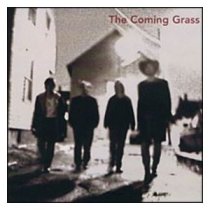 The Boston Herald has described the band this way: The result is a sound that recalls the Uncle Tupelo/Wilco/Son Volt axis, the Bay State’s Blood Oranges and alt-country inspirations the Rolling Stones, but that has a grace, unity and intelligence all its own. You heard it here first: The Coming Grass are coming on.
 Everybody’s writing about
 The last couple of days have been watershed days for Newsome.Org. We got a link from
  Now that I’ve pretty much switched to
  Newsome.Org